> ## Documentation Index
> Fetch the complete documentation index at: https://perfgrid.com/docs/llms.txt
> Use this file to discover all available pages before exploring further.
# Add google-site-verification TXT record to domain
The same idea applies to **Facebook Business Manager** verification (`facebook-domain-verification`).
Sometimes you must **verify domain ownership** at Google (Search Console, Google Workspace, and similar) by publishing a **TXT** record, for example:
```text theme={null}
google-site-verification=
```
Go to **Domains** in the hosting panel.
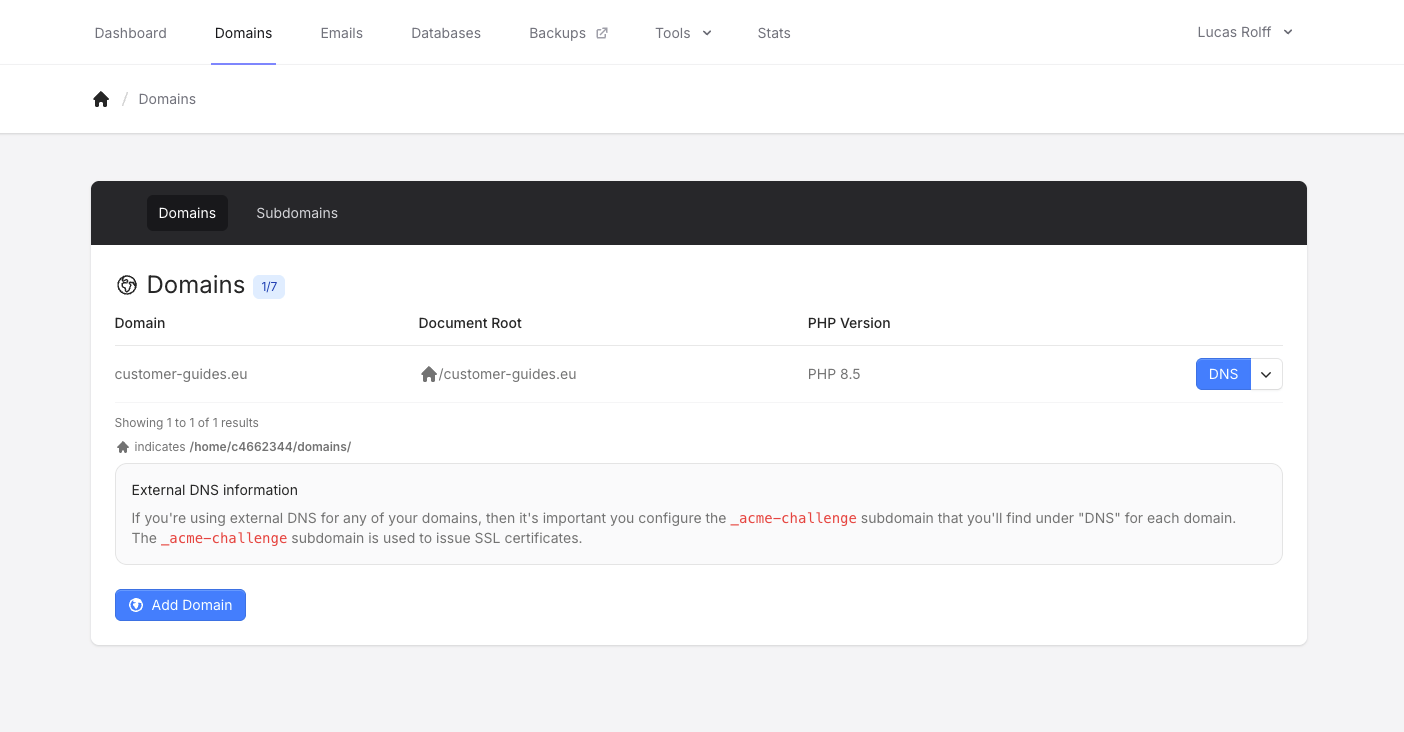 Click on **DNS** for the domain you want to make the change, this will bring up the DNS Editor
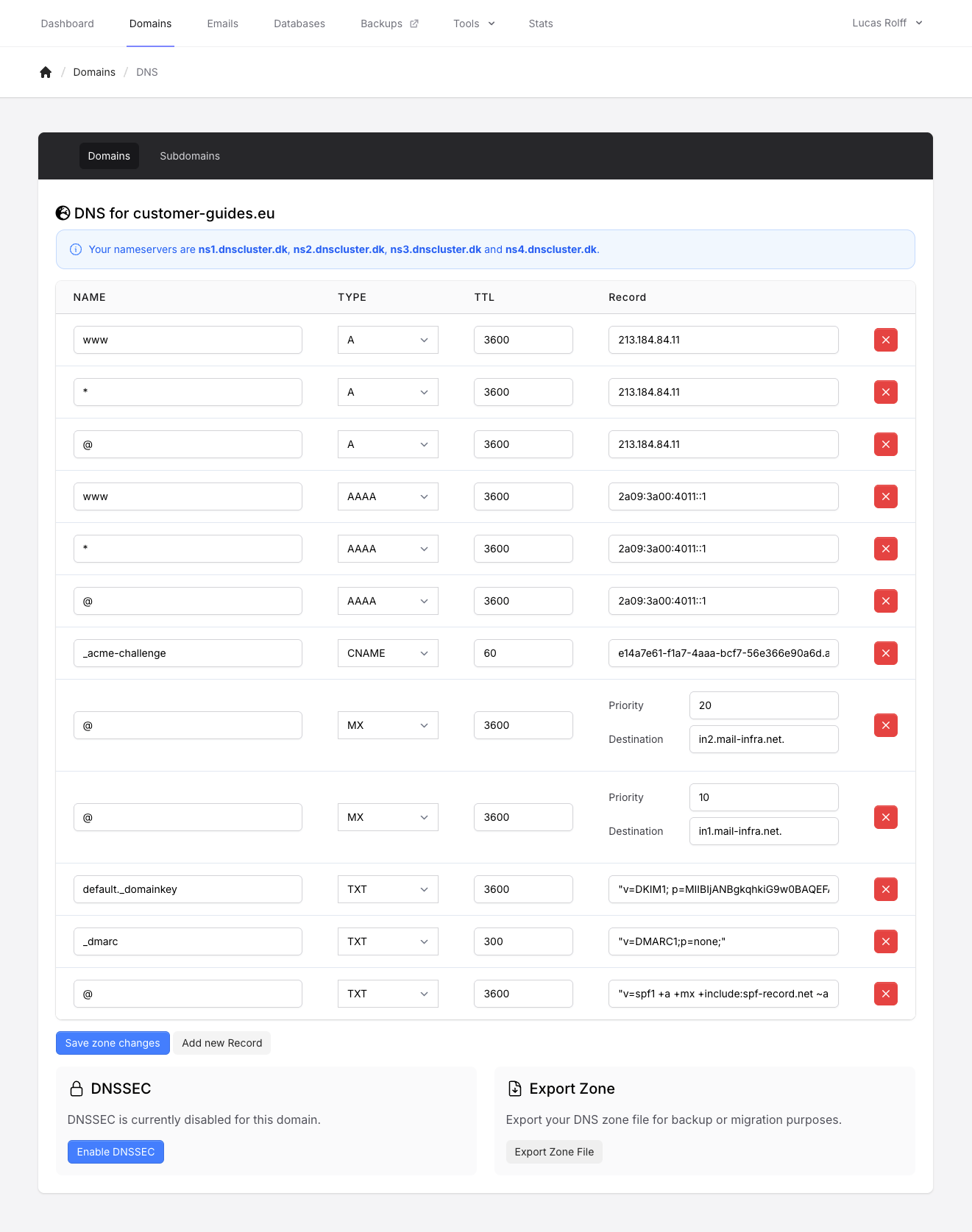 Click the **Add new Record** button, and add the entry as follows:
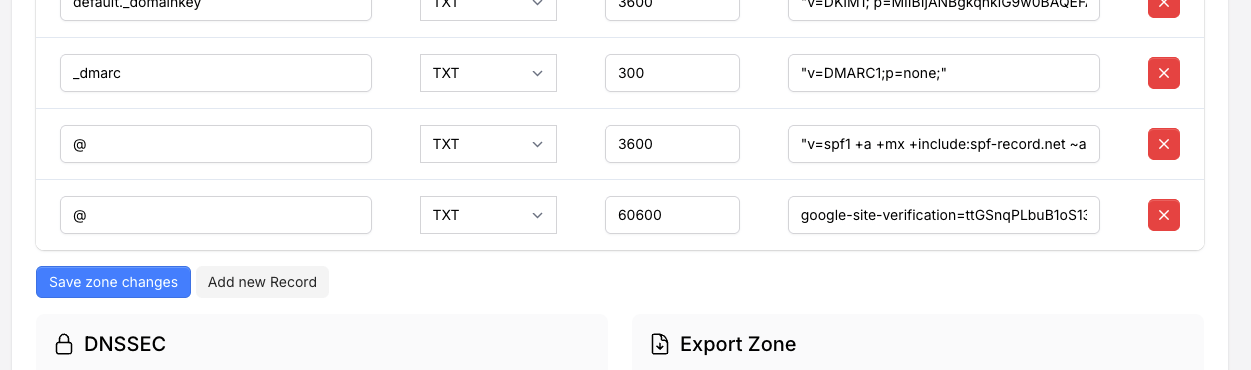 The **Type** should be **TXT**, the **Name** should be `@`, the **TTL** can be anything to your liking.
We use `google-site-verification=ttGSnqPLbuB1oS13J1TG4aDM` as an example here! The actual site verification string can be found in your Google Search Console.
Click the **Save zone changes** button, and your changes are applied and propagated across our nameservers within **5-10 seconds**.
The **Type** should be **TXT**, the **Name** should be `@`, the **TTL** can be anything to your liking.
We use `google-site-verification=ttGSnqPLbuB1oS13J1TG4aDM` as an example here! The actual site verification string can be found in your Google Search Console.
Click the **Save zone changes** button, and your changes are applied and propagated across our nameservers within **5-10 seconds**.