> ## Documentation Index
> Fetch the complete documentation index at: https://perfgrid.com/docs/llms.txt
> Use this file to discover all available pages before exploring further.
# SSL certificate status
> Read the SSL badge on each domain and subdomain row in hosting-panel.net.
Each domain and subdomain row on **Domains** has an **SSL** badge. Status is list-only: hover the badge for the tooltip. There is no separate certificate detail view.
Grid Hosting issues **wildcard TLS** certificates through **ACME**, using **Google Trust Services (GTS)** or **Let’s Encrypt**. A subdomain row **inherits** the parent domain’s status when the parent uses that wildcard certificate.
## Badge colours
The badge sits on the domain row. Green uses a closed padlock, red an open padlock, and gray a clock.
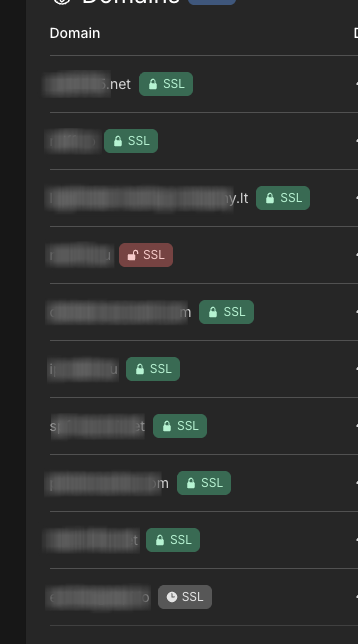 Hover the badge to read the tooltip:
| Badge | Meaning | Tooltip |
| ----- | -------------- | -------------------------- |
| Green | Issued | Expires in X days |
| Red | Expired | Expired X days ago |
| Gray | Not yet issued | Certificate not issued yet |
Issuance retries on its own every **5 minutes**. There is no retry button in the panel.
## Check a hostname
Log in to your hosting panel at [hosting-panel.net](https://hosting-panel.net).
Go to **Domains**. Use the **Domains** or **Subdomains** tab for the hostname you care about.
Hover the padlock or clock badge on the row.
Issued:
Hover the badge to read the tooltip:
| Badge | Meaning | Tooltip |
| ----- | -------------- | -------------------------- |
| Green | Issued | Expires in X days |
| Red | Expired | Expired X days ago |
| Gray | Not yet issued | Certificate not issued yet |
Issuance retries on its own every **5 minutes**. There is no retry button in the panel.
## Check a hostname
Log in to your hosting panel at [hosting-panel.net](https://hosting-panel.net).
Go to **Domains**. Use the **Domains** or **Subdomains** tab for the hostname you care about.
Hover the padlock or clock badge on the row.
Issued:
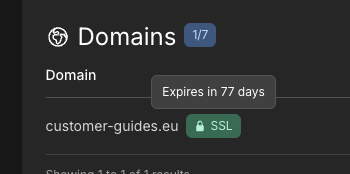 Expired:
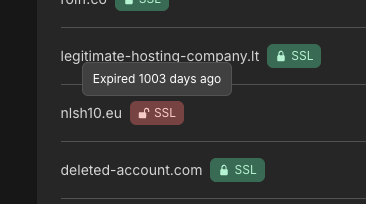 Not yet issued:
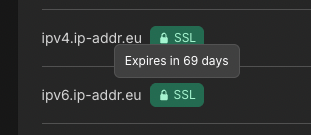
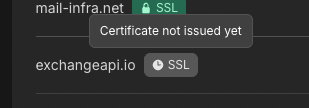 Subdomains that share the parent wildcard show the same issued badge as the parent:
 ## If the badge stays gray or turns red
The hostname must resolve to our platform, and ACME must be able to complete the DNS challenge.
* If you use our nameservers, wait for DNS to propagate. The next retry is within 5 minutes.
* If you use an external DNS provider, add the `_acme-challenge` CNAME in [SSL issuance when using external DNS](/docs/grid-hosting/ssl/ssl-issurance-when-using-external-dns).
* If the domain has CAA records, allow both `pki.goog` and `letsencrypt.org`. See [CAA record setup](/docs/grid-hosting/ssl/caa-record-setup).
## Related articles
* [Restart PHP](/docs/grid-hosting/php/restart-php)
* [SSL issuance when using external DNS](/docs/grid-hosting/ssl/ssl-issurance-when-using-external-dns)
* [CAA record setup](/docs/grid-hosting/ssl/caa-record-setup)
* [What's your nameservers?](/docs/grid-hosting/dns/what-s-your-nameservers)
## If the badge stays gray or turns red
The hostname must resolve to our platform, and ACME must be able to complete the DNS challenge.
* If you use our nameservers, wait for DNS to propagate. The next retry is within 5 minutes.
* If you use an external DNS provider, add the `_acme-challenge` CNAME in [SSL issuance when using external DNS](/docs/grid-hosting/ssl/ssl-issurance-when-using-external-dns).
* If the domain has CAA records, allow both `pki.goog` and `letsencrypt.org`. See [CAA record setup](/docs/grid-hosting/ssl/caa-record-setup).
## Related articles
* [Restart PHP](/docs/grid-hosting/php/restart-php)
* [SSL issuance when using external DNS](/docs/grid-hosting/ssl/ssl-issurance-when-using-external-dns)
* [CAA record setup](/docs/grid-hosting/ssl/caa-record-setup)
* [What's your nameservers?](/docs/grid-hosting/dns/what-s-your-nameservers)