> ## Documentation Index
> Fetch the complete documentation index at: https://perfgrid.com/docs/llms.txt
> Use this file to discover all available pages before exploring further.
# Import email
> Copy IMAP mail from another provider into an existing Grid Hosting mailbox.
**Import mail** copies messages from your old provider into a mailbox that already exists on your Grid Hosting account. Open it from **Emails** → **Import**.
The source must be **IMAP**. POP3 is not supported. Google Workspace and Microsoft 365 need an **app password**, and IMAP must be turned on there. There is no OAuth sign-in yet.
Create the **destination mailbox** here first. The import does not create it.
Folders are copied **as they are** on the source, including nested folders.
Passwords you enter for the import are **deleted when the import finishes**.
## Limits
There is no separate timeout. A large mailbox can run for **hours**. The limit is the **email disk space** on the hosting account.
Messages already copied stay on the destination. Start the import again to **continue** from where it left off.
## Start an import
In [hosting-panel.net](https://hosting-panel.net), go to **Emails** → **Accounts** and create the mailbox that should receive the mail, if it does not exist yet.
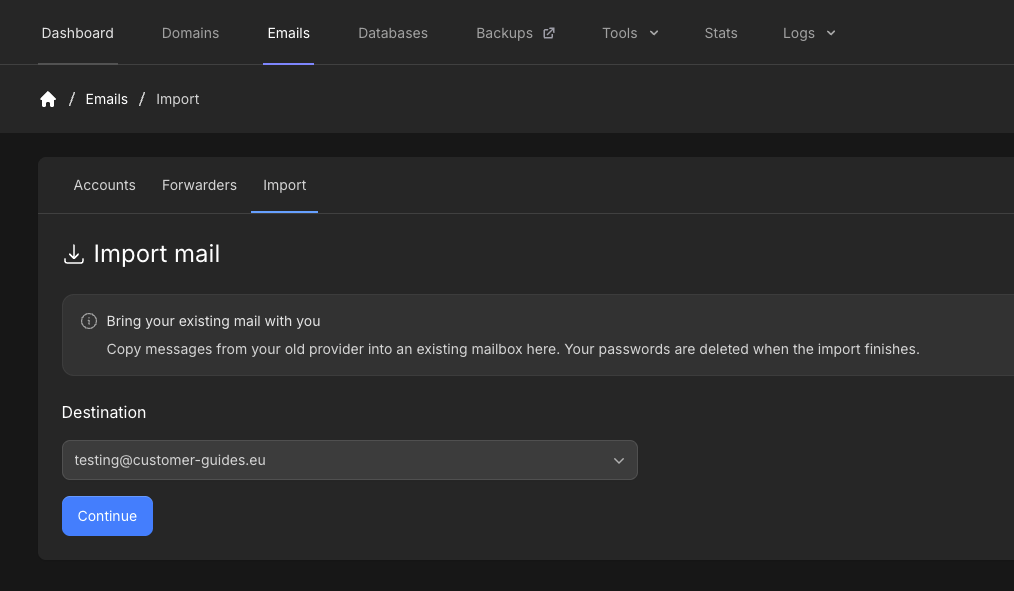
Go to **Emails** → **Import**.
Select **Destination**, then click **Continue**.
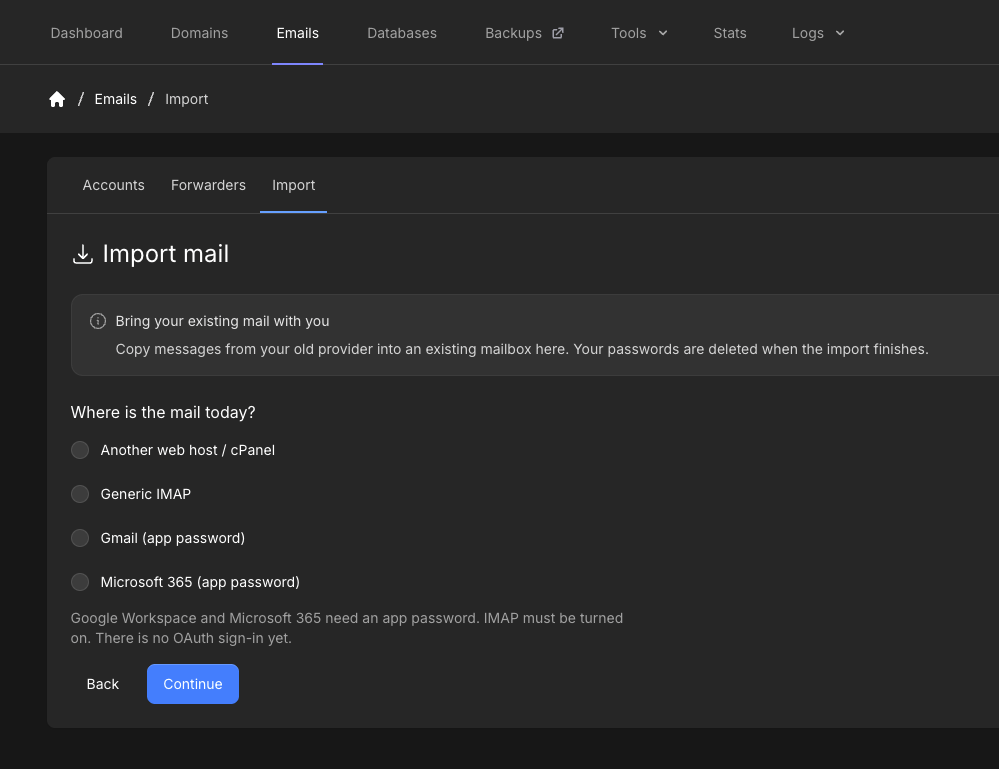
 Select **Another web host / cPanel**, **Generic IMAP**, **Gmail (app password)**, or **Microsoft 365 (app password)**, then click **Continue**.
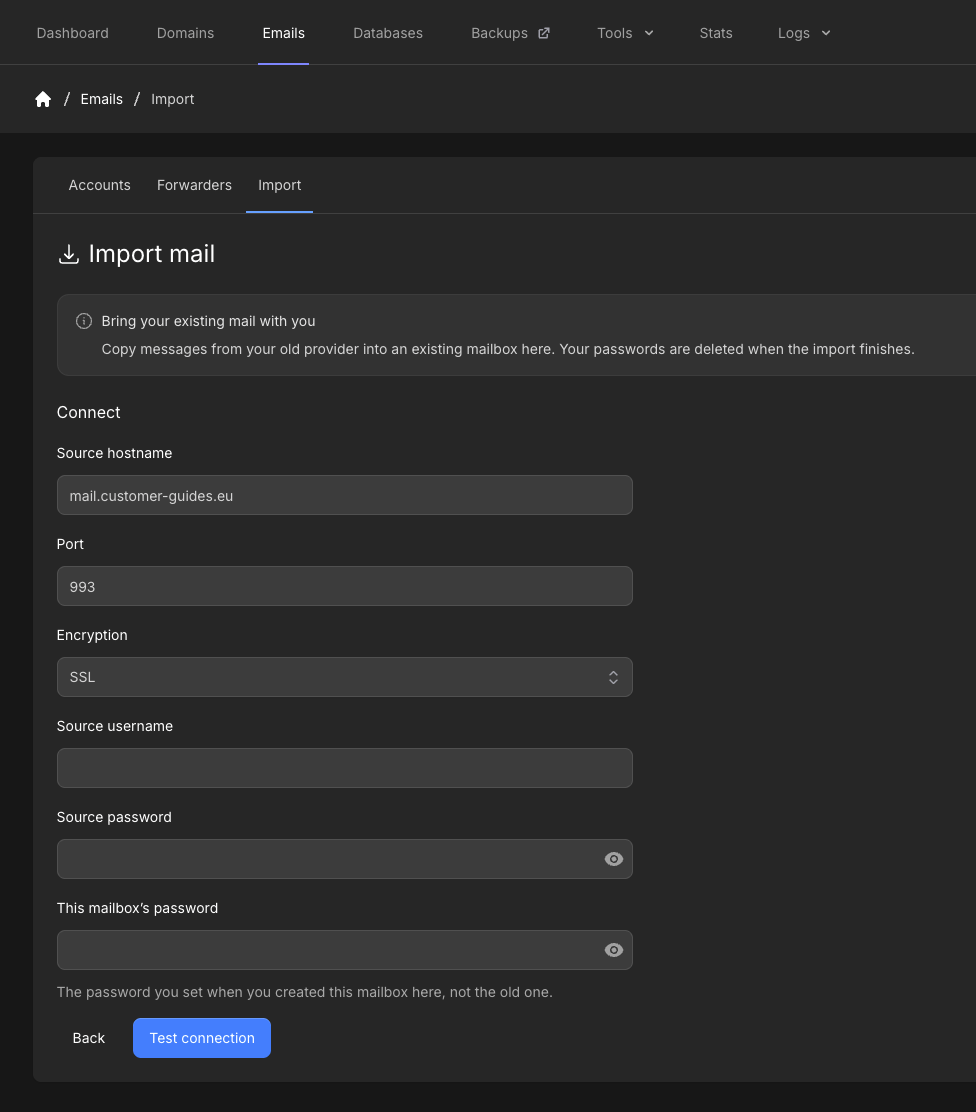
 Enter **Source hostname**, **Port**, **Encryption**, **Source username**, and **Source password**. Also enter **This mailbox's password** — the password you set when you created the destination mailbox here, not the old one.
Defaults for a typical IMAP server are port **993** and **SSL**. Click **Test connection**.
Enter **Source hostname**, **Port**, **Encryption**, **Source username**, and **Source password**. Also enter **This mailbox's password** — the password you set when you created the destination mailbox here, not the old one.
Defaults for a typical IMAP server are port **993** and **SSL**. Click **Test connection**.
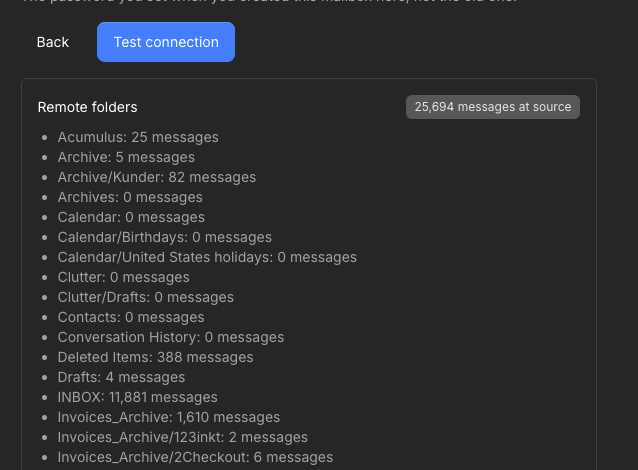
 After a successful test, **Remote folders** lists the source folders and message counts. Nested folders appear with a `/` in the name.
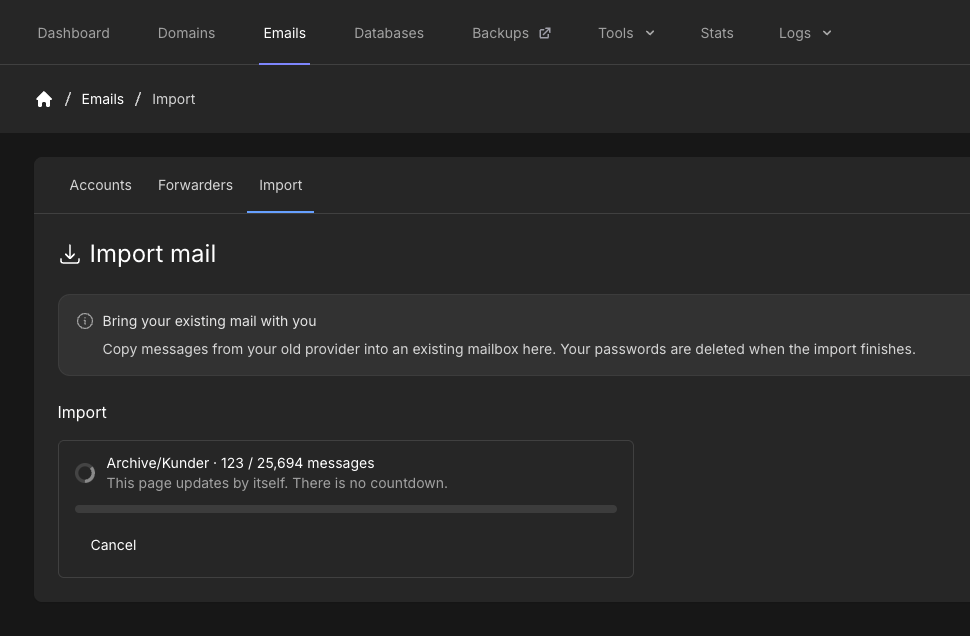
 Click **Start import** (blue, below the folder list). The page updates by itself. There is no countdown. You can **Cancel** if you need to stop.
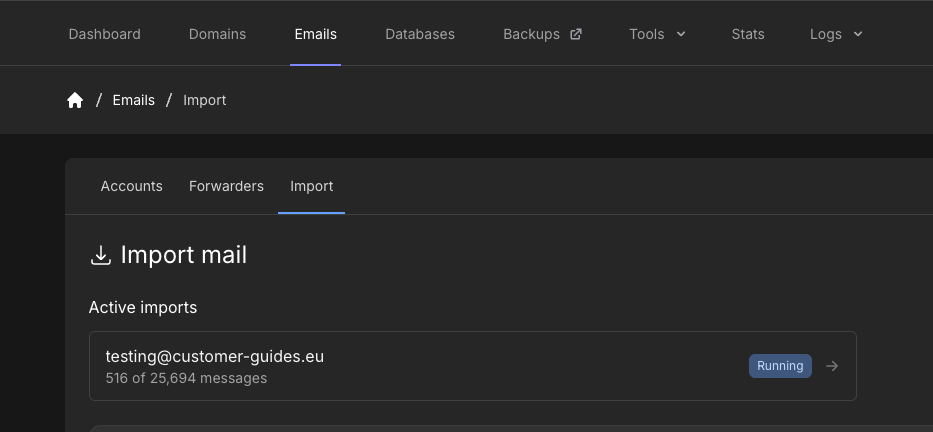
 **Active imports** on the Import tab show each destination mailbox, how many messages have copied, and a **Running** status. Open the row for the live progress view.
 When you are satisfied, point mail apps at Grid Hosting. Update MX if they still point at the old provider. If this domain should keep using Microsoft 365, Google Workspace, or another host for mail, set [external mail routing](/docs/grid-hosting/email/configure-mail-routing-for-external-email-services) instead of importing.
## Related articles
* [POP3 information](/docs/grid-hosting/email/pop3-information)
* [Configure mail routing for external email services](/docs/grid-hosting/email/configure-mail-routing-for-external-email-services)
When you are satisfied, point mail apps at Grid Hosting. Update MX if they still point at the old provider. If this domain should keep using Microsoft 365, Google Workspace, or another host for mail, set [external mail routing](/docs/grid-hosting/email/configure-mail-routing-for-external-email-services) instead of importing.
## Related articles
* [POP3 information](/docs/grid-hosting/email/pop3-information)
* [Configure mail routing for external email services](/docs/grid-hosting/email/configure-mail-routing-for-external-email-services)