> ## Documentation Index
> Fetch the complete documentation index at: https://perfgrid.com/docs/llms.txt
> Use this file to discover all available pages before exploring further.
# Passkeys
> Register passkeys to sign in to hosting-panel.net without a password and 2FA prompt.
**Passkeys** let you sign in to [hosting-panel.net](https://hosting-panel.net) without a password, using Face ID, Touch ID, Windows Hello, or a security key.
You can register more than one passkey (phone, laptop, or security key).
Signing in with a **passkey** is the whole login: you are not asked for a [2FA](/docs/grid-hosting/security/how-to-enable-2fa) code. If you still sign in with **username and password**, you get the 2FA prompt when 2FA is enabled.
Suspended accounts cannot sign in with a passkey.
## Add a passkey
Log in to your hosting panel at [hosting-panel.net](https://hosting-panel.net).
Open **Profile** from the user menu, then click **Passkeys** in the settings sidebar.
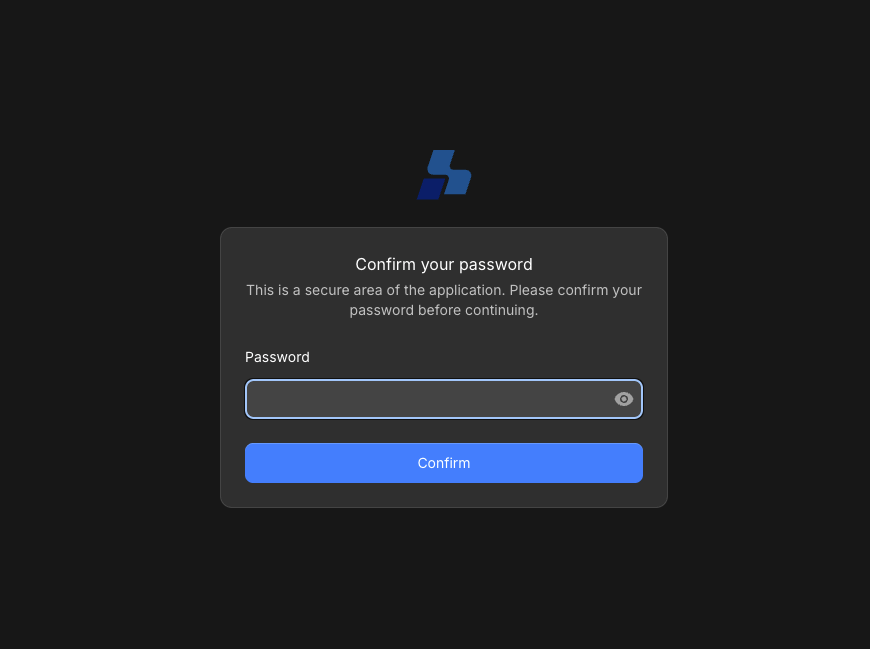
Confirm your password when asked. This is a secure area of the application.
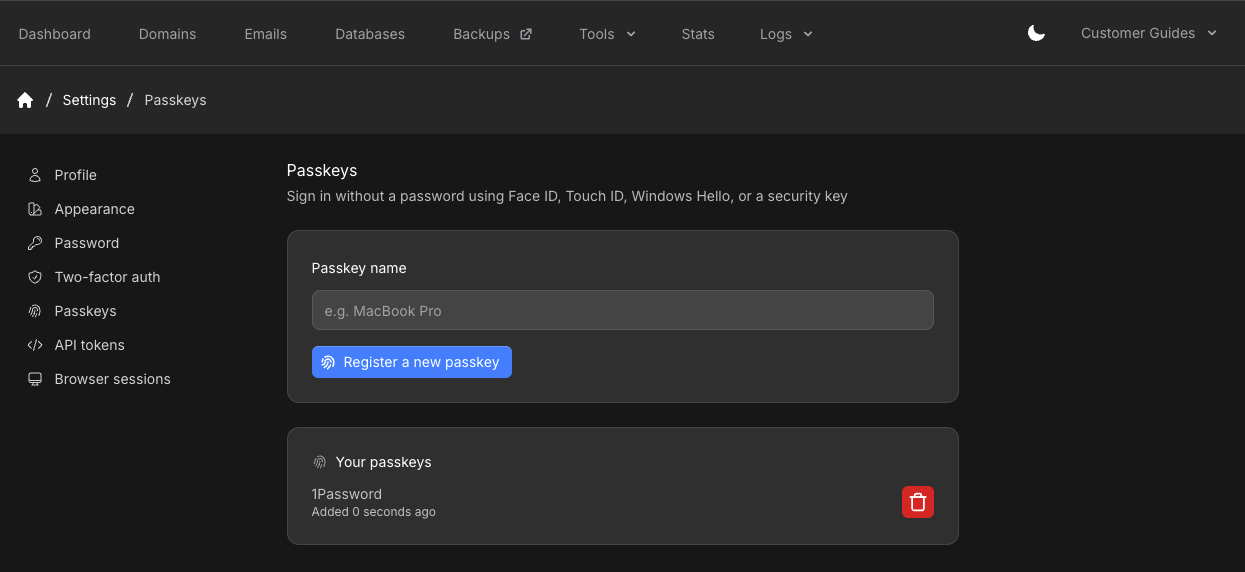
 Enter a **Passkey name** you will recognize (for example `MacBook Pro`), then click **Register a new passkey**. Your browser prompts you to confirm with the device or security key.
Registered keys appear under **Your passkeys**.
Enter a **Passkey name** you will recognize (for example `MacBook Pro`), then click **Register a new passkey**. Your browser prompts you to confirm with the device or security key.
Registered keys appear under **Your passkeys**.
 On the next login, choose passkey when the sign-in page offers it, then complete the device prompt.
## Remove a passkey
Return to **Passkeys** and click the delete control on the row under **Your passkeys**. Keep at least one other way to sign in (password plus [2FA](/docs/grid-hosting/security/how-to-enable-2fa), or another passkey).
## Related articles
* [Profile settings](/docs/grid-hosting/profile/profile-settings)
* [How to enable 2FA](/docs/grid-hosting/security/how-to-enable-2fa)
* [API tokens](/docs/grid-hosting/profile/api-tokens)
On the next login, choose passkey when the sign-in page offers it, then complete the device prompt.
## Remove a passkey
Return to **Passkeys** and click the delete control on the row under **Your passkeys**. Keep at least one other way to sign in (password plus [2FA](/docs/grid-hosting/security/how-to-enable-2fa), or another passkey).
## Related articles
* [Profile settings](/docs/grid-hosting/profile/profile-settings)
* [How to enable 2FA](/docs/grid-hosting/security/how-to-enable-2fa)
* [API tokens](/docs/grid-hosting/profile/api-tokens)