> ## Documentation Index
> Fetch the complete documentation index at: https://perfgrid.com/docs/llms.txt
> Use this file to discover all available pages before exploring further.
# Profile settings
> Set appearance (system, light, or dark) and change your hosting-panel.net password.
Open **Profile** from the user menu. The settings sidebar includes **Profile**, **Appearance**, **Password**, **Two-factor auth**, **Passkeys**, **API tokens**, and **Browser sessions**.
This page covers appearance and password. [Two-factor auth](/docs/grid-hosting/security/how-to-enable-2fa), [Passkeys](/docs/grid-hosting/profile/passkeys), and [API tokens](/docs/grid-hosting/profile/api-tokens) have their own articles. **SSH Keys** is a separate item in the user menu, not in this sidebar.
## Appearance
The panel defaults to **System** (it follows your device light/dark setting).
You can override that:
* Click the moon or sun icon in the header
* Or open **Profile** → **Appearance** and set **Color scheme** to **Light**, **Dark**, or **System**
 ## Change your password
Log in at [hosting-panel.net](https://hosting-panel.net), open **Profile** from the user menu, then click **Password**.
Enter **Current password**, **New password**, and **Confirm password**, then click **Save**.
## Change your password
Log in at [hosting-panel.net](https://hosting-panel.net), open **Profile** from the user menu, then click **Password**.
Enter **Current password**, **New password**, and **Confirm password**, then click **Save**.
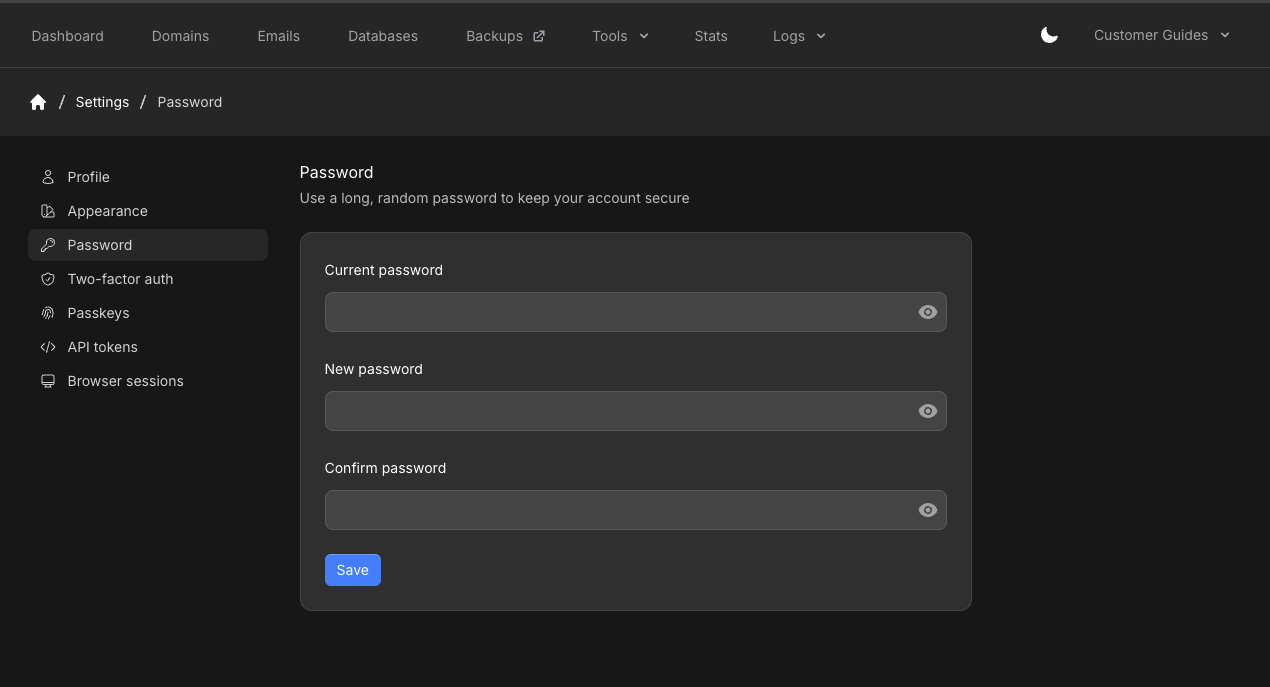 This password is for hosting-panel.net only. It does not change the [client area](/docs/general/security/how-to-enable-2fa-in-client-area) password.
Changing the password does **not** sign out other browsers. To end other sessions, use **Browser sessions** in the same sidebar (confirm your password there).
## Related articles
* [How to enable 2FA](/docs/grid-hosting/security/how-to-enable-2fa)
* [Passkeys](/docs/grid-hosting/profile/passkeys)
* [API tokens](/docs/grid-hosting/profile/api-tokens)
* [SSH keys](/docs/grid-hosting/profile/ssh-keys)
This password is for hosting-panel.net only. It does not change the [client area](/docs/general/security/how-to-enable-2fa-in-client-area) password.
Changing the password does **not** sign out other browsers. To end other sessions, use **Browser sessions** in the same sidebar (confirm your password there).
## Related articles
* [How to enable 2FA](/docs/grid-hosting/security/how-to-enable-2fa)
* [Passkeys](/docs/grid-hosting/profile/passkeys)
* [API tokens](/docs/grid-hosting/profile/api-tokens)
* [SSH keys](/docs/grid-hosting/profile/ssh-keys)