> ## Documentation Index
> Fetch the complete documentation index at: https://perfgrid.com/docs/llms.txt
> Use this file to discover all available pages before exploring further.
# Cronjobs
> Schedule commands in hosting-panel.net with a predefined cron expression or your own.
**Cronjobs** run a command on a schedule on your Grid Hosting account. Jobs run as the main user shown under **Account Information** on the dashboard (for example `c1234567`). The schedule is **UTC**. The shortest interval is **once per minute**.
The job’s `PATH` includes `/usr/local/bin`, so `composer` and `wp` (WP-CLI) are available without a full path. You can also call a versioned PHP binary, such as `php84`.
Cron does **not** email you the output. stdout and stderr are **not** discarded unless you redirect them. Handle output yourself, for example append to a log file or send it to `/dev/null`.
If you only need to hit a URL on a timer, use [URL Scheduler](/docs/grid-hosting/tools/url-scheduler) instead of a full cron command.
## Add a cronjob
Log in to your hosting panel at [hosting-panel.net](https://hosting-panel.net).
Go to **Tools** → **Cronjobs**.
Each row shows **Cron Expression**, **Next Run**, and **Command**. You can **Edit** or **Delete** a job.
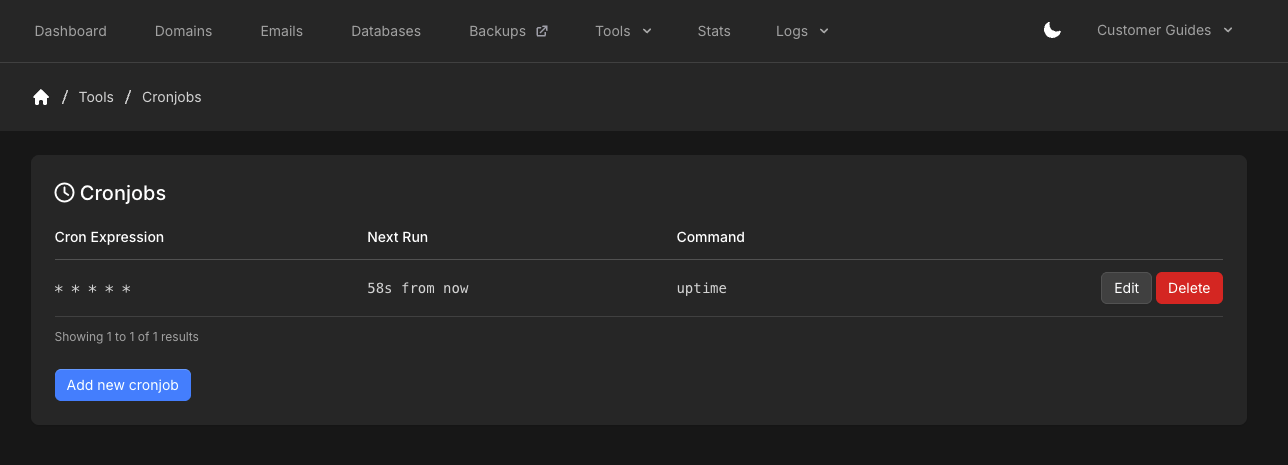 Click **Add new cronjob**.
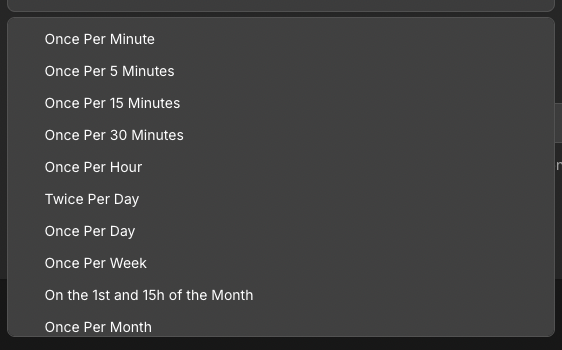
Choose a **Predefined Cron Expression**, or type your own in **Cron Expression**, such as `* * * * *`. Picking a predefined option fills the expression field.
Predefined options include:
* Once Per Minute
* Once Per 5 Minutes
* Once Per 15 Minutes
* Once Per 30 Minutes
* Once Per Hour
* Twice Per Day
* Once Per Day
* Once Per Week
* On the 1st and 15th of the Month
* Once Per Month
* Yearly
Click **Add new cronjob**.
Choose a **Predefined Cron Expression**, or type your own in **Cron Expression**, such as `* * * * *`. Picking a predefined option fills the expression field.
Predefined options include:
* Once Per Minute
* Once Per 5 Minutes
* Once Per 15 Minutes
* Once Per 30 Minutes
* Once Per Hour
* Twice Per Day
* Once Per Day
* Once Per Week
* On the 1st and 15th of the Month
* Once Per Month
* Yearly
 Enter the **Command**. The form shows an example using your account path, such as `php84 /home/c1234567/domains/example.com/wp-cron.php`.
Redirect stdout and stderr if you do not want them to accumulate.
```bash theme={null}
wp cron event run --due-now --path=/home/c1234567/domains/example.com/public_html >/dev/null 2>&1
```
```bash theme={null}
php84 /home/c1234567/domains/example.com/public_html/bin/magento cron:run >> /home/c1234567/logs/magento-cron.log 2>&1
```
Enter the **Command**. The form shows an example using your account path, such as `php84 /home/c1234567/domains/example.com/wp-cron.php`.
Redirect stdout and stderr if you do not want them to accumulate.
```bash theme={null}
wp cron event run --due-now --path=/home/c1234567/domains/example.com/public_html >/dev/null 2>&1
```
```bash theme={null}
php84 /home/c1234567/domains/example.com/public_html/bin/magento cron:run >> /home/c1234567/logs/magento-cron.log 2>&1
```
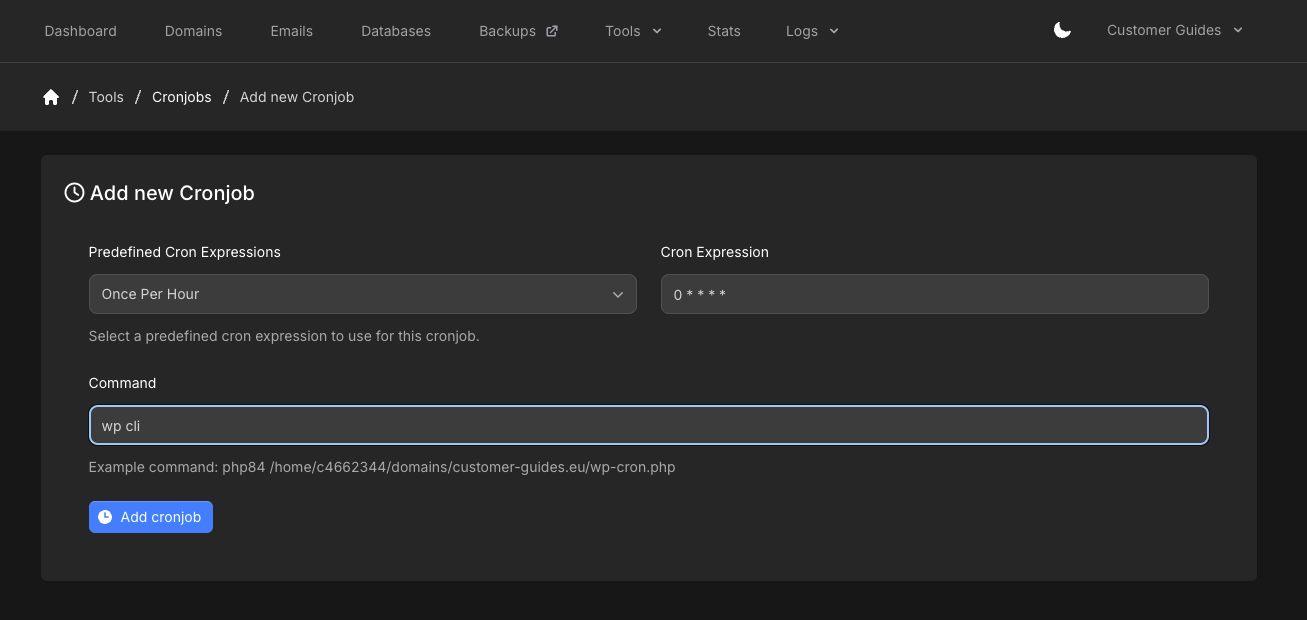 Click **Add cronjob**. The job runs on the UTC schedule you set. Suspended accounts do not run cronjobs until the account is unsuspended.
The Cronjobs list is paginated when you have many jobs.
## Related articles
* [URL Scheduler](/docs/grid-hosting/tools/url-scheduler)
* [WordPress Site Overview](/docs/grid-hosting/wordpress/wordpress-site-overview)
* [Do you offer WP-CLI?](/docs/general/general/do-you-offer-wp-cli)
Click **Add cronjob**. The job runs on the UTC schedule you set. Suspended accounts do not run cronjobs until the account is unsuspended.
The Cronjobs list is paginated when you have many jobs.
## Related articles
* [URL Scheduler](/docs/grid-hosting/tools/url-scheduler)
* [WordPress Site Overview](/docs/grid-hosting/wordpress/wordpress-site-overview)
* [Do you offer WP-CLI?](/docs/general/general/do-you-offer-wp-cli)