> ## Documentation Index
> Fetch the complete documentation index at: https://perfgrid.com/docs/llms.txt
> Use this file to discover all available pages before exploring further.
# File Manager
> Browse, upload, create, rename, edit, download, and delete files in hosting-panel.net File Manager.
**File Manager** lets you work with files in the browser. Use it for small edits, uploads, and directory changes without an FTP client or SSH.
Go to **Tools** → **File Manager**.
## Browse
The listing shows **Path**, **File Size**, and **Last Modified**. The current directory appears as a path pill (for example `domains/example.com`). Use **Up One Folder** to go to the parent directory.
Folders have **Rename/Move** and **Delete**. Files also have **Download**. Open a file by clicking its name to edit it (or to view it, for types that use view-only mode).
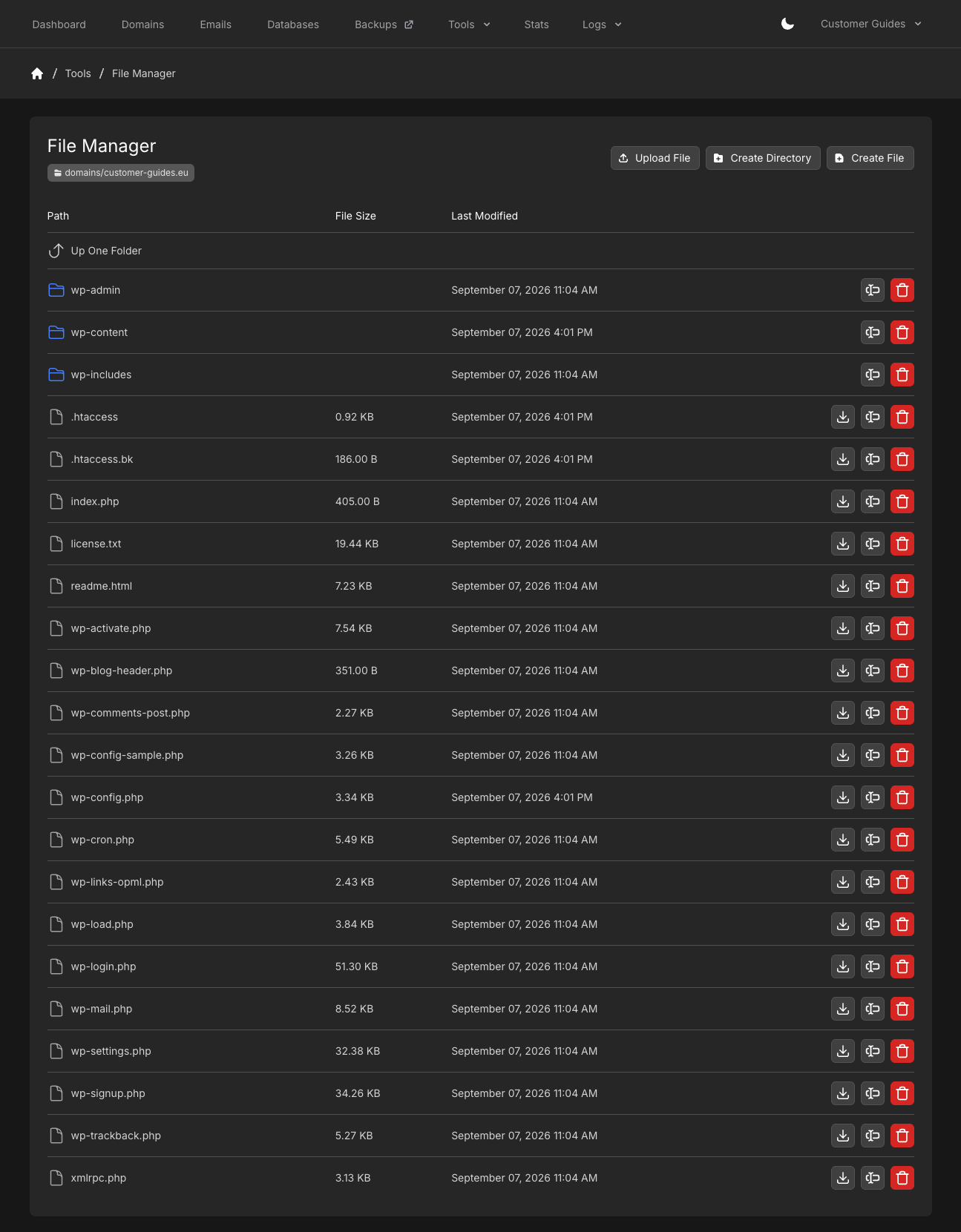 The editor and viewer will not open a file larger than **10 MB**. Uploads cannot exceed the free disk space on the account. Symlinks are hidden in the listing.
## Upload a file
Browse to the directory where the file should land.
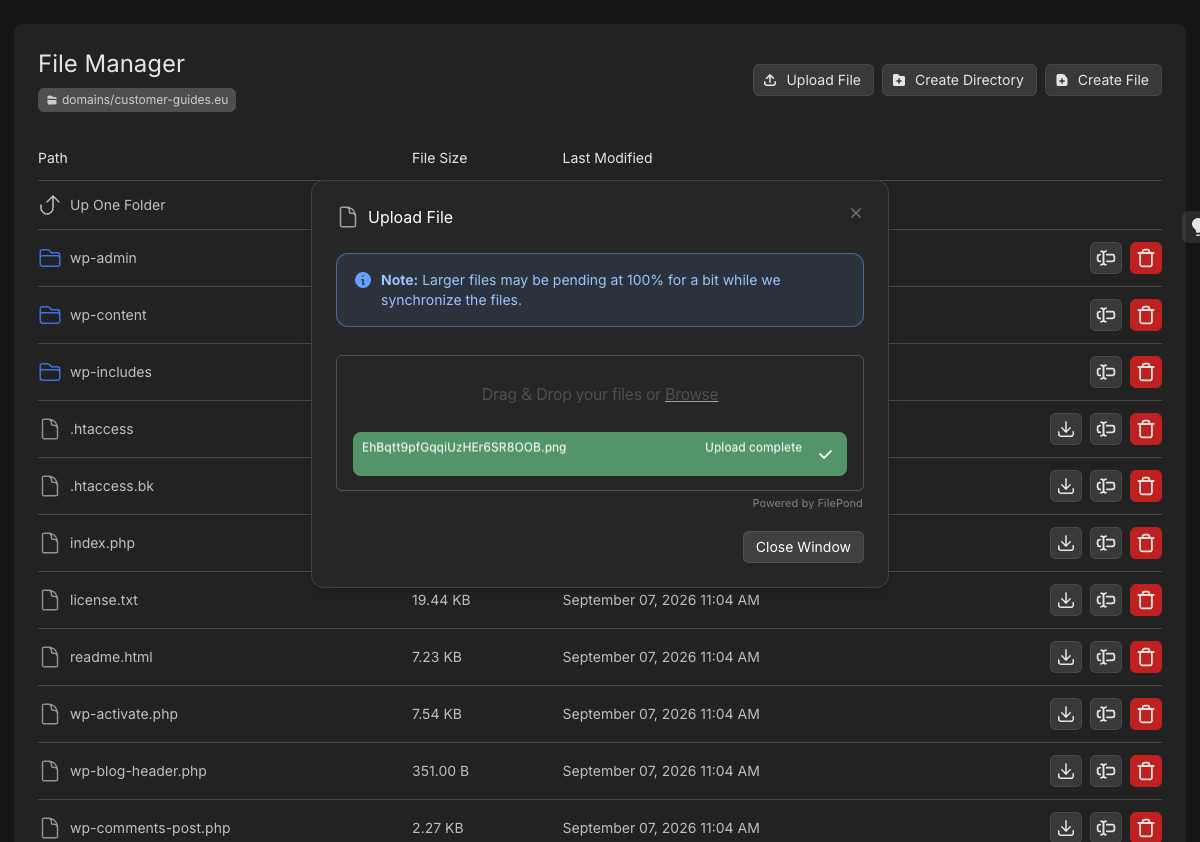
Click **Upload File**, then choose the file.
Larger files may sit at 100% for a short time while the panel synchronizes them.
The editor and viewer will not open a file larger than **10 MB**. Uploads cannot exceed the free disk space on the account. Symlinks are hidden in the listing.
## Upload a file
Browse to the directory where the file should land.
Click **Upload File**, then choose the file.
Larger files may sit at 100% for a short time while the panel synchronizes them.
 ## Create a file or directory
Browse to the directory that should contain the new item.
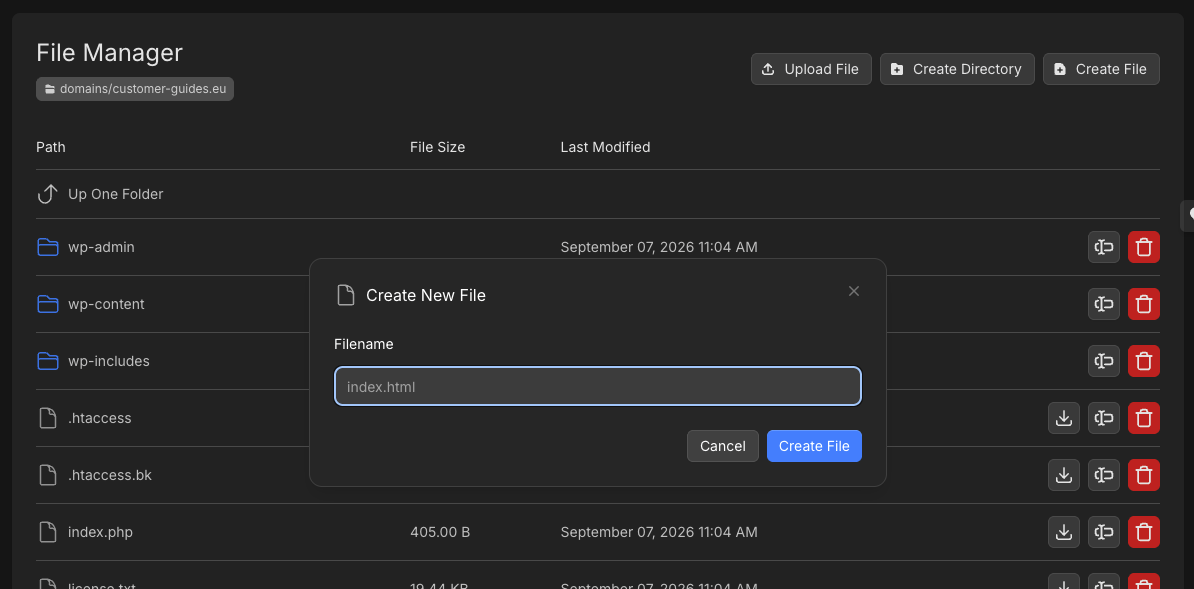
Click **Create File** or **Create Directory**. For a file, enter **Filename** and click **Create File**.
## Create a file or directory
Browse to the directory that should contain the new item.
Click **Create File** or **Create Directory**. For a file, enter **Filename** and click **Create File**.
 ## Rename
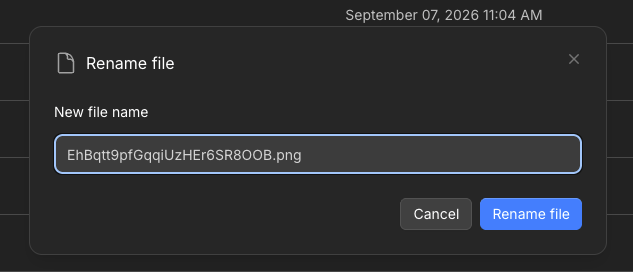
Click **Rename/Move** on the row. For a file, enter **New file name** and click **Rename file**.
## Rename
Click **Rename/Move** on the row. For a file, enter **New file name** and click **Rename file**.
 ## Edit a file
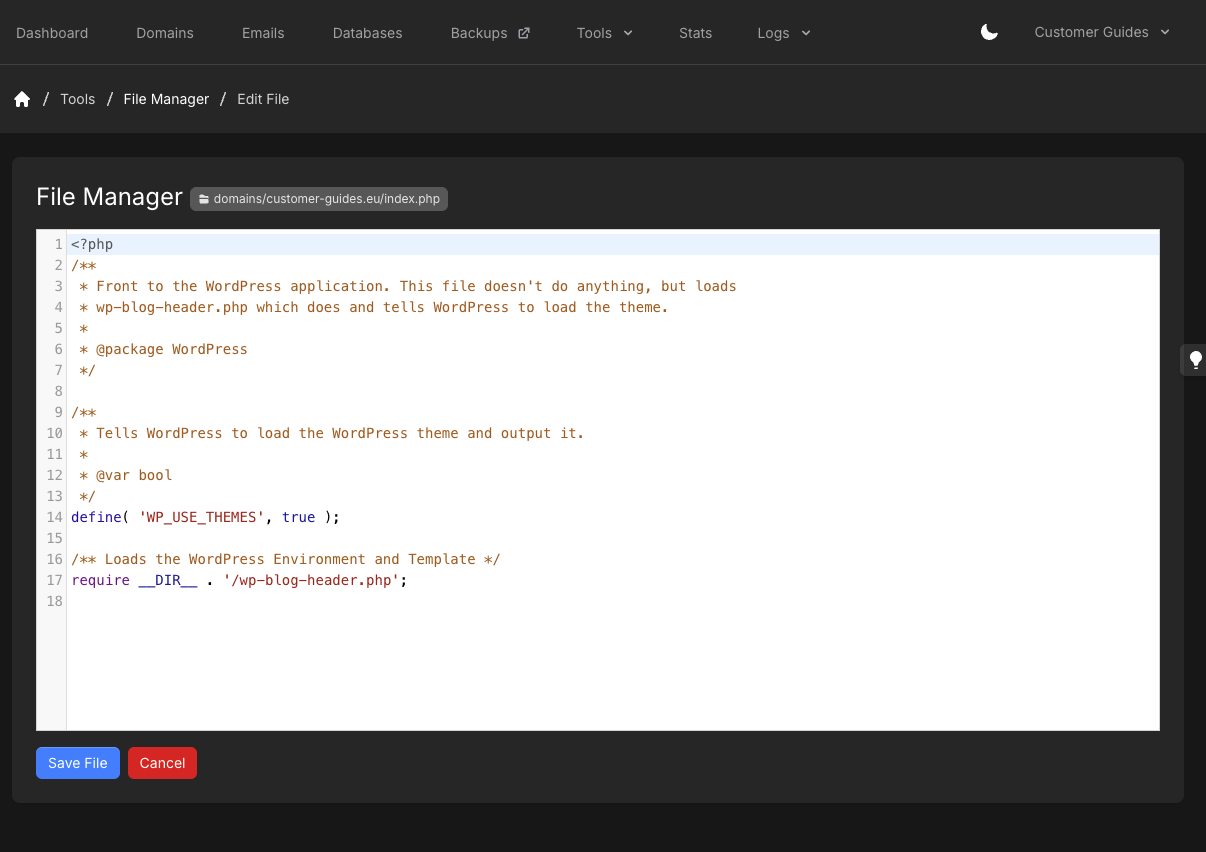
Click the file name. **Edit File** opens with the path in the pill next to File Manager.
Make your changes and click **Save File**, or **Cancel** to leave without saving.
## Edit a file
Click the file name. **Edit File** opens with the path in the pill next to File Manager.
Make your changes and click **Save File**, or **Cancel** to leave without saving.
 After you save, **Up One Folder** returns to the parent directory, not the account root.
## Delete
Click **Delete** on the row. Deleting a directory removes its contents. That cannot be undone from File Manager.
## Related articles
* [FTP accounts](/docs/grid-hosting/tools/ftp-accounts)
* [Deploy website](/docs/grid-hosting/tools/deploy-website)
* [SSH keys](/docs/grid-hosting/profile/ssh-keys)
* [WordPress Site Overview](/docs/grid-hosting/wordpress/wordpress-site-overview)
After you save, **Up One Folder** returns to the parent directory, not the account root.
## Delete
Click **Delete** on the row. Deleting a directory removes its contents. That cannot be undone from File Manager.
## Related articles
* [FTP accounts](/docs/grid-hosting/tools/ftp-accounts)
* [Deploy website](/docs/grid-hosting/tools/deploy-website)
* [SSH keys](/docs/grid-hosting/profile/ssh-keys)
* [WordPress Site Overview](/docs/grid-hosting/wordpress/wordpress-site-overview)