> ## Documentation Index
> Fetch the complete documentation index at: https://perfgrid.com/docs/llms.txt
> Use this file to discover all available pages before exploring further.
# FTP accounts
> Create FTP and FTPS accounts in hosting-panel.net, bound to a domain, on port 21.
**FTP accounts** let someone upload and download files for a domain without using the main SSH user. Extra accounts use **FTP** or **FTPS** on port **21**, in **Passive FTP** mode.
**SFTP** is only for the **main account user** (the username under **Account Information** on the dashboard, for example `c1234567`) on port **831**. FTP accounts **cannot** connect over SFTP/SSH. See [How do I connect over SSH on Grid Hosting?](/docs/grid-hosting/general/how-do-i-connect-over-ssh).
There is **no per-account FTP quota**. Uploads count against the hosting account disk quota.
## Add an FTP account
Log in to your hosting panel at [hosting-panel.net](https://hosting-panel.net).
Go to **Tools** → **FTP Accounts**.
Each row shows **Username**, **Domain**, and **Root**. The **FTP Configuration** box lists **FTP Server**, **Port** (`21`), and **Mode** (`Passive FTP`).
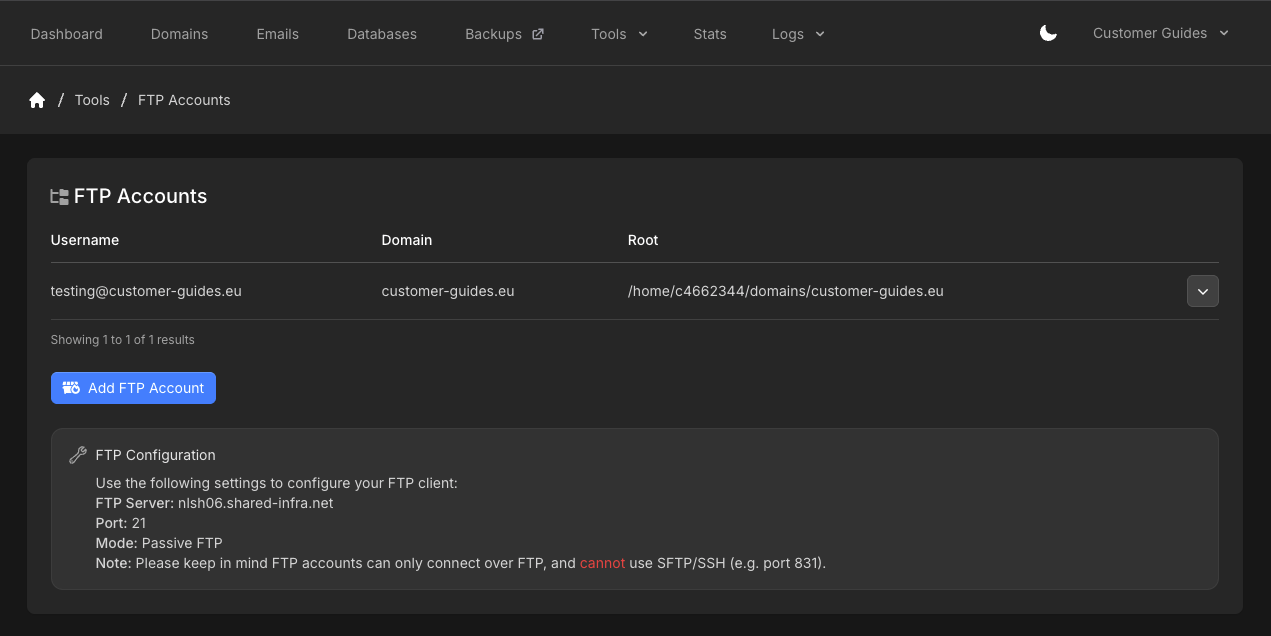 Click **Add FTP Account**.
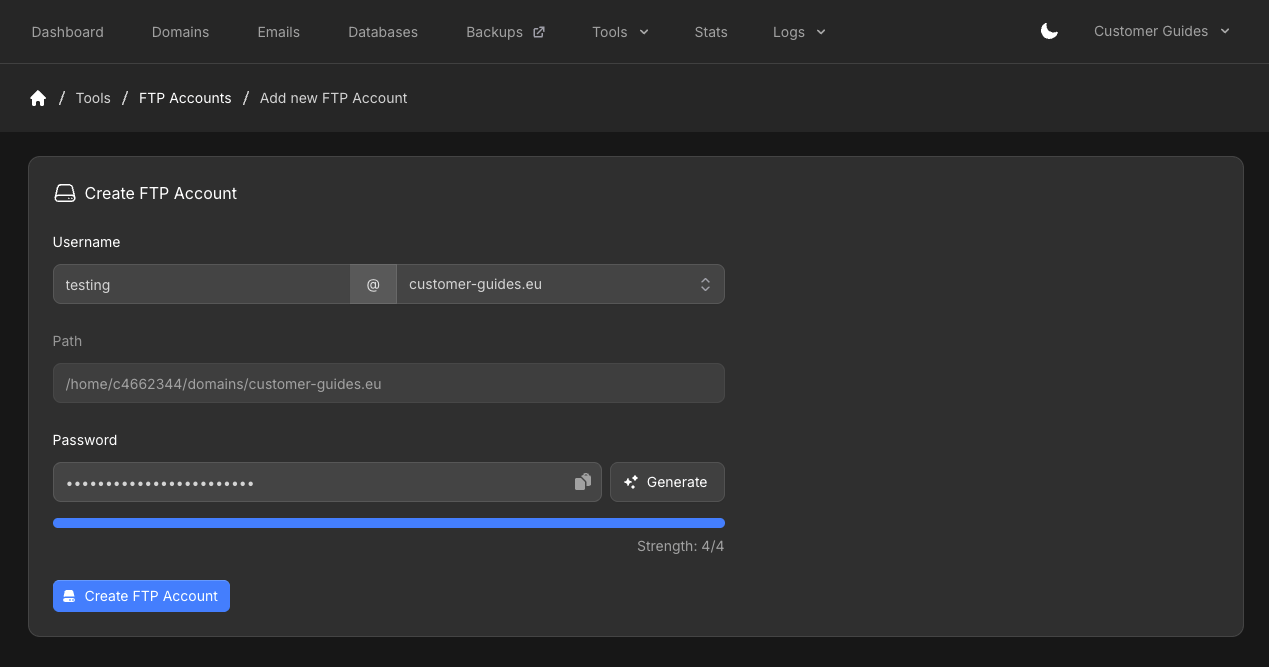
Set **Username** (local part plus the domain). The account is bound to that domain. **Path** is filled for you as `/home/c1234567/domains/example.com` for the selected domain.
Set a **Password**, or click **Generate**. Then click **Create FTP Account**.
Click **Add FTP Account**.
Set **Username** (local part plus the domain). The account is bound to that domain. **Path** is filled for you as `/home/c1234567/domains/example.com` for the selected domain.
Set a **Password**, or click **Generate**. Then click **Create FTP Account**.
 In your FTP client, use the **FTP Server** and port **21** from **FTP Configuration**, the full username (including the domain), and the password you set.
When you delete a domain, subdomain, or alias, FTP accounts attached to it are removed as well.
For a one-off edit in the browser, use [File Manager](/docs/grid-hosting/tools/file-manager) instead of creating an FTP account.
## Related articles
* [File Manager](/docs/grid-hosting/tools/file-manager)
* [How do I connect over SSH on Grid Hosting?](/docs/grid-hosting/general/how-do-i-connect-over-ssh)
* [SSH keys](/docs/grid-hosting/profile/ssh-keys)
In your FTP client, use the **FTP Server** and port **21** from **FTP Configuration**, the full username (including the domain), and the password you set.
When you delete a domain, subdomain, or alias, FTP accounts attached to it are removed as well.
For a one-off edit in the browser, use [File Manager](/docs/grid-hosting/tools/file-manager) instead of creating an FTP account.
## Related articles
* [File Manager](/docs/grid-hosting/tools/file-manager)
* [How do I connect over SSH on Grid Hosting?](/docs/grid-hosting/general/how-do-i-connect-over-ssh)
* [SSH keys](/docs/grid-hosting/profile/ssh-keys)