

For new installations
When you opt to install WordPress using our WordPress Installer, we will automatically install the FluentSMTP plugin, and we will also automatically create an email account for the WordPress installation, as shown below:
To prevent sending errors, you cannot currently delete the automatically created email account as long as the WordPress installation is active. An option to delete the email account may be added in the future.
When you clone a website
If you clone a website using our Clone Installation feature in the WordPress Installer, then we will perform a few checks to determine if we should deploy the SMTP plugin or not. If we detect an existing SMTP plugin on the website, we will not deploy the FluentSMTP plugin. If we detect FluentSMTP, we will perform an additional check to determine if the credentials were initially generated by us. If so, then we will create a new set of credentials for the cloned installation.For existing installations
Existing WordPress installations do not get FluentSMTP automatically. Open WordPress Site Overview and deploy SMTP from there, or install FluentSMTP yourself in WP-Admin. Overview can also reconfigure SMTP credentials after a restore, for example from Duplicator, when the old mailbox password no longer matches.Recommendations
Set the from email address and name. You can do that in Overview (From name and From email) or in WP-Admin as shown below.1
Go to FluentSMTP
Go to FluentSMTP in the WordPress admin under Settings -> FluentSMTP.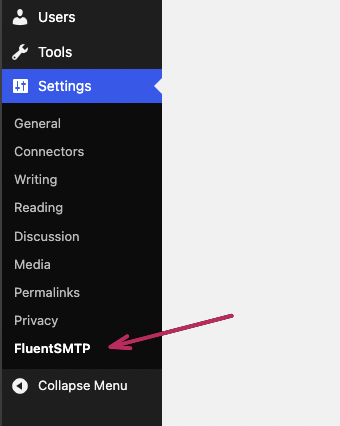
2
Go to configure the SMTP Connection
First, head to the Settings tab, and then click the small edit icon for our SMTP connection.
3
Change the From Email Address and Name
Change the From Email Address and Name to your desired values. We recommend e.g. 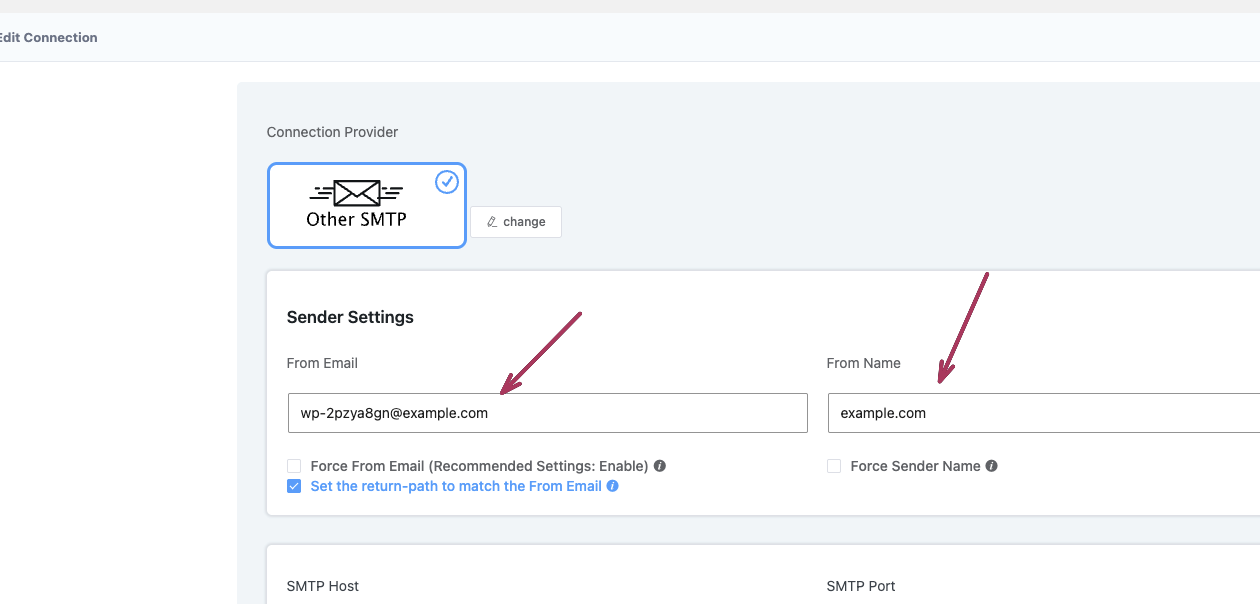
noreply@yourdomain.com, support@yourdomain.com, info@yourdomain.com etc, and then your business name or domain name.4
Save the settings
Simply scroll down to the bottom of the page and click the Save Connection Settings button to save your changes.
Detected plugins
We will detect the following plugins to determine if we should deploy the FluentSMTP plugin or not:- ActiveCampaign Postmark for WordPress
- Brevo
- Configure SMTP
- Easy WP SMTP
- Elastic Email Sender
- Gmail SMTP
- GoSMTP
- Mailgun
- Mailjet for WordPress
- Post SMTP
- SMTP for Amazon SES
- SMTP it
- SMTP Mailer
- Solid Mail
- SparkPost
- SureMail
- WP Mail Bank
- WP Mail SMTP
- WP Offload SES Lite
- WP SMTP Mailer - SMTP7
- YaySMTP