Limits
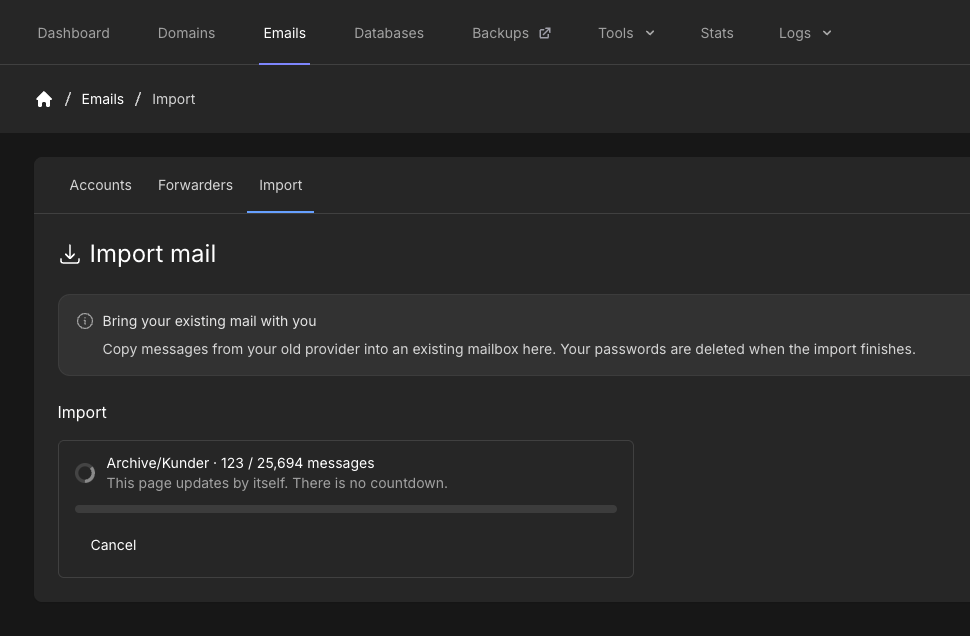
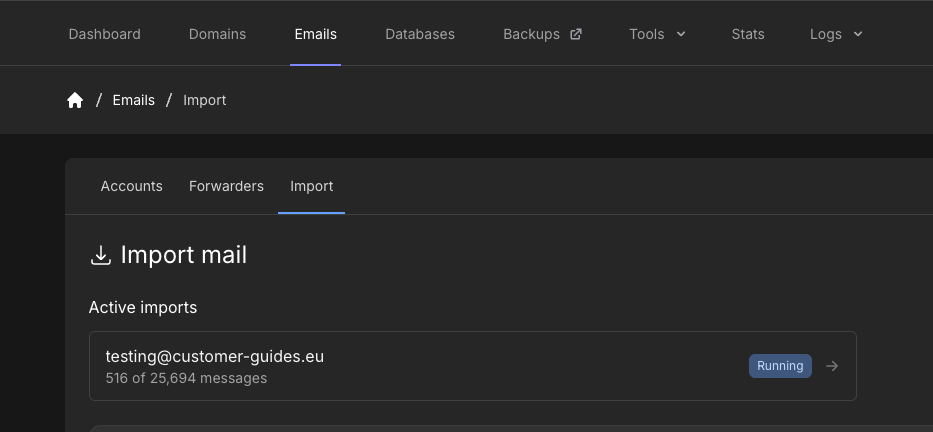
There is no separate timeout. A large mailbox can run for hours. The limit is the email disk space on the hosting account. Messages already copied stay on the destination. Start the import again to continue from where it left off.Start an import
1
Create the destination mailbox
In hosting-panel.net, go to Emails → Accounts and create the mailbox that should receive the mail, if it does not exist yet.
2
Open Import
Go to Emails → Import.
3
Choose the destination
Select Destination, then click Continue.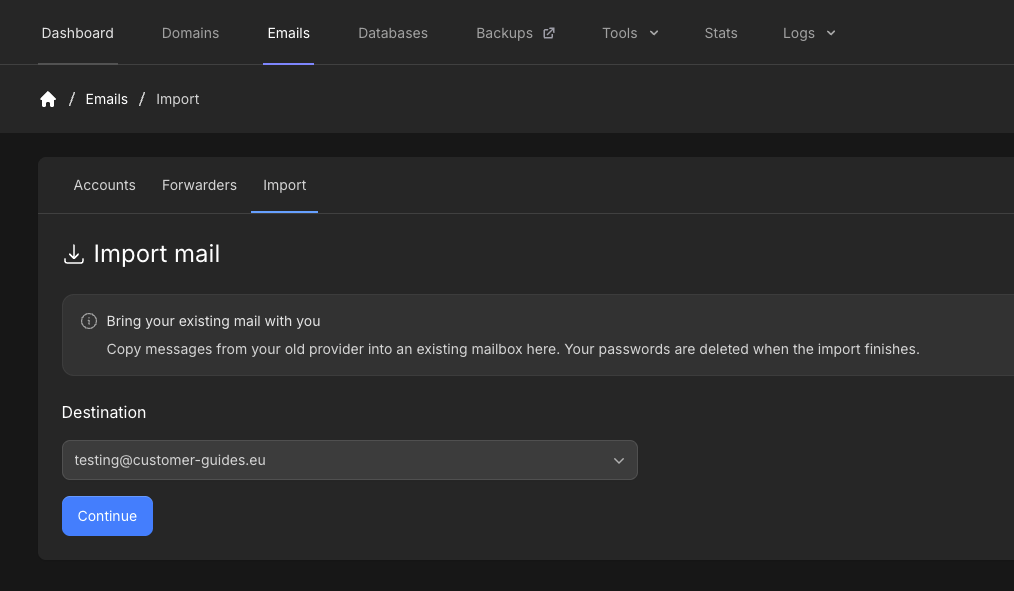
4
Choose where the mail is today
Select Another web host / cPanel, Generic IMAP, Gmail (app password), or Microsoft 365 (app password), then click Continue.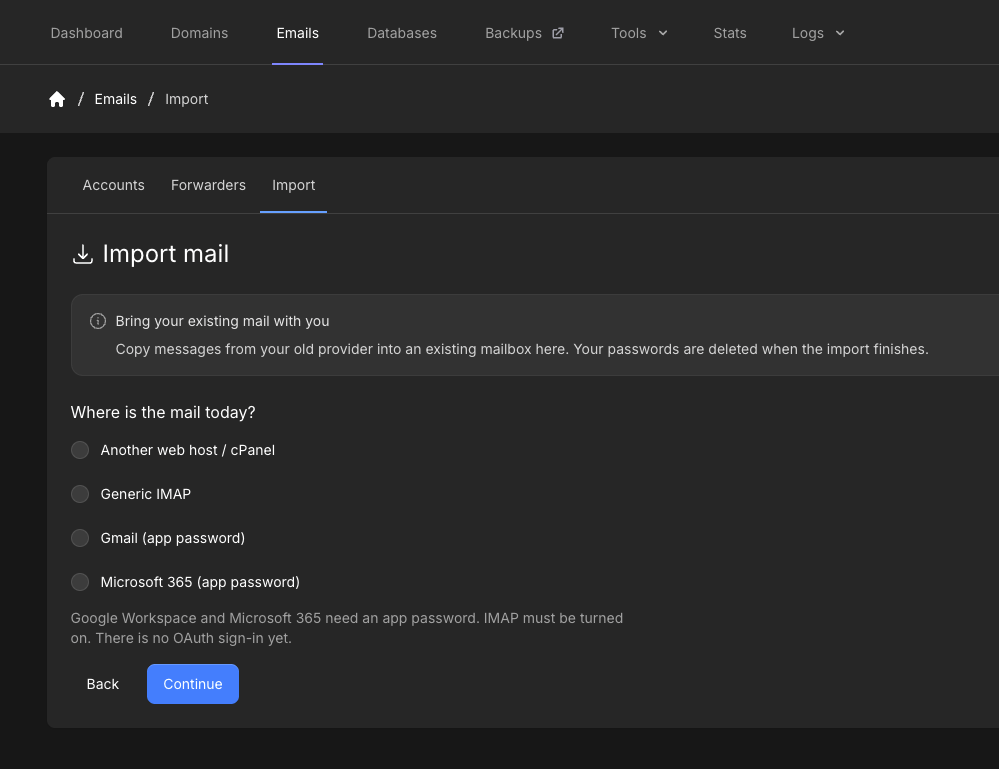
5
Connect to the source
Enter Source hostname, Port, Encryption, Source username, and Source password. Also enter This mailbox’s password — the password you set when you created the destination mailbox here, not the old one.Defaults for a typical IMAP server are port 993 and SSL. Click Test connection.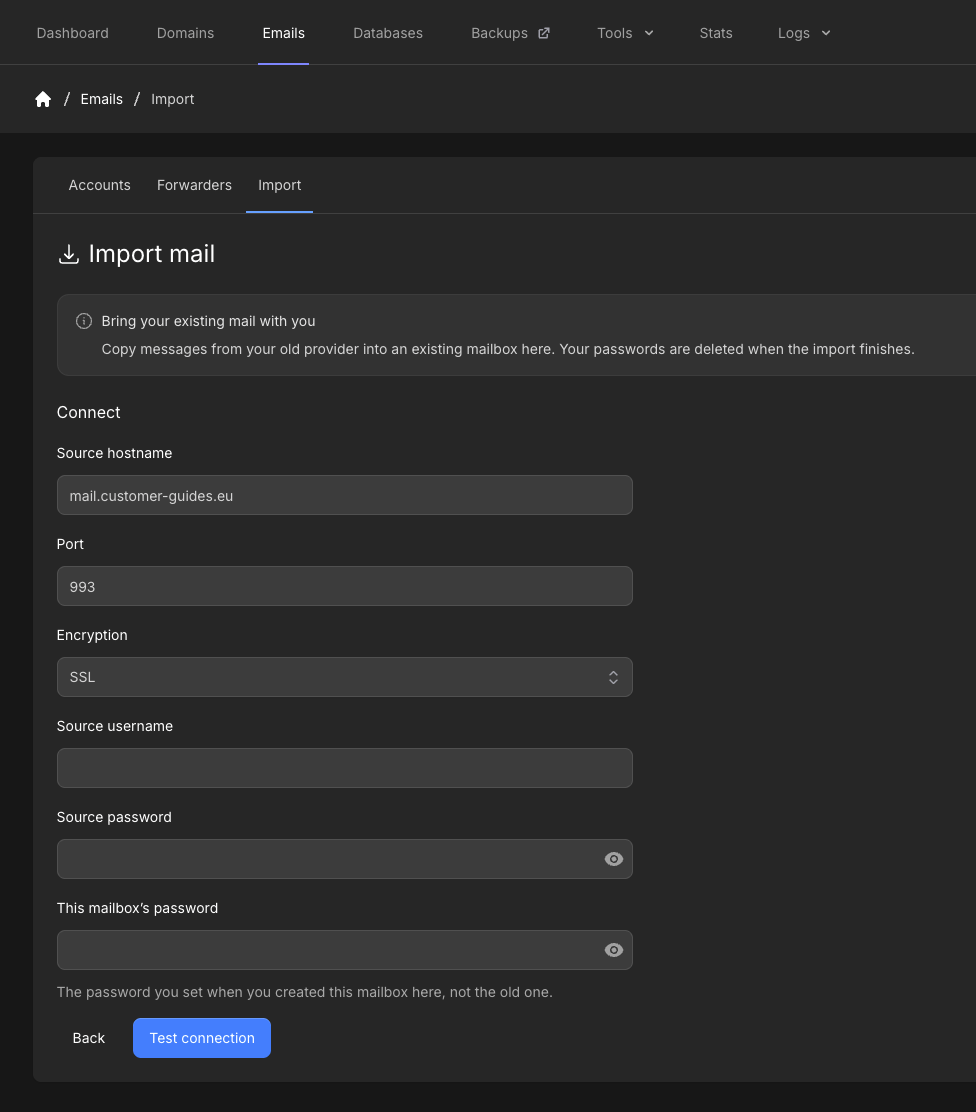
6
Review remote folders
After a successful test, Remote folders lists the source folders and message counts. Nested folders appear with a 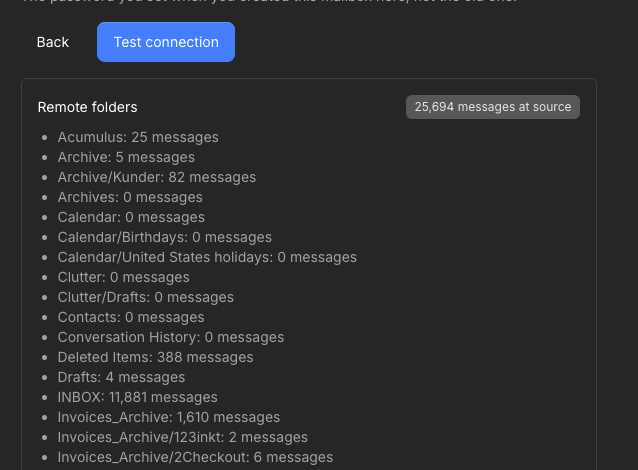
/ in the name.7
Let the import run
Click Start import (blue, below the folder list). The page updates by itself. There is no countdown. You can Cancel if you need to stop.