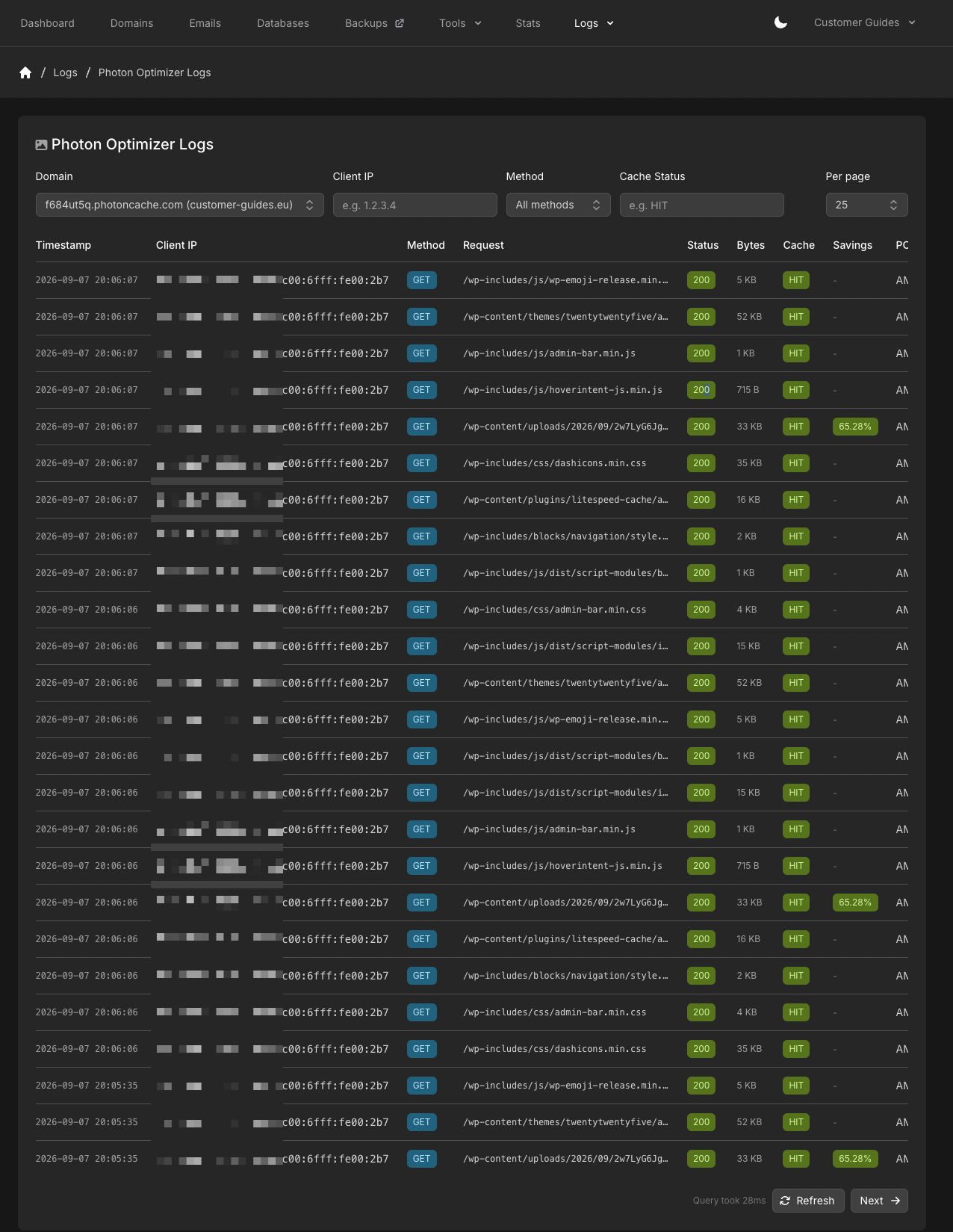
Photon Optimizer logs shows requests served through Photon Optimizer. Go to Logs → Photon Optimizer Logs.
The panel looks back 7 days at most, the same as Access logs. Photon only logs requests that go through your Photon hostname. If you have not pointed the site at Photon yet, see Photon Optimizer.
Filters
You can filter on:
- Domain (Photon hostname, with the origin domain in parentheses)
- Client IP (for example
1.2.3.4)
- Method (or All methods)
- Cache status (for example
HIT)
- Per page
Cache status matches Varnish values such as HIT, MISS, and PASS. The filter accepts letters, _, and -.
View logs
Open Photon Optimizer Logs
Go to Logs → Photon Optimizer Logs.
Apply filters
Set domain, client IP, method, and/or cache status, then read the matching rows. -.
Related articles
Last modified on September 7, 2026