

photoncache.com. Point your CMS or cache plugin at that hostname so visitors receive the converted images.
Originals stay on your account. Photon caches converted images for 365 days. There is no separate conversion quota or traffic meter.
Photon can also serve CSS, JavaScript, fonts, and video if you route those URLs through the same hostname. It does not optimize those files.
Activate Photon Optimizer
Open Photon Optimizer in either of these ways. Both go to the same page at hosting-panel.net/tools/photon-optimizer.- Tools → Photon Optimizer
- Domains → the dropdown for a domain → Photon Optimizer
1
Log in
Log in to your hosting panel at hosting-panel.net.
2
Open Photon Optimizer
Go to Tools → Photon Optimizer, or choose Photon Optimizer from the domain dropdown on Domains.If you have not added a service yet, the overview is empty.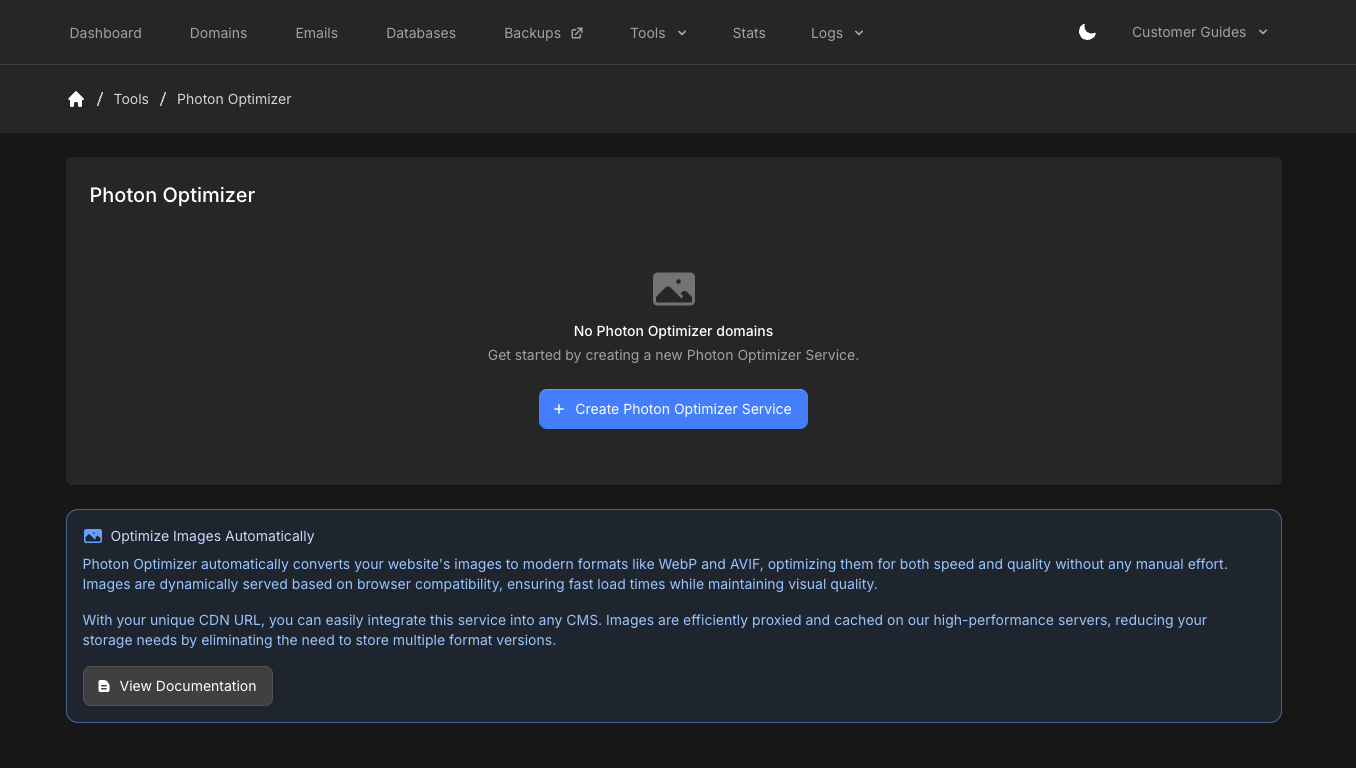
3
Create a service
Click Create Photon Optimizer Service.
4
Select the domain
Choose the domain to add. The form shows your Photon Domain (the hostname on 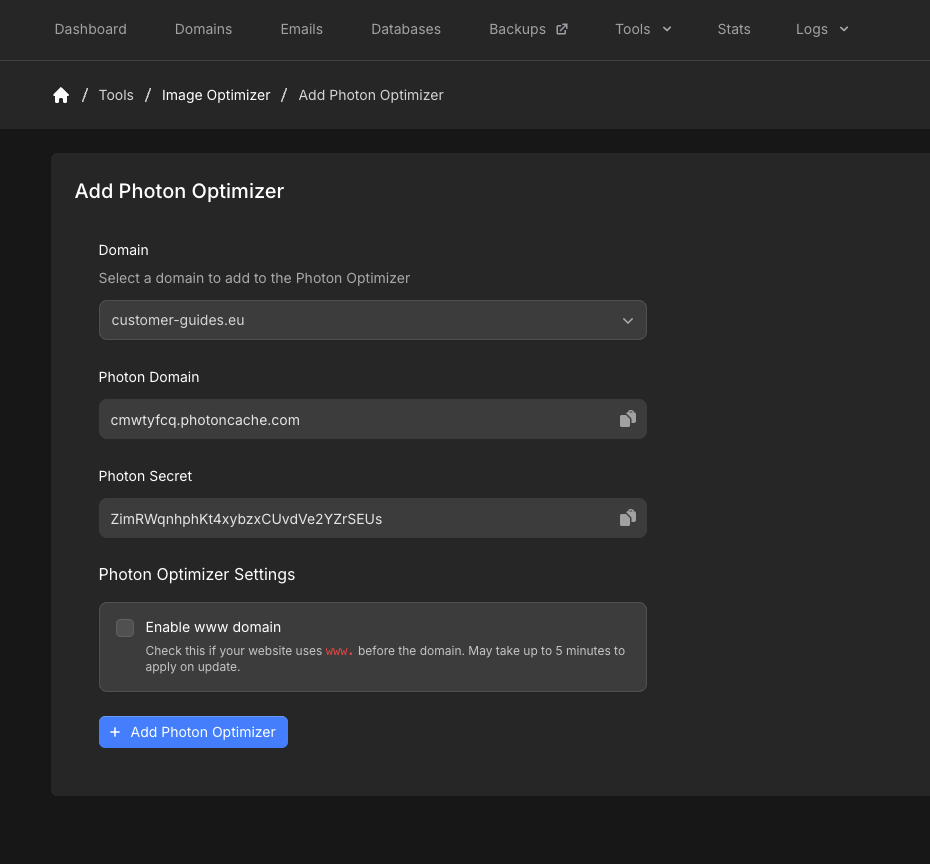
photoncache.com) and a Photon Secret.Copy the Photon Domain. You need it for CDN mapping or media URLs. Treat the Photon Secret like a password.5
Enable www if you use it
If the site is served on
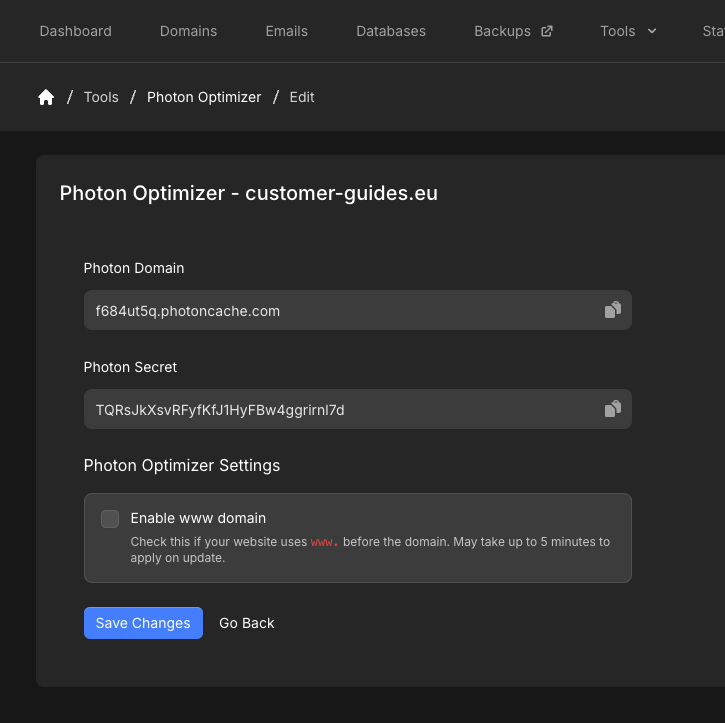
www, check Enable www domain. Photon then fetches from the www hostname. This can take up to 5 minutes to apply when you change it later.6
Add Photon Optimizer
Click Add Photon Optimizer. The domain appears on the overview with its CDN URL. That value is the same as Photon Domain.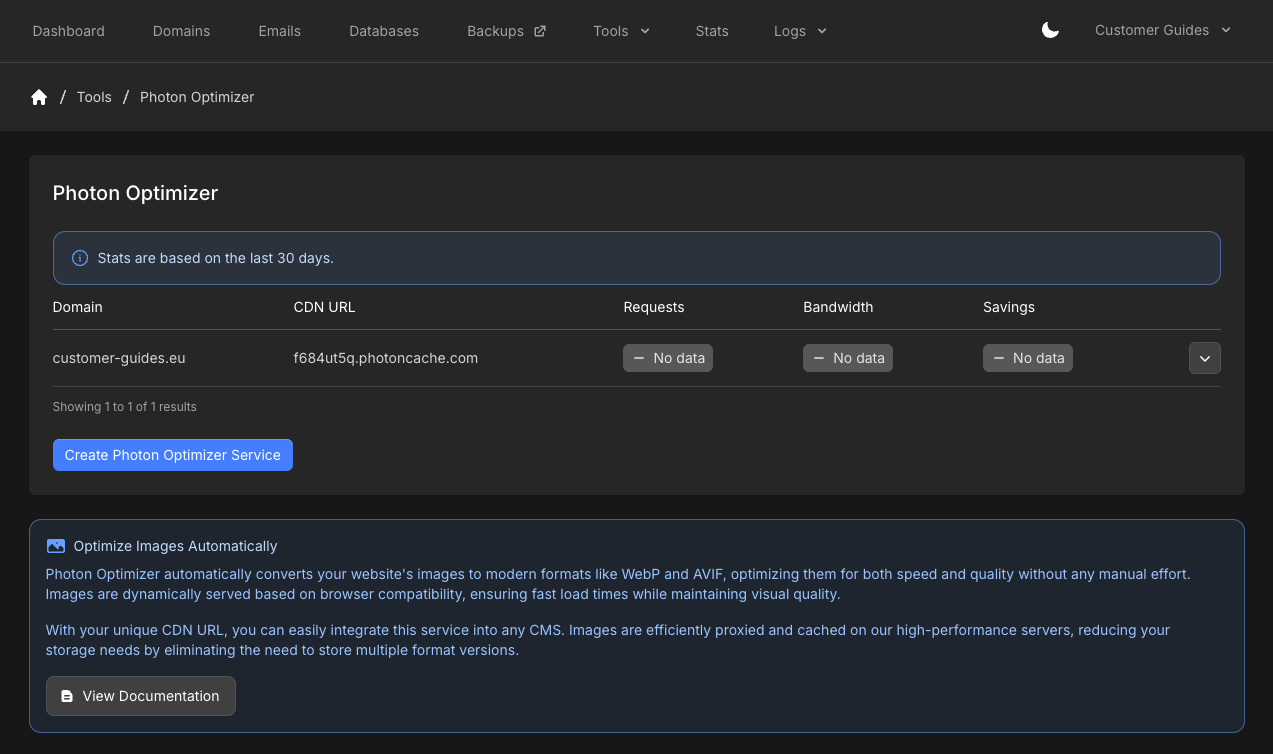
Point your site at Photon
Photon only converts or serves files requested through your Photon hostname. Point static URLs athttps://yourid.photoncache.com/, using the Photon Domain you copied.
- WordPress (LiteSpeed Cache)
- Magento
- Other CMS
In the WordPress admin, open LiteSpeed Cache → CDN.
- Set CDN URL to your Photon hostname, for example
https://yourid.photoncache.com/ - Turn Use CDN Mapping on
- Under Original URLs, add your site, for example
//example.com/ - Turn Include Images on if it is off
Cache busting for CSS and JavaScript
If you route CSS or JavaScript through Photon on WordPress, install the PerfGrid Optimizer plugin. It adds a cache buster when those files change, so visitors get the new files without a manual purge. Skip the plugin if you only send images through Photon.Purge the cache
Converted images stay in cache for 365 days. Purge when you replace files and need Photon to pick up the change immediately. On the Photon Optimizer overview, open the dropdown for the domain and click Purge Cache.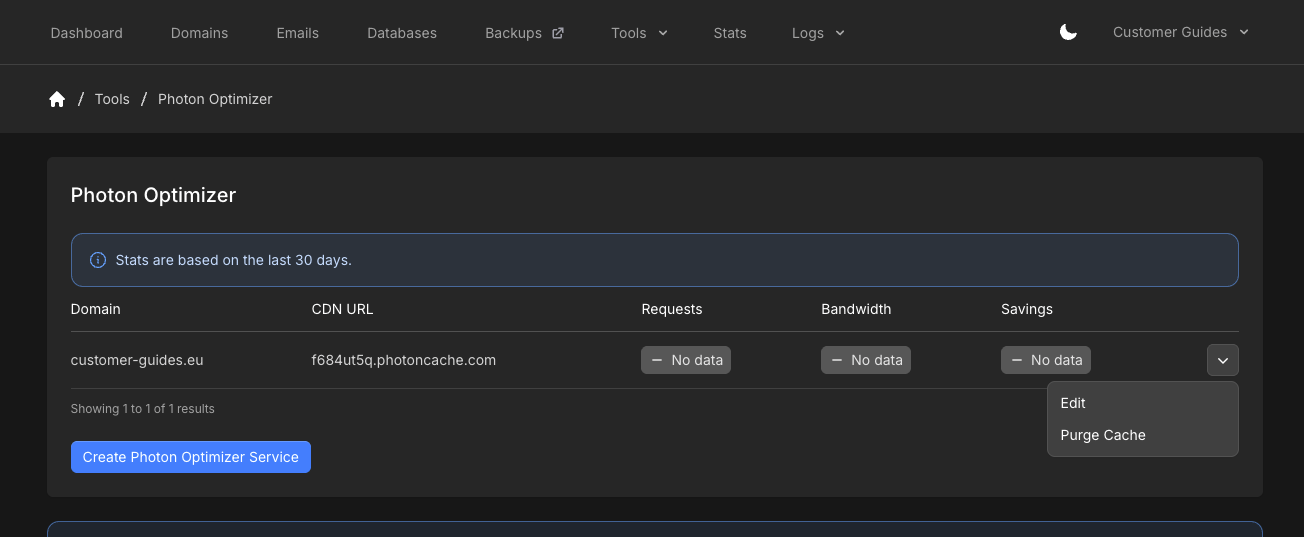
FAQs
Will Photon change files on disk?
Will Photon change files on disk?
No. Originals stay untouched. Photon serves converted images on request.
How does it pick WebP vs AVIF?
How does it pick WebP vs AVIF?
Photon negotiates with the browser and serves the best supported format.
Is there a cap on how many images can be converted?
Is there a cap on how many images can be converted?
Photon Optimizer does not impose a separate conversion quota.
What happens after 365 days?
What happens after 365 days?
Cache entries expire. The next request can convert the image again. Use Purge Cache if you need a refresh sooner.
Does using another hostname hurt SEO?
Does using another hostname hurt SEO?
Photon sends a canonical header toward your real hostname, so search engines treat assets as belonging to your domain.
Does Photon optimize CSS, JavaScript, fonts, or video?
Does Photon optimize CSS, JavaScript, fonts, or video?
No. It can deliver those files if you route them through the Photon hostname, but it only converts JPEG, PNG, and GIF images to WebP or AVIF.