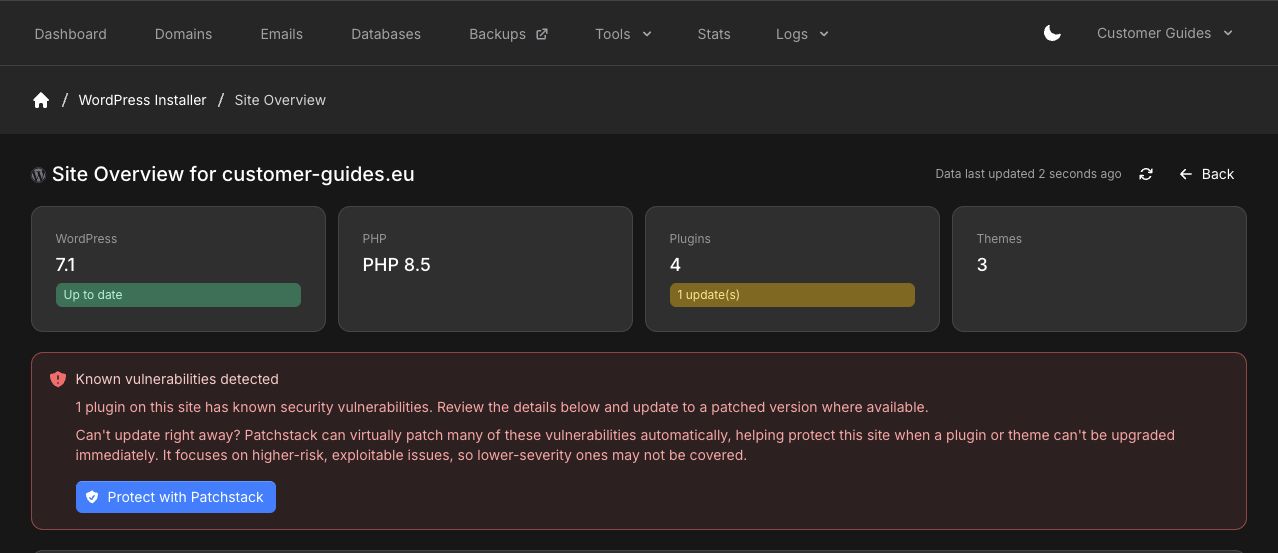
Open Site Overview
1
Log in
Log in to your hosting panel at hosting-panel.net.
2
Open WordPress Installer
Go to Tools → WordPress Installer.The WordPress installations list shows each site URL and Database. Click Overview on the row.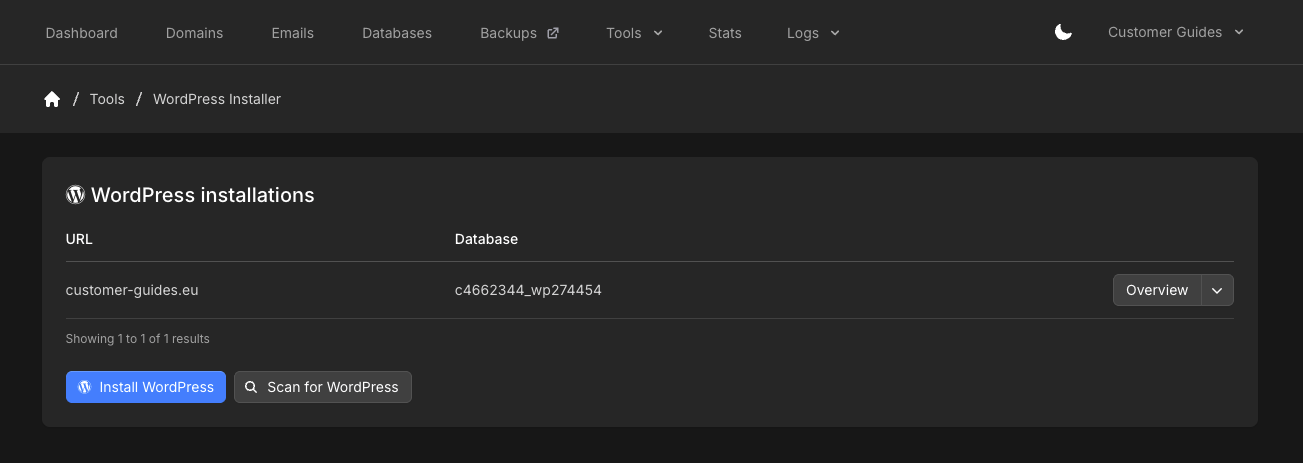
3
Review the site
Site Overview shows WordPress version (and whether it is up to date), PHP version, plugin count, and theme count.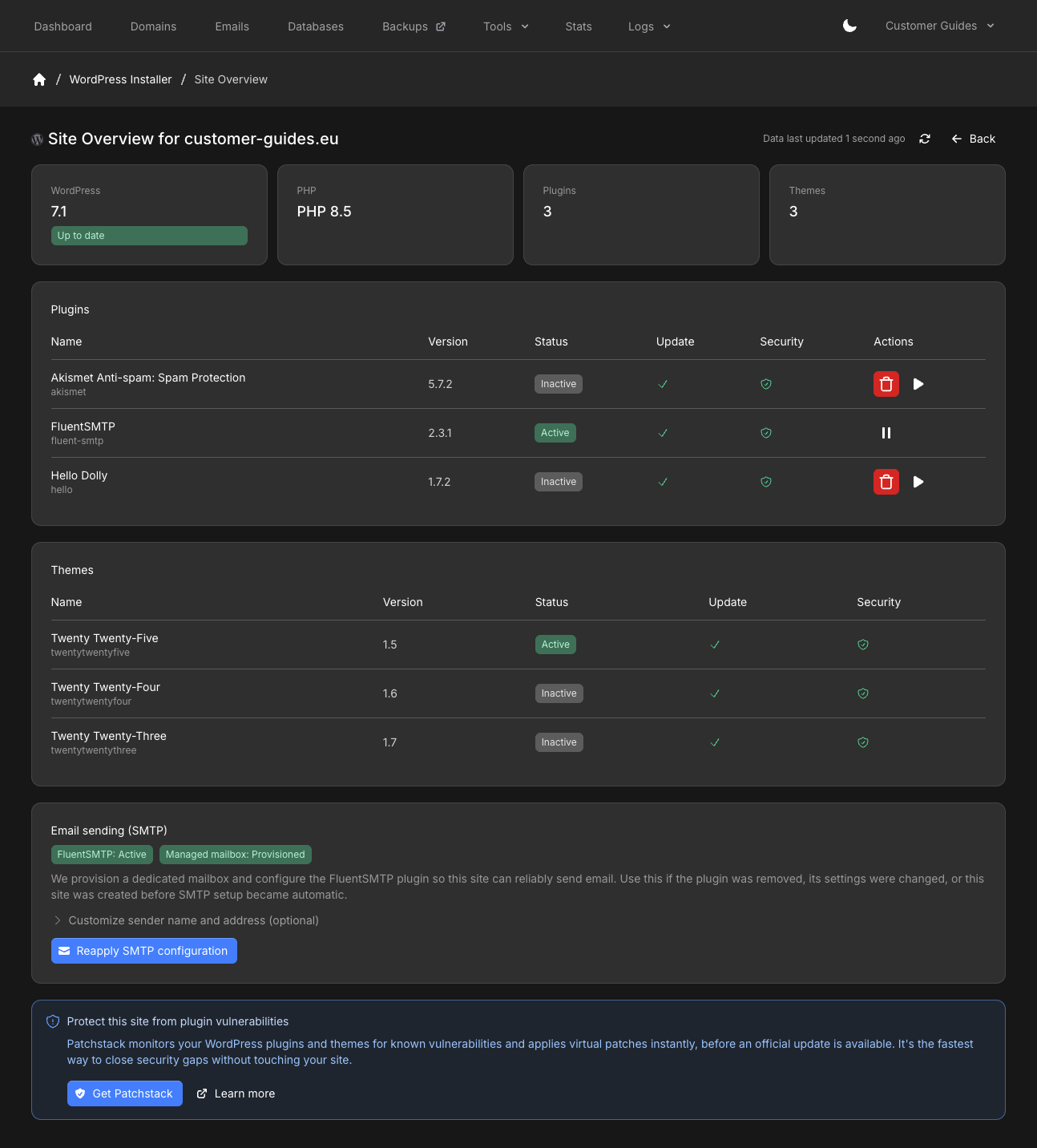
Scan for WordPress
If WordPress was installed outside the installer, click Scan for WordPress on the WordPress Installer page. The scan looks for existing installations on the account so you can attach them and open Overview.Manage plugins
The plugins table lists Name, Version, Status (Active or Inactive), Update, and Security.- Activate or deactivate from the row actions
- Delete (trash icon) removes the plugin from the site. That cannot be undone from Overview
- When an update is available, the Plugins card shows how many updates are waiting. Update from the plugins table
Email sending (SMTP)
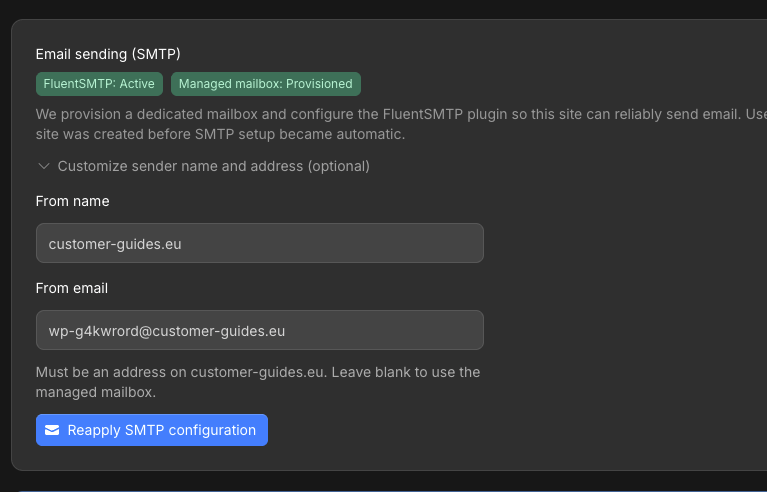
The Email sending (SMTP) section shows whether FluentSMTP is active and whether a managed mailbox is provisioned. Overview can deploy FluentSMTP and a mailbox for sites that were not originally set up with our installer. Click Reapply SMTP configuration if WordPress was restored from a backup (for example Duplicator) and the old mailbox password no longer matches. Expand Customize sender name and address (optional) to set:- From name
- From email — must be an address on that site’s domain. Leave blank to use the managed mailbox.
Known vulnerabilities
When a plugin has a known issue, Overview shows Known vulnerabilities detected and asks you to review the details.