Change your password or email address, log out devices you don’t use, and check what happened to your login.

Change your password

1

Open Password and 2FA

In the sidebar, open Security > Password and 2FA and confirm your password.
2

Enter the passwords

Under Update password, enter your Current password, a New password that meets the rules, and the new one again under Confirm password. Click Save.
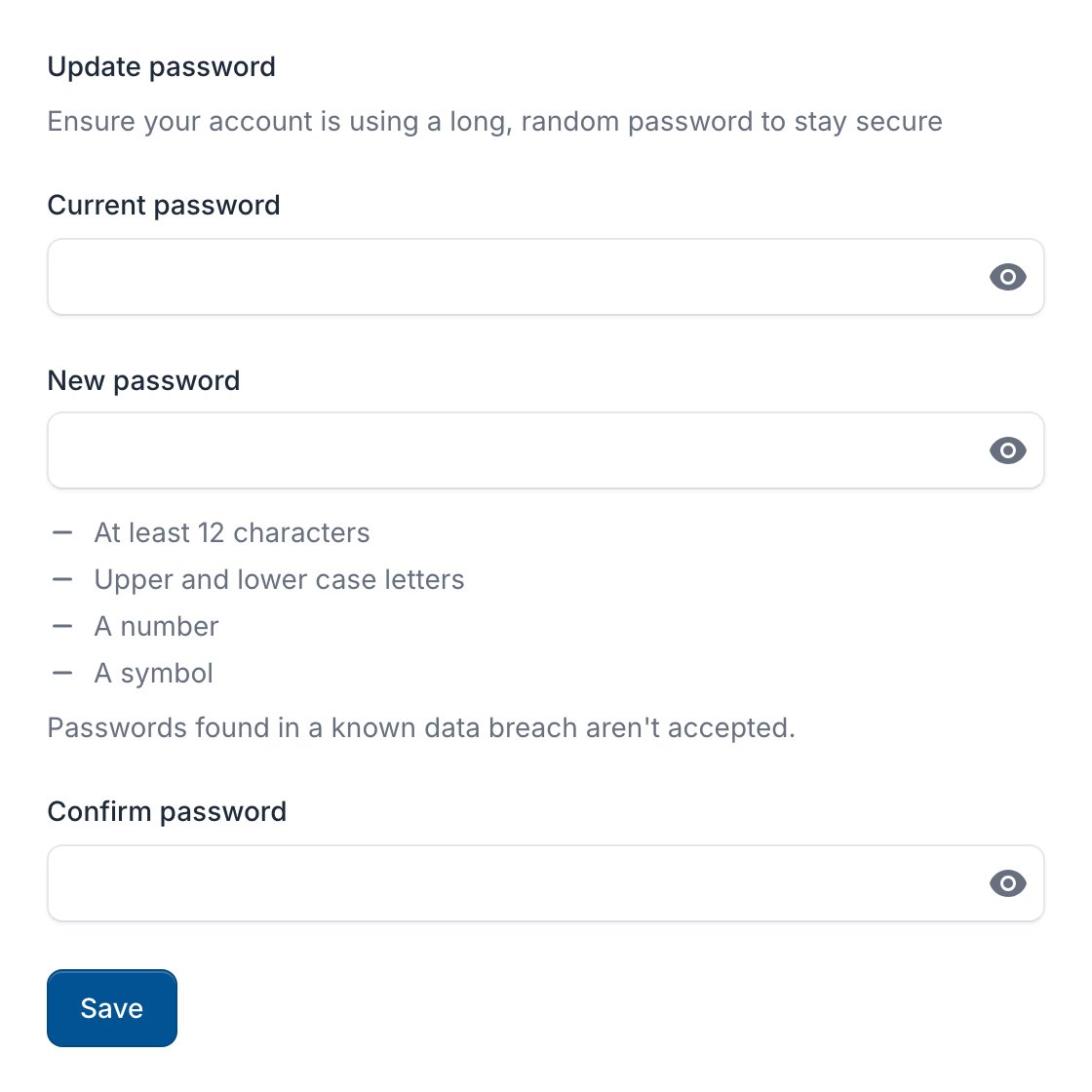
Update password form with the password rules under New password
Your other sessions are logged out; the browser you’re using stays logged in.

Reset a forgotten password

1

Ask for a link

On the login page, click Forgot your password?, enter your Email address and click Email password reset link.
2

Choose a new password

Open the link in the email within 60 minutes, enter your new password and click Reset password.
A reset logs out every session, on every device. You still enter your two-factor code when you log in.

Change your email address

On your Profile, change Email and click Save. If the console asks, enter your password and click Confirm and save, then open the link we email to the new address.
We also email your old address, with an Undo the change button that works for 7 days. Didn’t change it yourself? Click it: the login gets its old address back, every session is logged out and you choose a new password.
Invoices don’t go to your login’s address but to the billing account’s Billing email. See Billing details.

Sessions

Open Security > Sessions to see where you are logged in. Click Log out on a row, or Log out all other sessions.
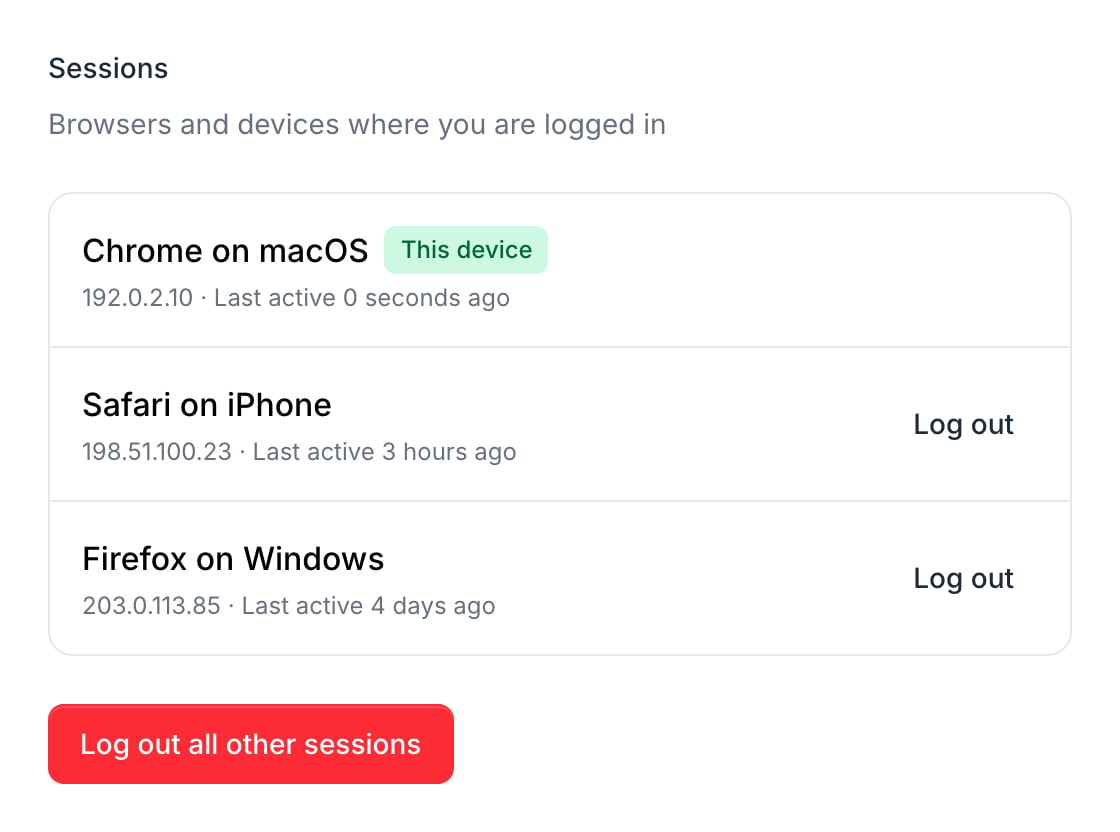
Sessions list with This device, two other sessions with Log out, and Log out all other sessions
When you log in from a browser we haven’t seen before, we email you a New login to your PerfGrid account message. If it wasn’t you, log out that session and change your password.

Security log

Security > Security log lists logins, failed attempts, changes to your login, and when PerfGrid Support logged in as you to help. Times are in UTC.
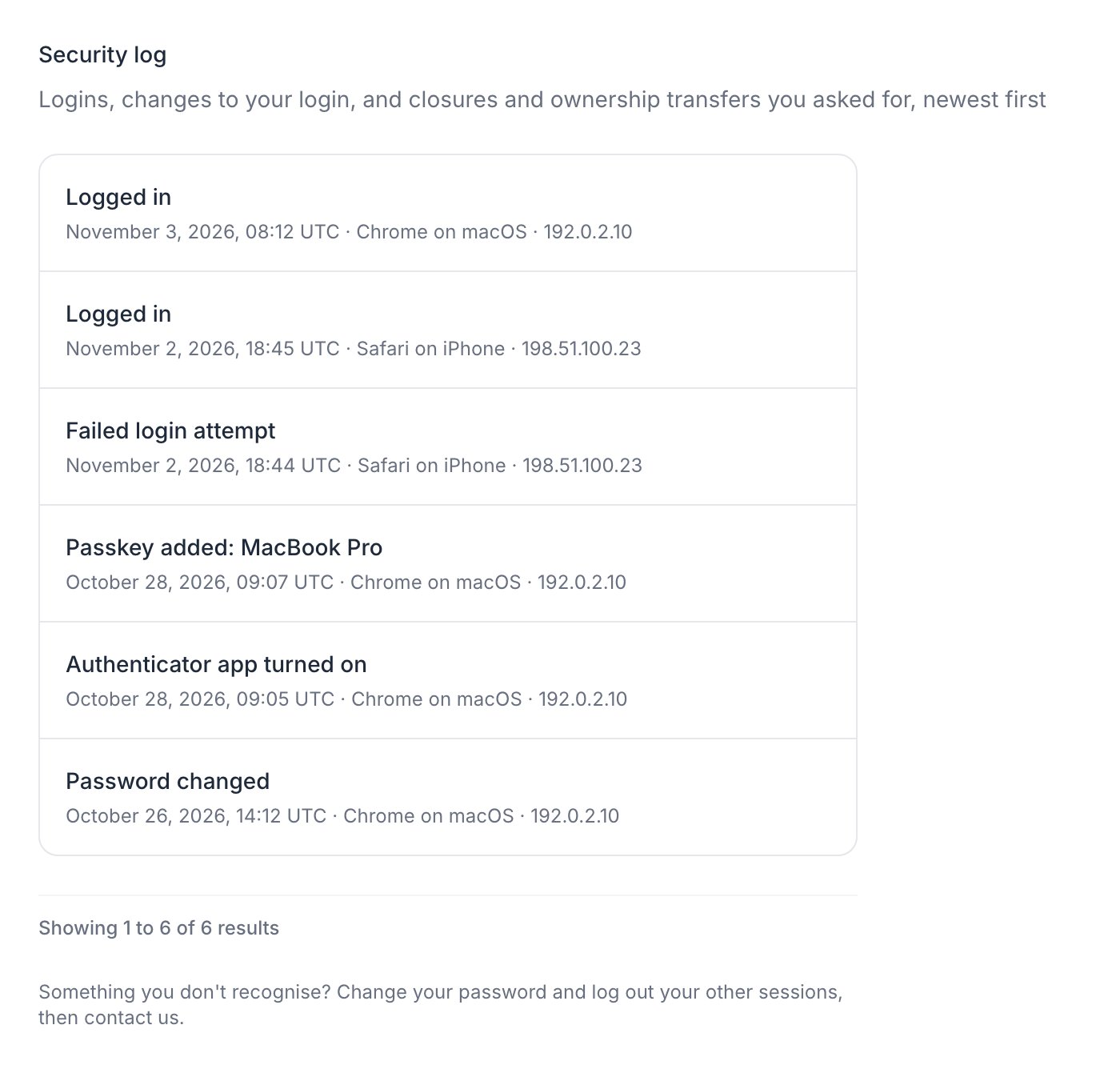
Security log with logins, a failed login attempt, a passkey added, the authenticator app turned on and a password change

Your support PIN

Support may ask for your Support PIN to confirm it’s you. It’s on your Profile and in the menu under your name. Generate a new PIN replaces it.
Last modified on October 31, 2026