Give a colleague, developer or agency their own login on your billing account, with only the access they need. You manage members under Team access in the sidebar, as the owner or with the Manage users permission.

Invite a member

1

Open Users

In the sidebar, open Team access > Users and click Invite user.
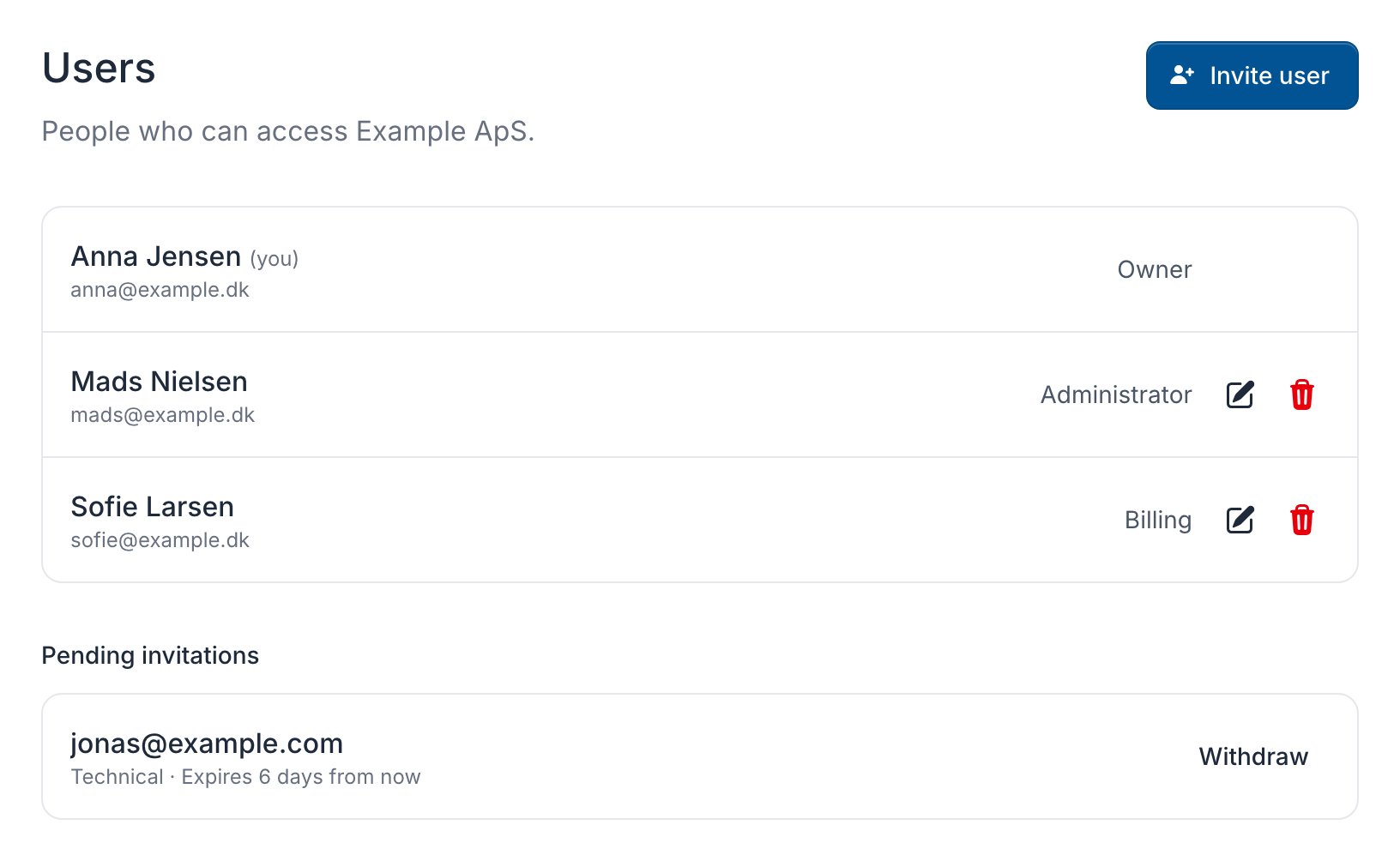
Users page with the owner, two members with edit and delete buttons, a pending invitation and Invite user
2

Choose the access

Enter the person’s Email address, choose a Role and click Send invitation. For Custom, tick the permissions you want to give.
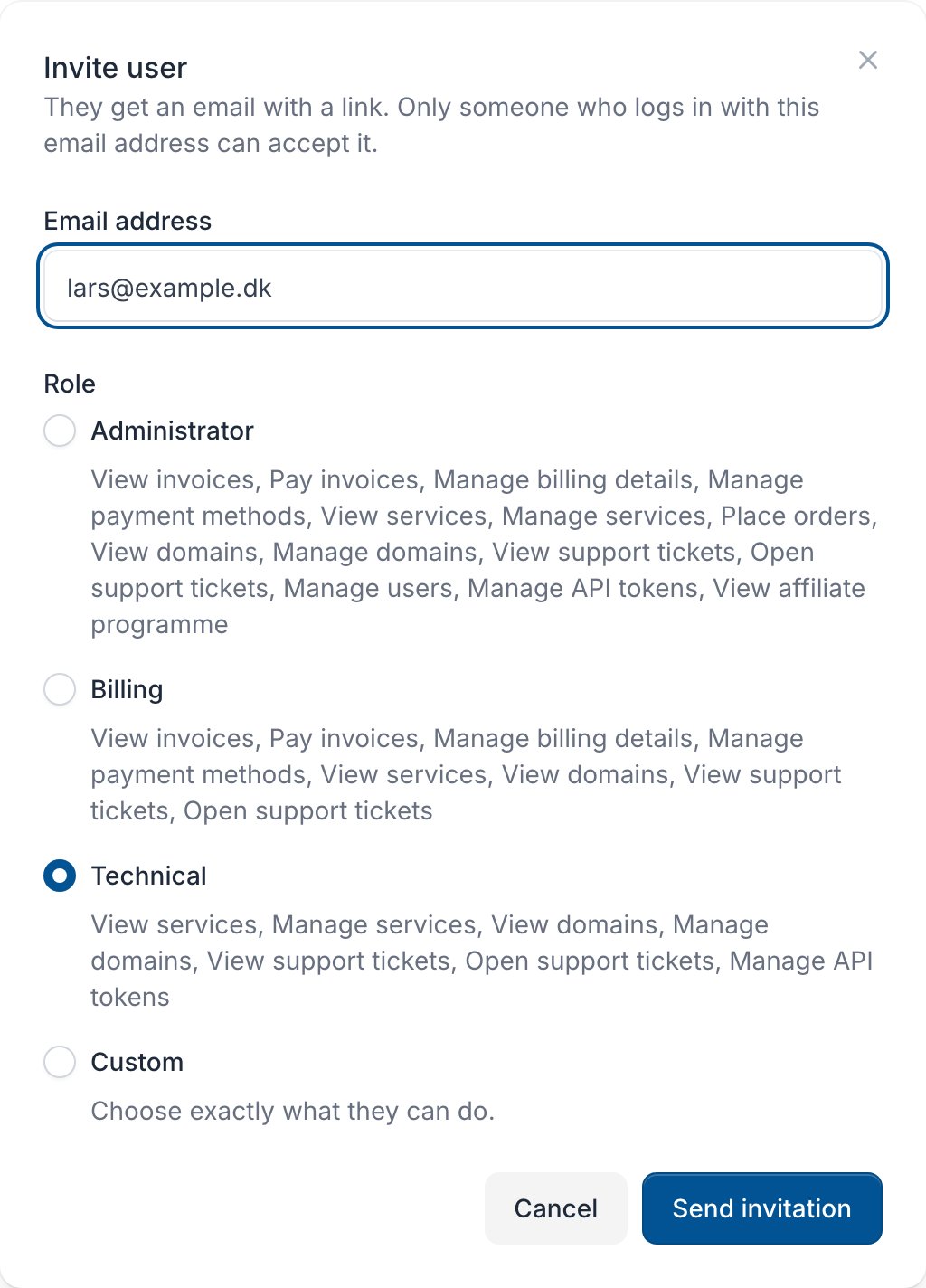
Invite user dialog with Email address and the roles Administrator, Billing, Technical and Custom
The invitation works for 7 days. Until it’s accepted, it shows under Pending invitations, where Withdraw cancels it.

Accept an invitation

Click View invitation in the email, log in with the address it was sent to and click Accept invitation. No login yet? Click Sign up and create one with that address first. You don’t need a billing account of your own.

Change or remove a member

On Team access > Users:
  • Change access: click the edit button on the member’s row, choose another Role or change the permissions, and click Save.
  • Remove: click the delete button on the row and confirm. Their access and their API tokens for this billing account stop working straight away.
You can’t change the owner’s access or your own. To hand the account to someone else, see Transfer ownership.
A member with Manage users can only give the permissions they hold themselves, and only change or remove members whose permissions they all hold too.

Roles

Permissions

Some permissions come with a view permission, for example Pay invoices with View invoices.

Require 2FA for everyone

The owner can require two-factor authentication or a passkey for every member. Set up your own second factor first, then open More > Account settings and switch on Require two-factor authentication for all users.

Activity log

Team access > Activity lists changes to the billing account and its members, such as invitations, billing details, services, payments and tickets, and when PerfGrid Support logged in to help. Times are in UTC.
Last modified on October 31, 2026