

Console 2FA is separate from 2FA in cPanel and the Grid Hosting panel. Turn it on in each one you use.
Turn on 2FA
1
Open Password and 2FA
In the sidebar, open Security > Password and 2FA and confirm your password.
2
Click Enable 2FA
Under Two-factor authentication, click Enable 2FA.
3
Scan the QR code
Scan the QR code with your authenticator app, or type the key under it into the app. Click Continue.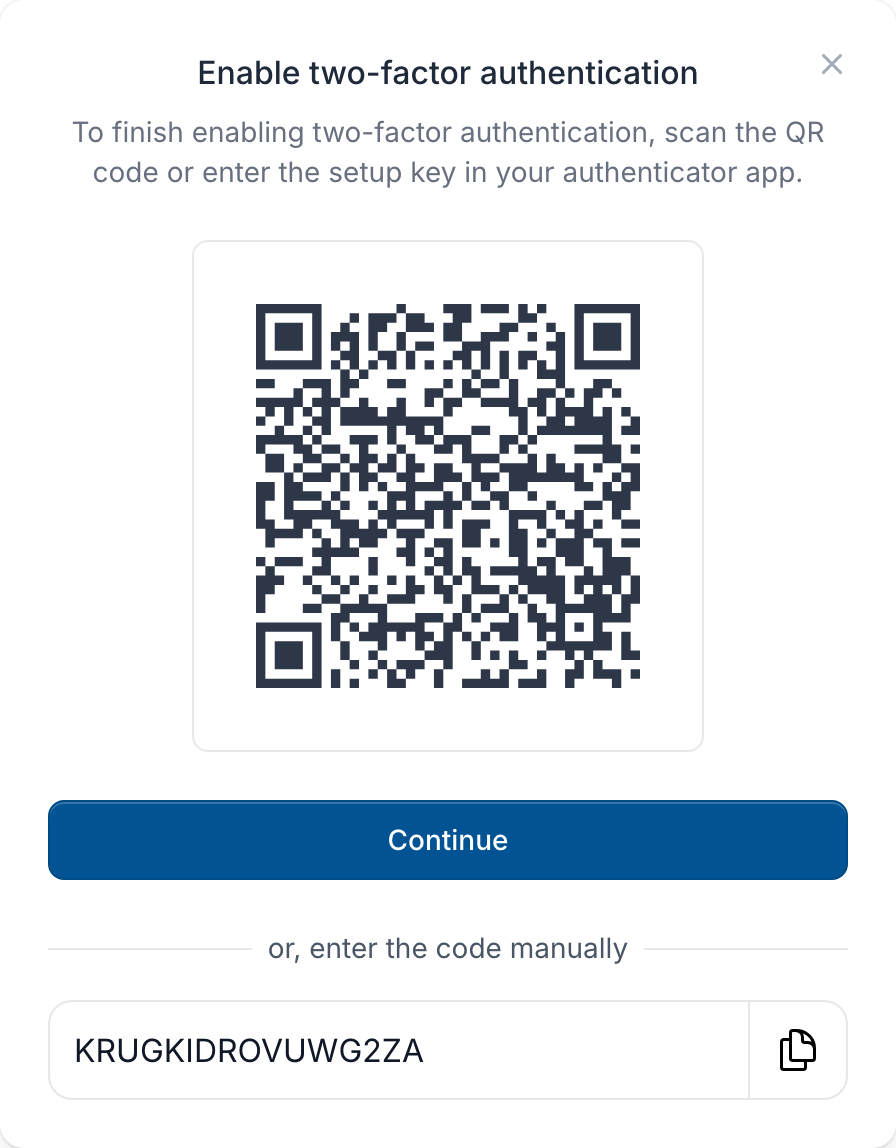
4
Enter the code
Enter the 6-digit code your app shows and click Confirm.
5
Save your recovery codes
Click View recovery codes and store the codes in a password manager or another safe place.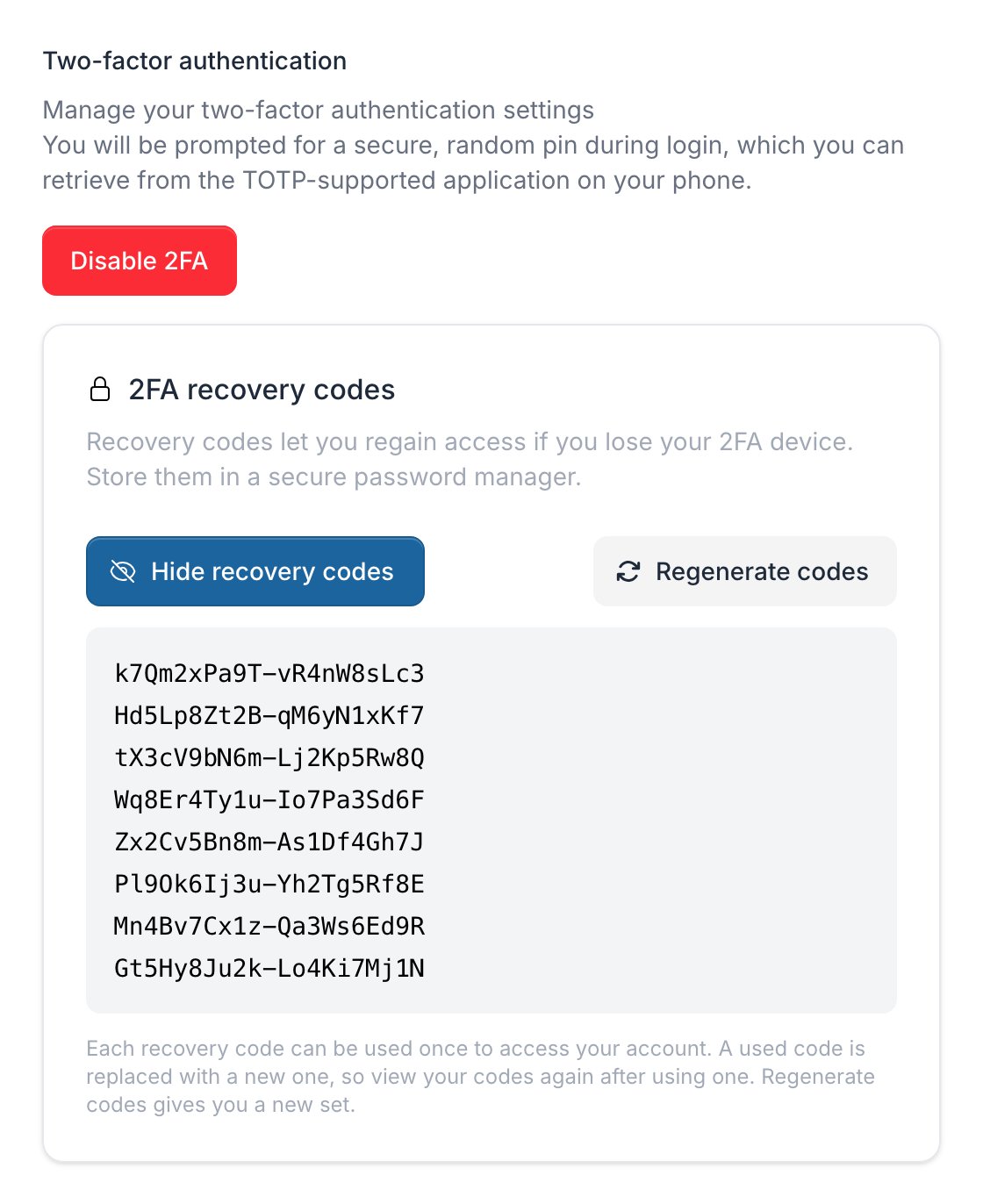
Recovery codes
A recovery code lets you log in without your phone: on the code page, click Log in with a recovery code. You get 8 codes and each works once; the console replaces a used code with a new one, so view and save your codes again afterwards. Regenerate codes gives you a new set and the old codes stop working.If you lose your phone
- You have a recovery code: log in with it, click Disable 2FA, then Enable 2FA to set up your new phone.
- You have a passkey: click Log in with a passkey, then set up 2FA again.
- You have neither: contact us through the contact form. You don’t need to log in to use it.