

Change your invoice details
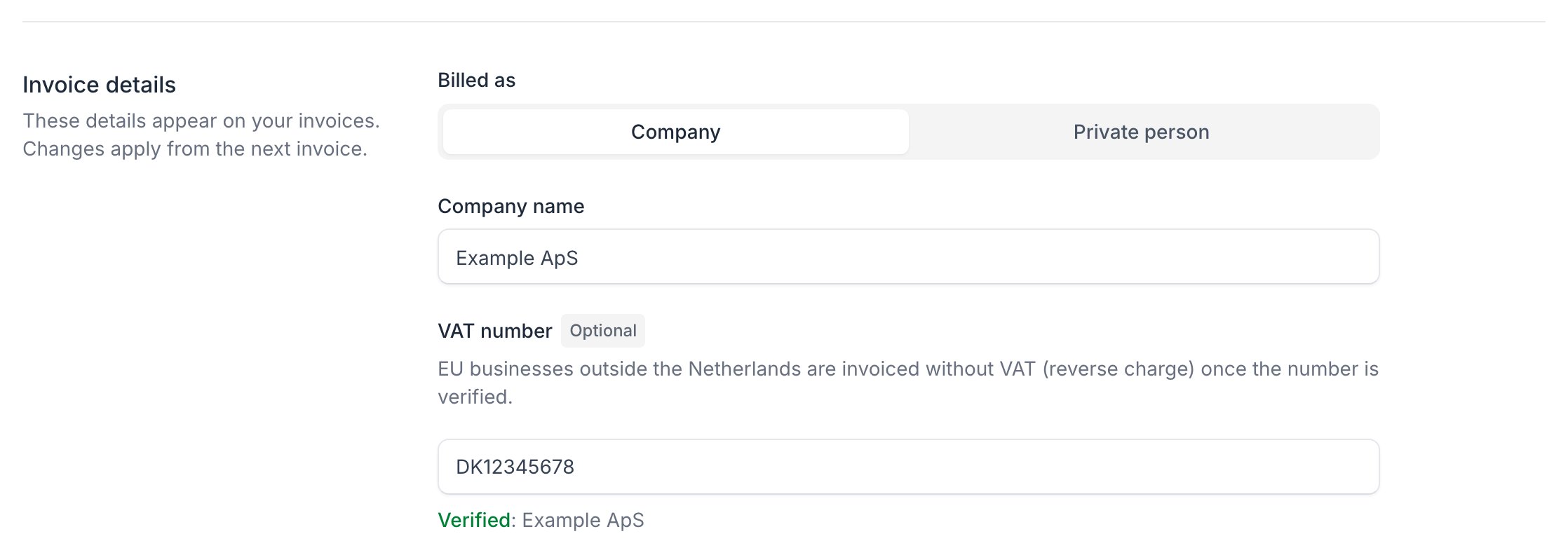
Change the fields and click Save. Changes apply from the next invoice; paid invoices never change. The Currency field shows your billing account’s currency: open a support ticket to change it.You can’t change the Country yourself, because it decides the VAT. Open a support ticket to change it.
Add your VAT number
Enter it in VAT number with its country code, for exampleDK12345678. We check it with the EU VAT register when you leave the field, then click Save.
Send copies of documents to other addresses
Under Copies of documents, add addresses that should get copies of your documents, such as your bookkeeper. They don’t get a login.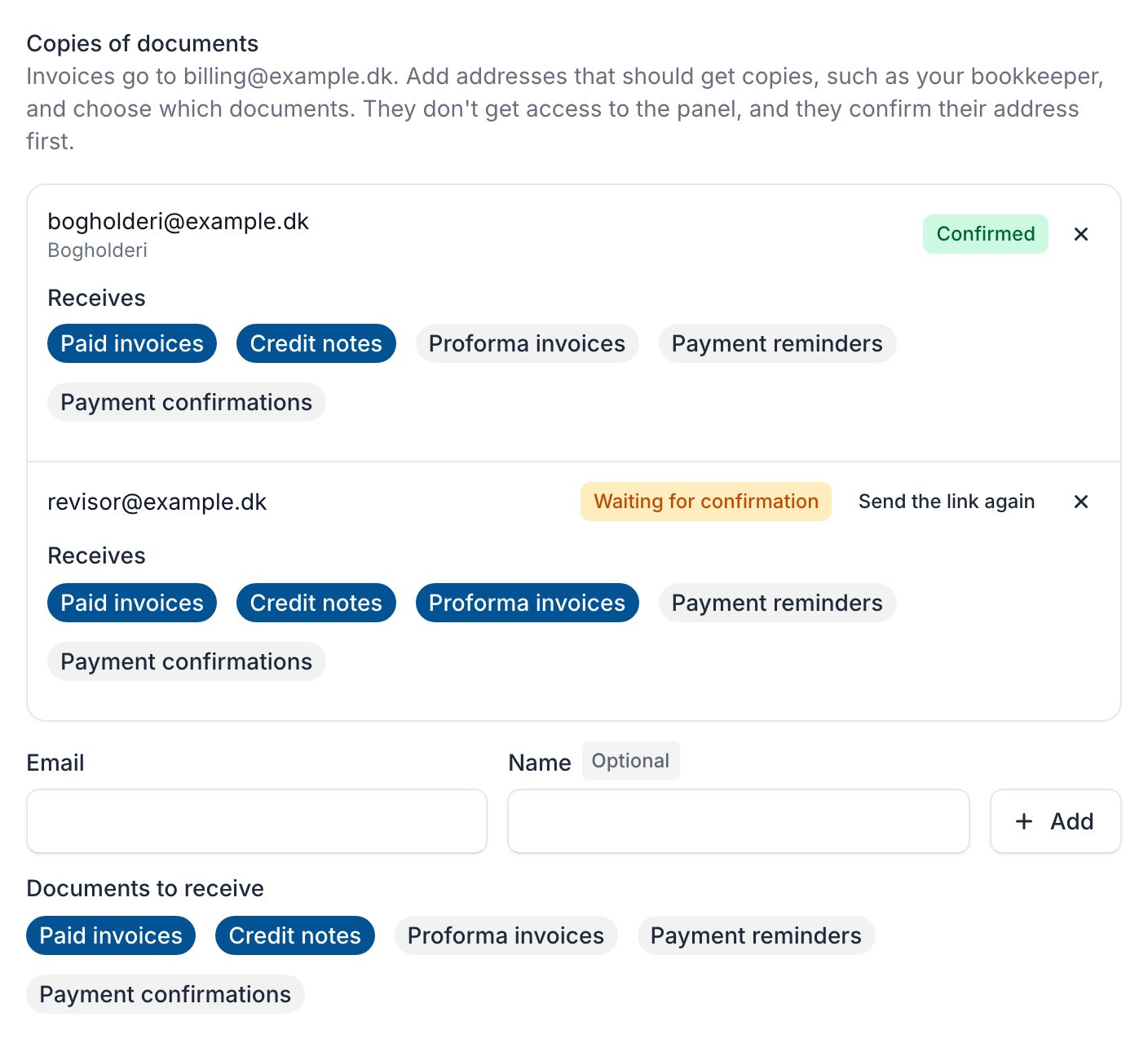
1
Enter the address
Enter the Email and, if you like, a Name.
2
Choose the documents
Under Documents to receive, pick what the address gets.
3
Add it
Click Add. We email the address a link, which works for 7 days. Copies start once they click Confirm.