

P-2026-000123). Once it is paid in full, it becomes a numbered VAT invoice (such as 2026-00042), which we email to you. See Why do you issue proforma invoices?
You need the View invoices permission to see invoices, and Pay invoices to pay them.
Find an invoice
Click Invoices in the sidebar. The tabs filter the list: All, Unpaid, Paid and Cancelled.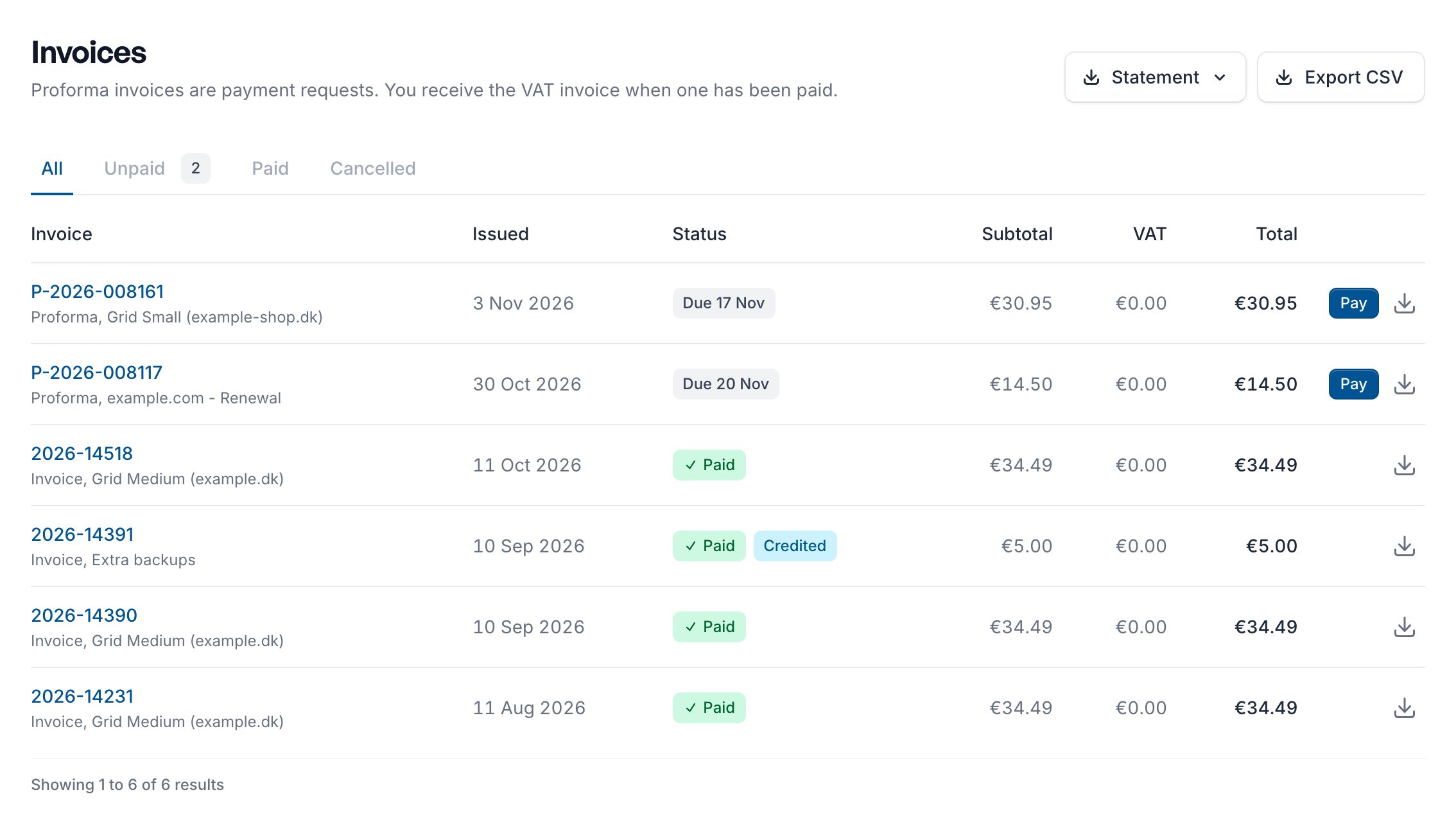
- Click an invoice’s number for a summary, then Open invoice for its page.
- Click the download icon on a row for the PDF.
Pay an invoice
1
Open the invoice
Click Pay on the invoice’s row.
2
Use your credit (optional)
If you have account credit, click Use credit under Use your credit. See Account credit.
3
Choose how to pay
Pay with a saved card, Pay with another card (Pay by card if you have none saved), or Pay with iDEAL for invoices in euros. Finish on our payment provider’s page.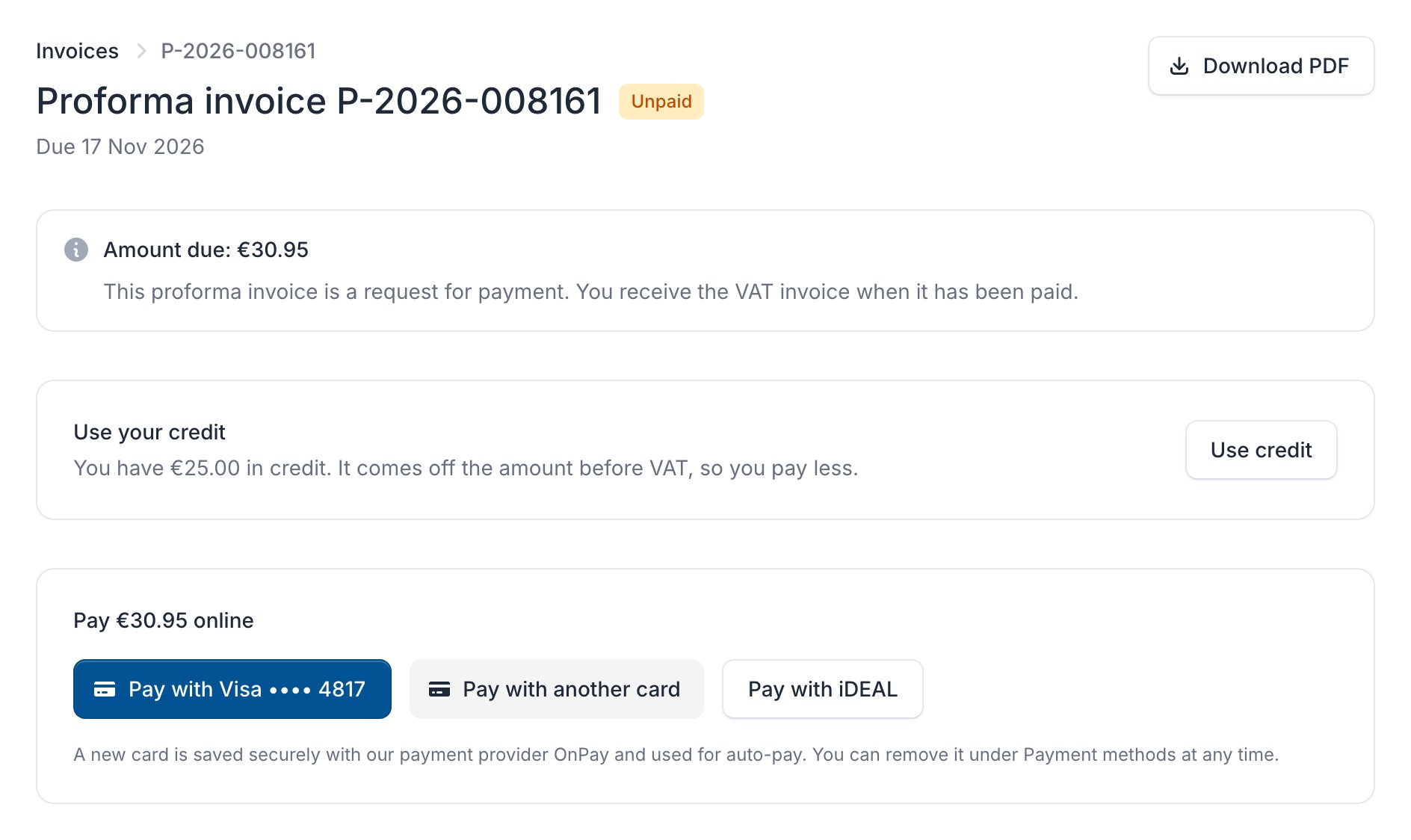
A saved card only pays invoices in its own currency. An online payment always pays the whole amount due.
When you get your VAT invoice
- Invoices in euros: as soon as the payment has gone through.
- Invoices in DKK, USD or GBP: once the European Central Bank has published the day’s exchange rate, usually by 16:00 UTC.
- EU businesses without VAT (reverse charge): once the EU VAT register (VIES) has confirmed your VAT number.
Credit notes
A credit note corrects a paid VAT invoice, for example when we refund part of it. The invoice then shows Credited, and its page links to the credit note under Credit notes. The credit note’s Refund box says where the money went. To ask for one, open a support ticket.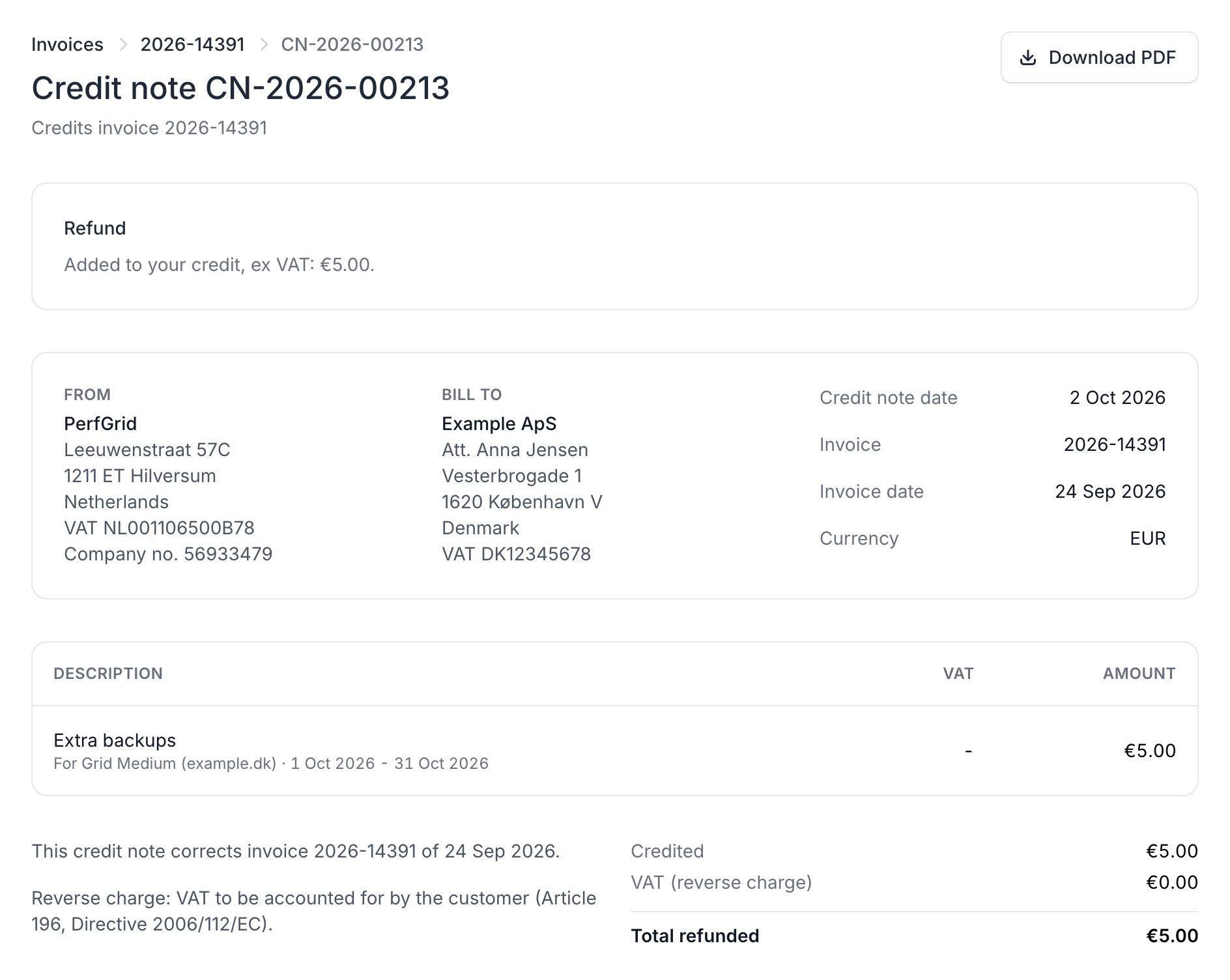
Statements and exports
At the top of the Invoices page:- Statement: click it and choose a year for a PDF with your invoices, payments, credit notes and refunds, and a running balance.
- Export CSV: a file with every proforma and invoice.
Earlier invoices from our old customer panel
If your billing account came from our old customer panel (billing.perfgrid.com), the Earlier invoices tab lists its invoices with the numbers you saw there, such asP15665. Unpaid ones were replaced by a new proforma that says, for example, “Replaces invoice P15665 from our old customer panel.”
If an invoice isn’t paid
- For renewals and invoices we create for you, we email a reminder 3 days before the due date (unless auto-pay will charge it), and 1, 7 and 14 days after it.
- An unpaid order or service change is cancelled after 14 days.