

Find a domain
1
Search
Go to console.perfgrid.com/domains, or click Domains in the sidebar, then Register or transfer. Type a domain or just a name, and click Search.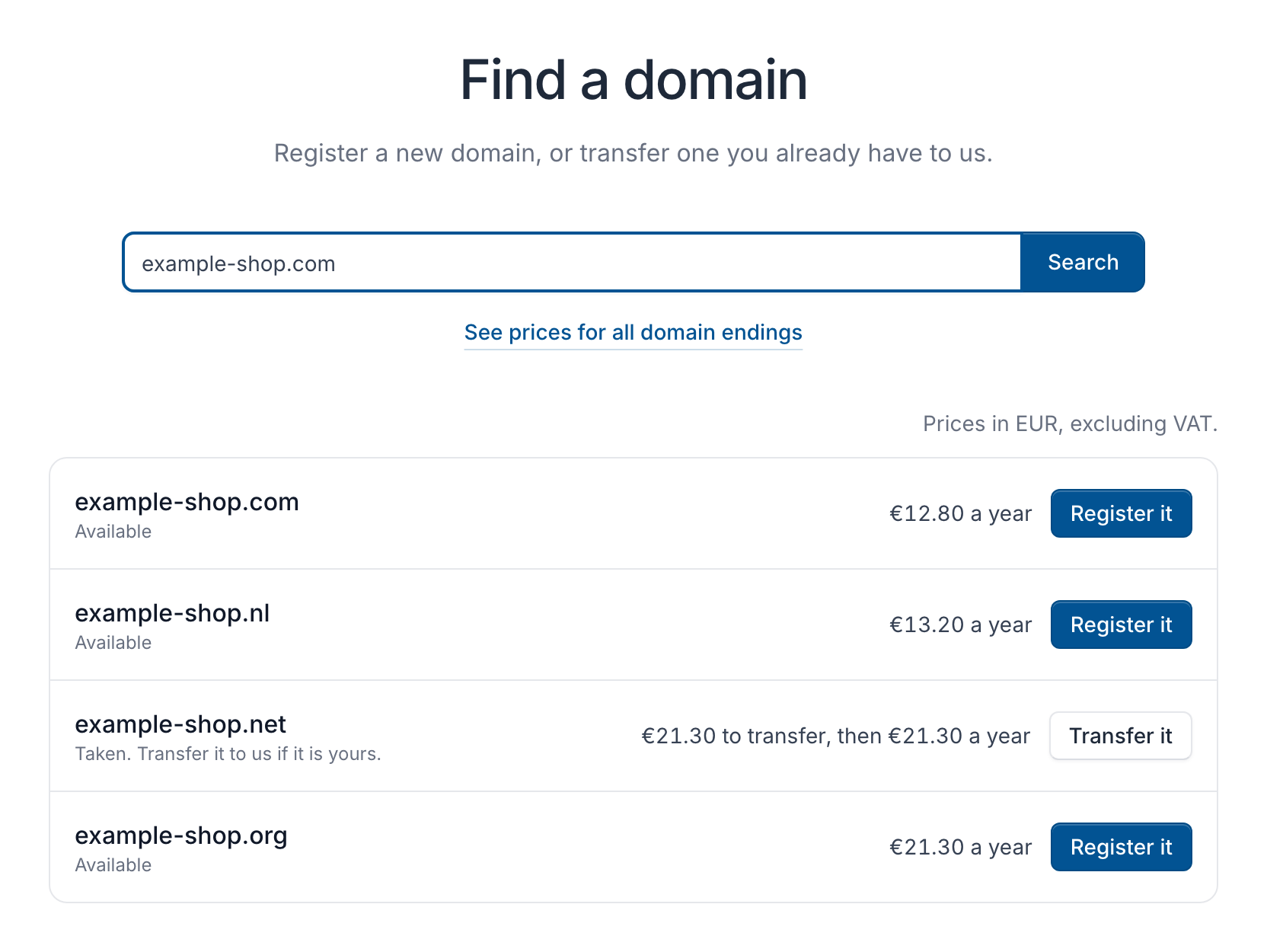
2
Add the domain to your cart
Click Register it next to a domain that is Available. The button changes to In your cart. Click it to open the cart.
See the prices for every domain ending
Click See prices for all domain endings under the search box. Registration and renewal prices are per year, a transfer is paid once. All prices are excluding VAT.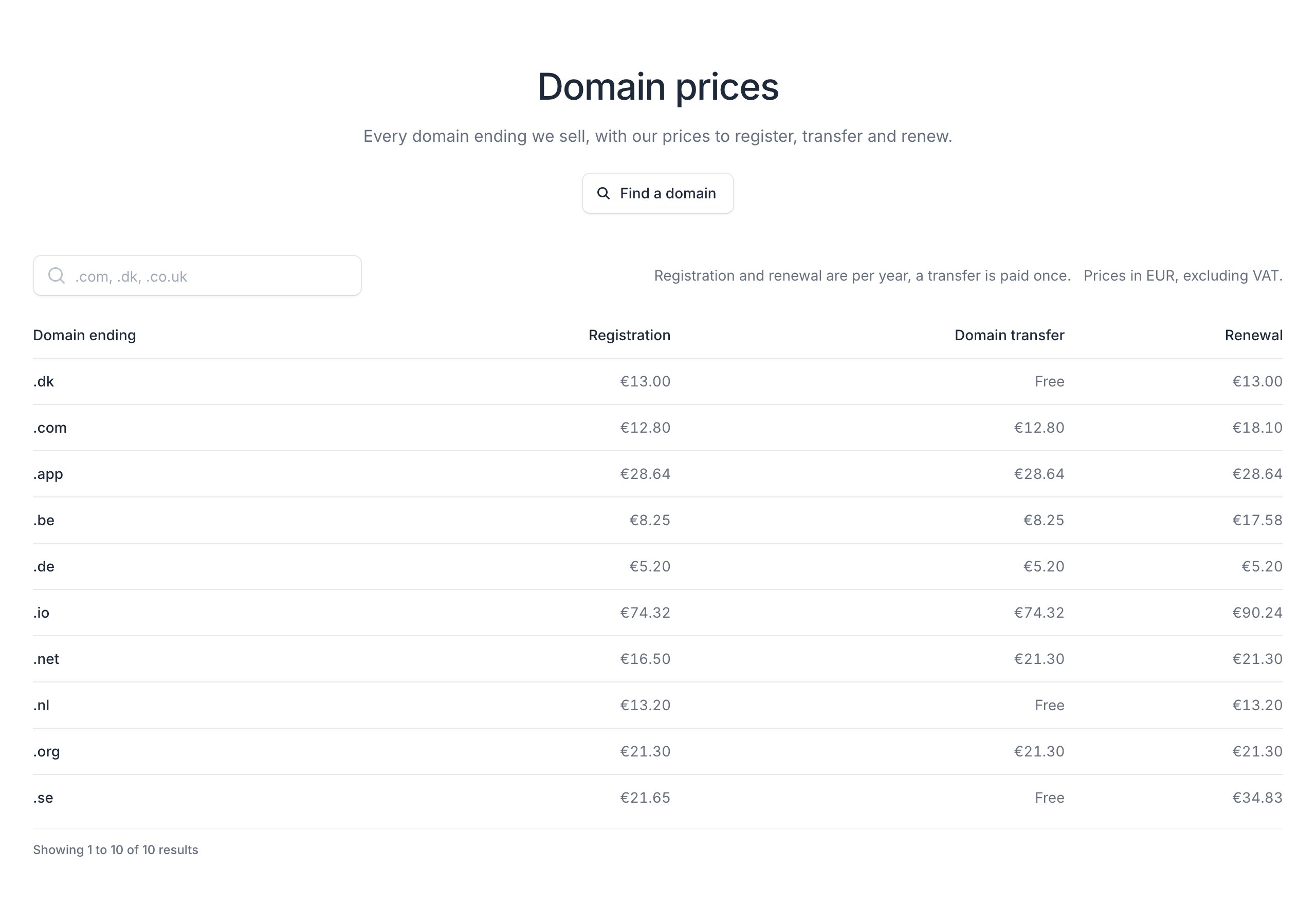
Fill in the domain details
1
Open Domain details
In the cart, open Domain details on the domain’s line. It opens by itself while something is missing.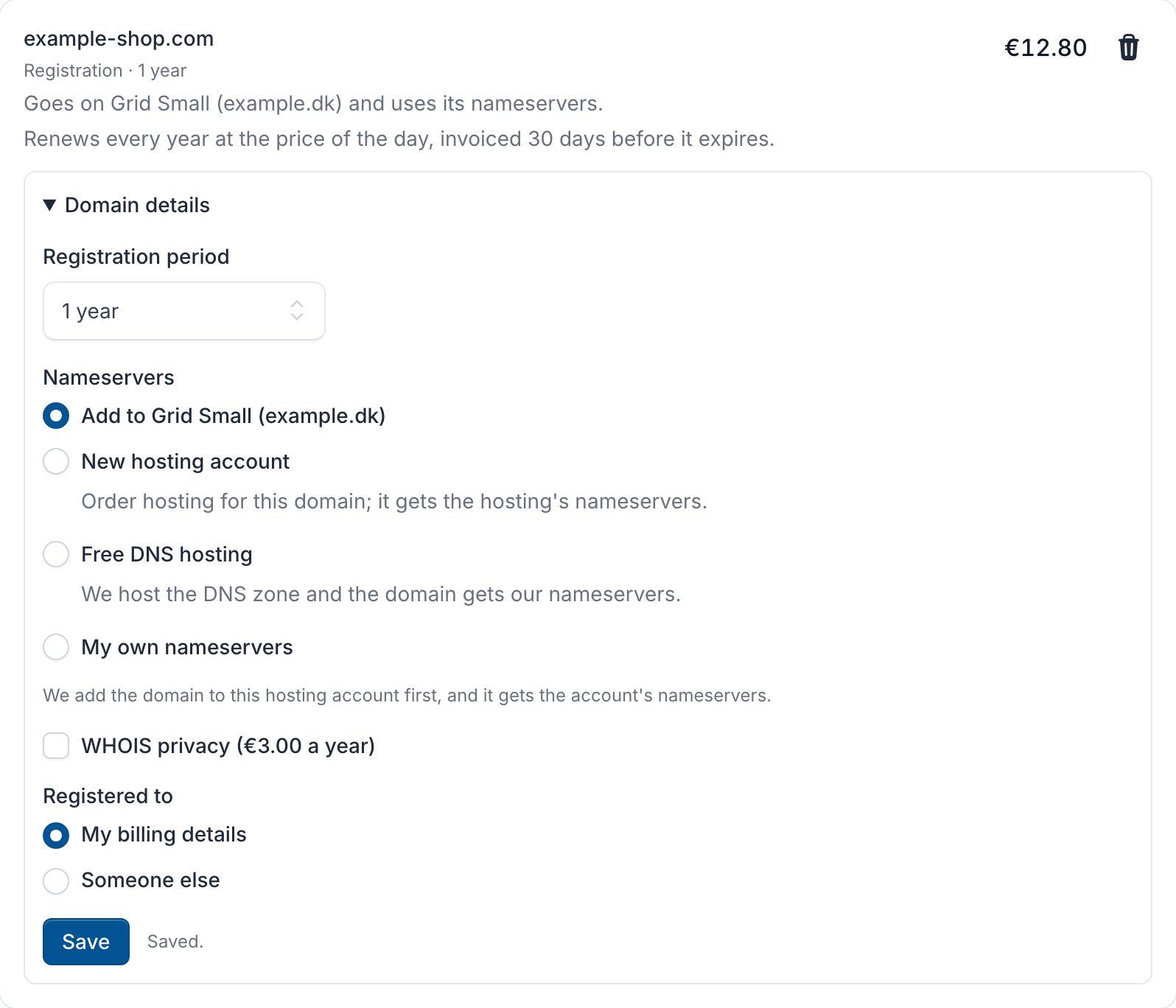
2
Choose the nameservers
- Add to one of your hosting accounts: the domain gets that account’s nameservers.
- New hosting account: choose a hosting plan, and add it to the cart on its page.
- Free DNS hosting: we host the DNS zone. Click Add free DNS hosting.
- My own nameservers: enter your DNS provider’s nameservers, one per line.
3
Check the rest and save
Choose the Registration period and whether you want WHOIS privacy. Under Registered to, choose who owns the domain: My billing details, a saved domain contact or Someone else. Fill in any extra fields the domain ending asks for, then click Save.
4
Check out
Click Continue to checkout and place the order. See Order a service. For a
.dk domain you also accept Punktum dk’s agreement at checkout.Continue to checkout stays greyed out until every line in the cart is complete, and the cart says Fix or remove the lines marked above to continue. Open Domain details on the line with the red text to see what is missing.