Before you start
- Get the domain’s auth code (also called the transfer or EPP code) from your current registrar.
- Unlock the domain at your current registrar.
- If the domain uses DNSSEC, remove its DS records at your current registrar. Otherwise the domain stops resolving when it moves.
Transfer a domain
1
Find the domain
Go to console.perfgrid.com/domains, or click Domains in the sidebar, then Register or transfer. Search for the domain. It says Taken. Transfer it to us if it is yours., with the transfer price next to it.
2
Add the transfer to your cart
Click Transfer it. The button changes to In your cart. Click it to open the cart.
3
Enter the auth code
Open Domain details on the domain’s line and enter the code under Auth code.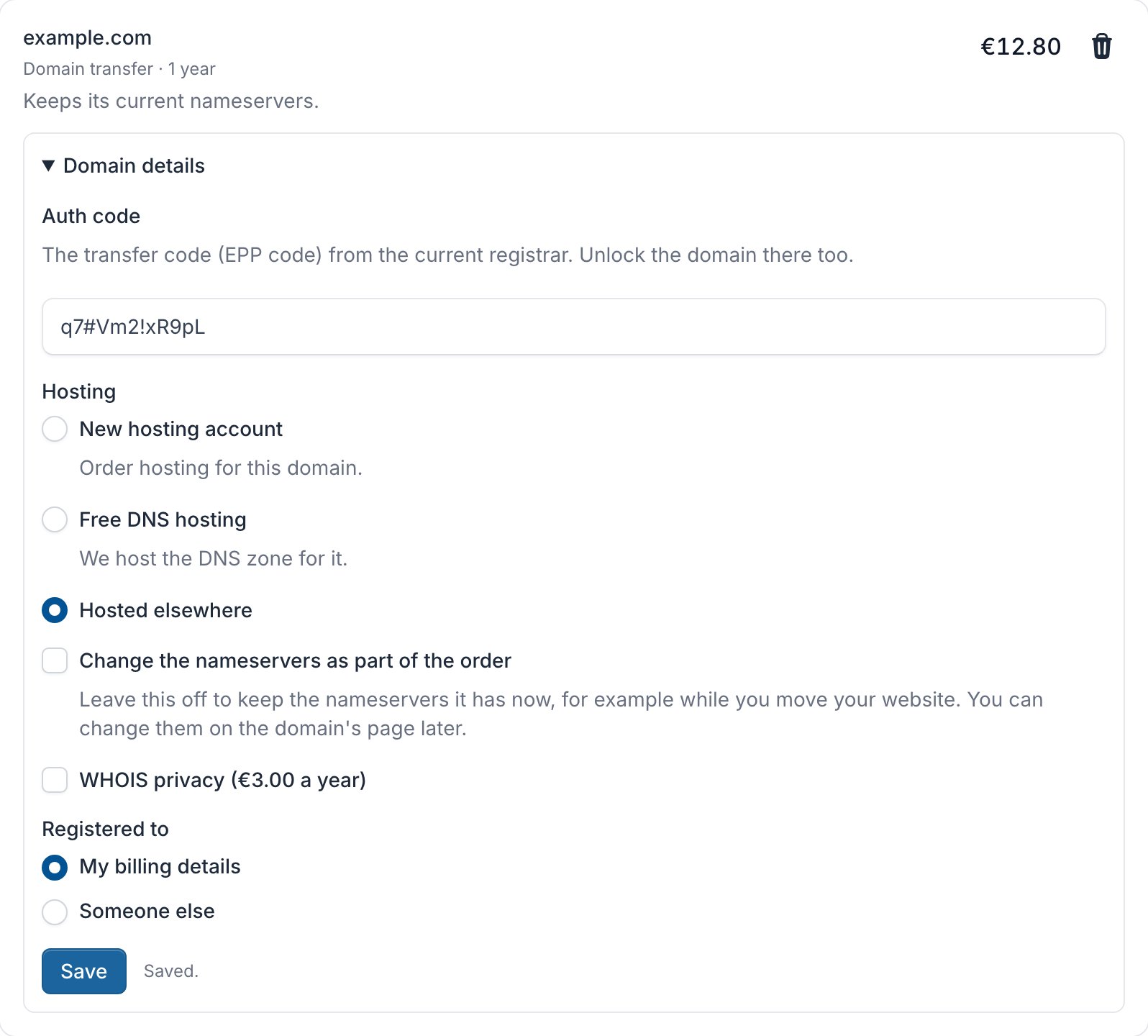
4
Choose where the domain is hosted
Under Hosting, choose one of your hosting accounts, New hosting account, Free DNS hosting, or Hosted elsewhere to stay with your current DNS or hosting provider.
5
Decide about the nameservers
By default the domain keeps its current nameservers, so you can move your website first and change them later. To change them with the transfer, tick Change the nameservers as part of the order.
6
Save and check out
Click Save, then Continue to checkout and place the order. See Order a service.
What a transfer costs
A transfer is paid once and covers one year for most domain endings. After that, the domain renews every year at the renewal price. For some endings the transfer adds no time, or the registry starts a new year on the day of the transfer: the domain’s line in the cart tells you when.After you order
Once the order is paid, the domain shows under Domains as Transfer in progress. When the transfer is done, we email you and the status changes to Active.If the auth code is refused
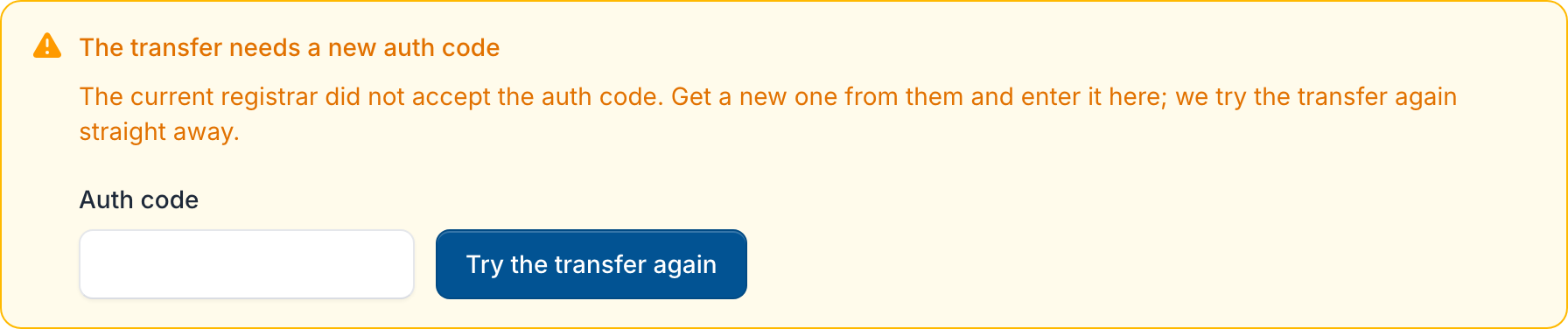
If your current registrar doesn’t accept the auth code, or the domain is still locked there, we email you. Get a new auth code and check that the domain is unlocked. Then open the domain under Domains, enter the new code and click Try the transfer again. You need the Manage domains permission.