

See a service’s addons
Open the service from Services in the sidebar. The Addons section lists the service’s options, such as a dedicated object cache, then the addons the service has, and under Available for this service the ones you can add, with their price per billing period excluding VAT. An addon that suits the service, such as Patchstack on an account with WordPress sites, can be shown at the top. To add or change an option, see Add or change an option.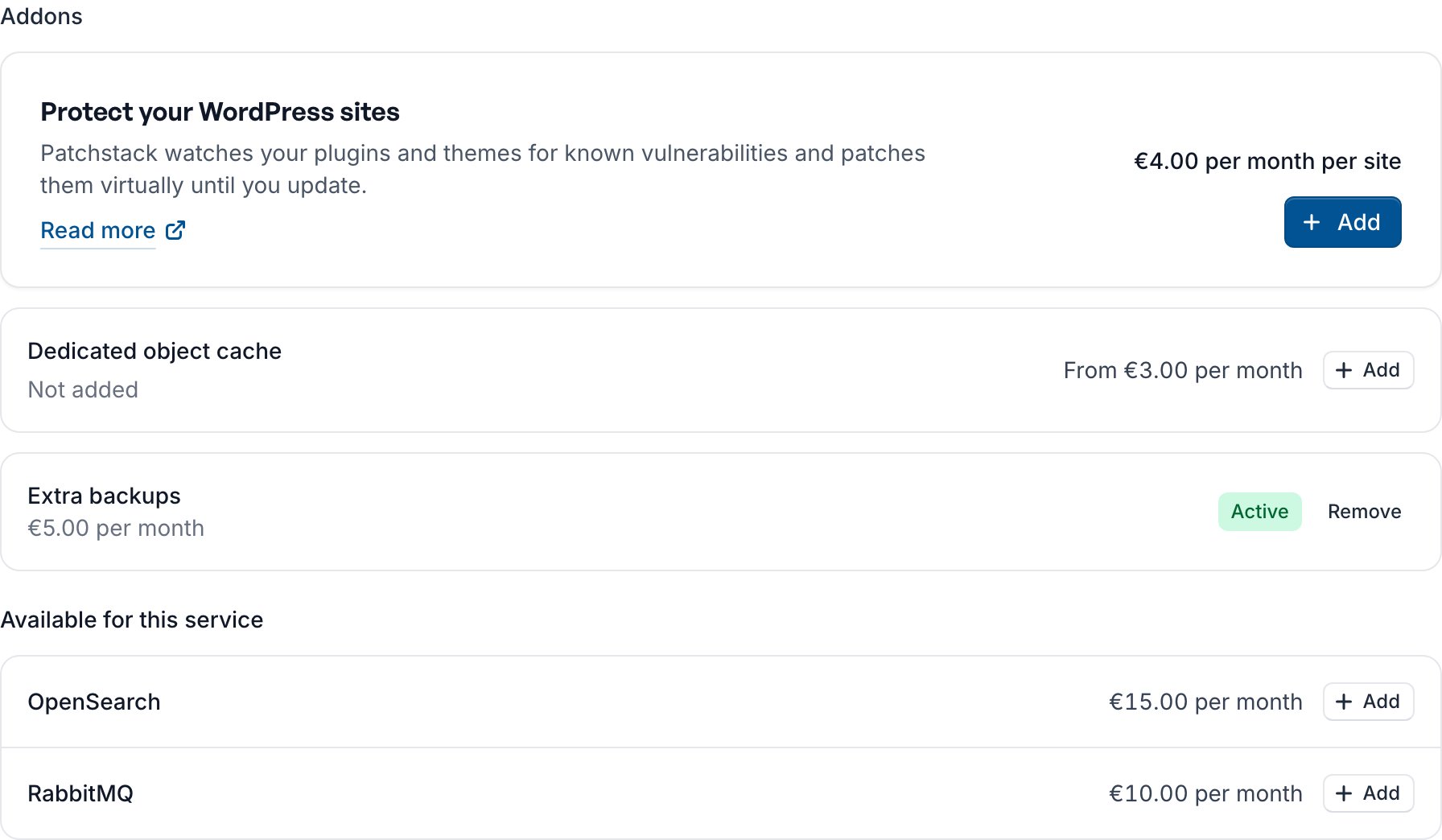
Add an addon
1
Click Add
In the Addons section, click Add next to the addon.
2
Choose the quantity
For an addon you buy per site or per unit, set Quantity. Enter a Promo code if you have one. The panel shows what you pay now and per period after that.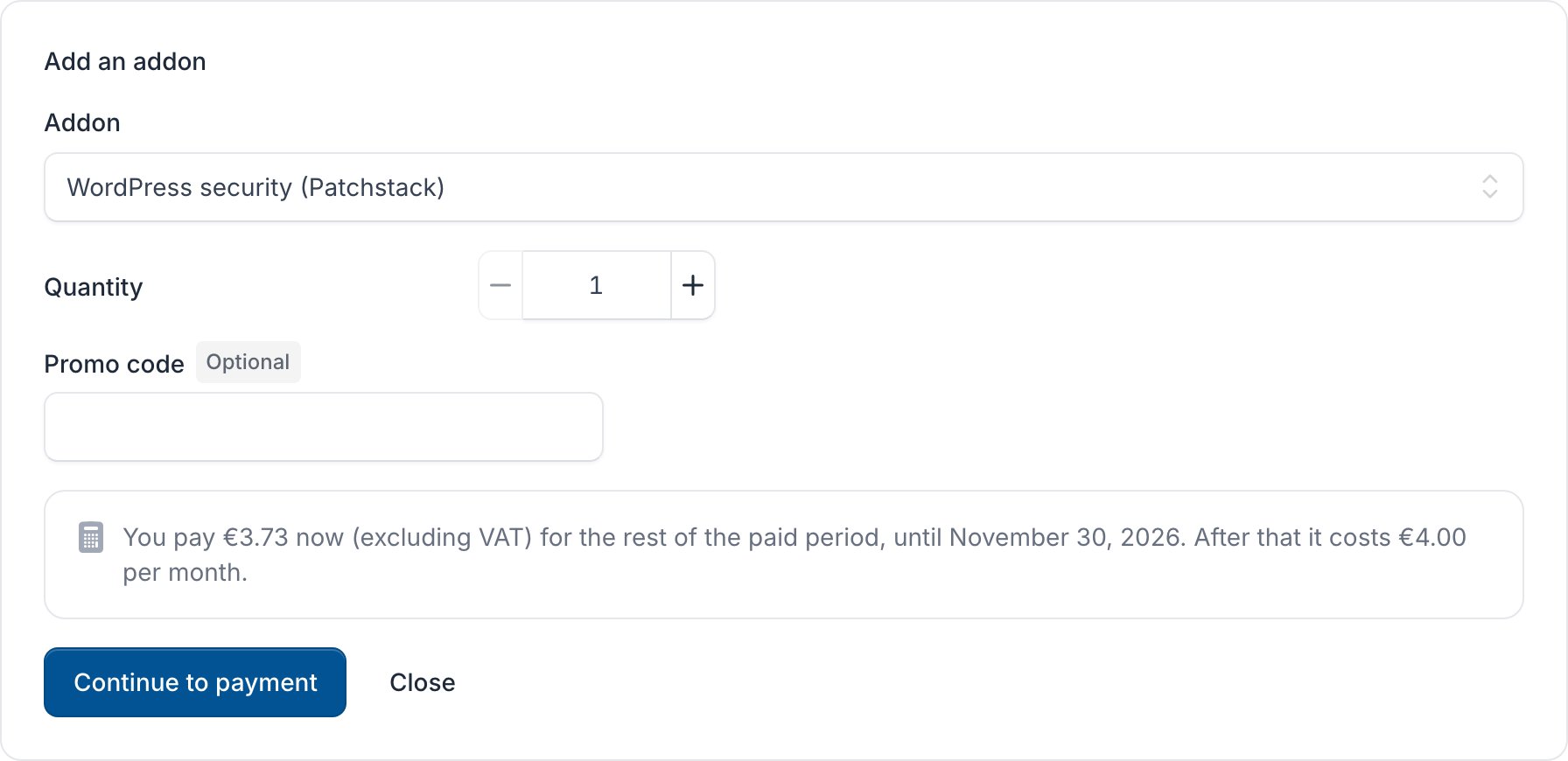
3
Pay
Click Continue to payment and pay the invoice. We set the addon up once it is paid.
Change the quantity
Click Change quantity next to the addon, set the new Quantity and click Continue to payment or Confirm. More takes effect once you pay for the rest of the paid period; fewer takes effect on the next due date. Raising the quantity needs Place orders, lowering it Manage services.Remove an addon
1
Click Remove
In the Addons section, click Remove next to the addon.
2
Choose when
Under When, choose At the end of the paid period or Immediately. See Cancel a service for what each means.
3
Remove it
Click Remove the addon.