You change a service on its page. The package button next to Package says which way you can go, the options such as extra disk space are in the Addons section, and Change billing cycle is under the service. Before you confirm, the console shows what the change costs and when it takes effect. To add or remove an addon, see Addons. The buttons are there while the service is Active and not cancelled. You make one change at a time.

Who can make a change

With one of the two, you can open the panel and see the price. If the change needs the other permission, the panel says so instead of letting you confirm.

When a change takes effect

If the renewal invoice for the next period is already issued and unpaid, we update it to the new price and email it to you again.

Upgrade or downgrade the package

1

Open the packages

On the service’s page, click the button next to Package. It says Upgrade package when every package you can move to costs more, Downgrade package when every one costs less, and Upgrade or downgrade when there are both. Without a package to move to, there is no button.
2

Choose the package

Your package is shown first, marked Current. Each package you can move to is a card with what it includes, its price and Upgrade or Downgrade. Click the one you want, and enter a Promo code if you have one. The panel shows what you pay.
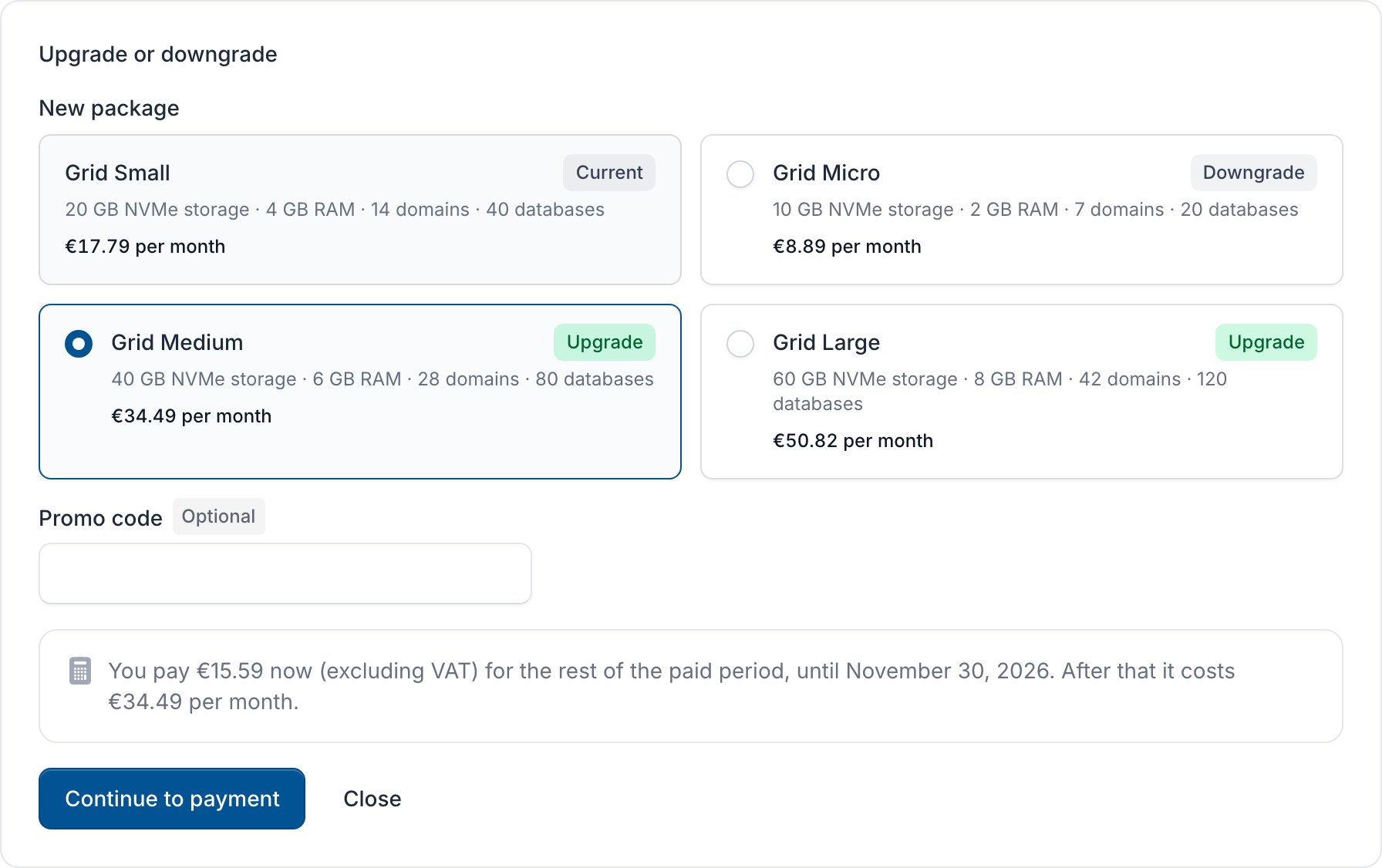
Upgrade or downgrade panel with Grid Small as the current package, cards for Grid Micro, Medium and Large, Grid Medium chosen and the amount to pay now
3

Confirm

Click Continue to payment and pay the invoice for the difference. When there is nothing to pay now, the button says Upgrade to … or Downgrade to … with the package’s name.
If the new package already includes extras you pay for, Drop the extras … already includes is ticked, so you stop paying for them. When a bigger package gives you more for the same price or less, the panel suggests it with Switch to …. A package with less disk than the account uses, or one that doesn’t offer an addon you have, can’t be chosen: its card says why. Free up space or remove the addon first. An addon you have already removed runs to its end date and doesn’t stop the change. If the package you want isn’t listed, contact support.
An invoice for a change that is still unpaid after 14 days is cancelled, and the change with it.

Add or change an option

The options you can change, such as extra disk space or a dedicated object cache, are listed in the service’s Addons section. Each shows what the service has, for example Not added or 10 GB extra (30 GB in total), and its price per billing period excluding VAT.
1

Click Add or Change

Click Add next to an option the service doesn’t have, or Change next to one it has. The panel opens with that option only.
2

Choose the new value

Each size or amount shows its price. Choose None to remove an optional extra.
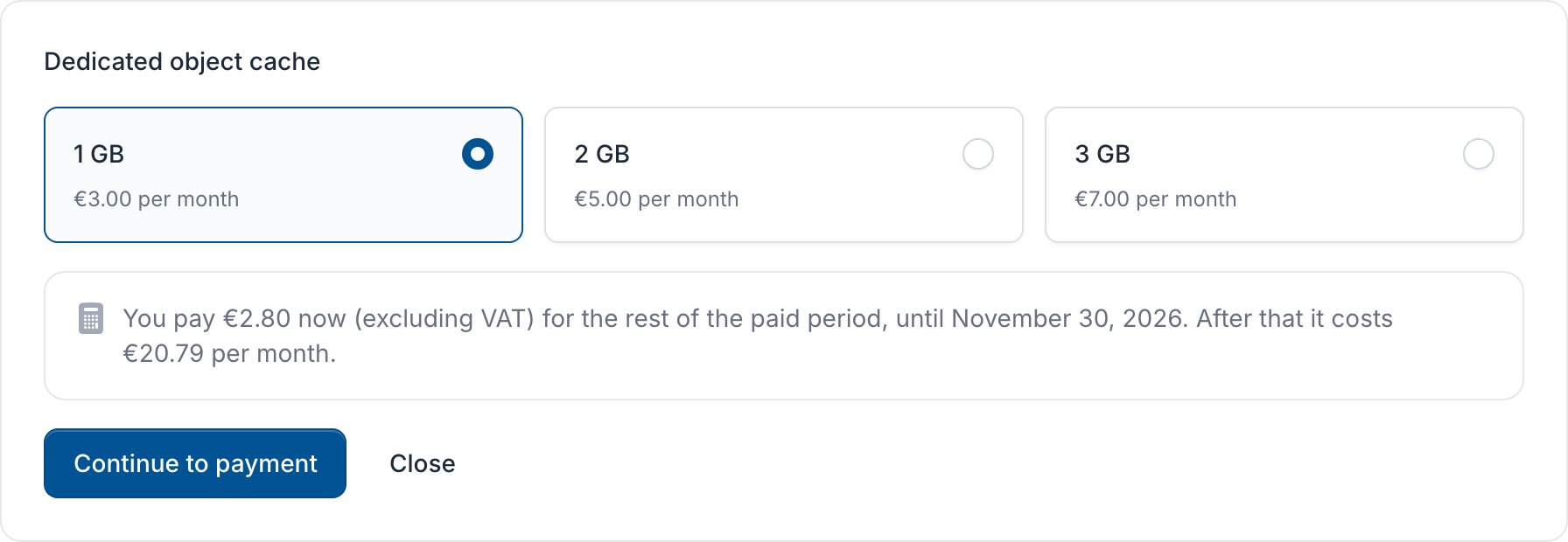
Dedicated object cache panel with 1 GB chosen, the price of each size and the amount to pay now
3

Confirm

Click Continue to payment and pay the invoice, or Confirm when there is nothing to pay now.
Adding an option needs Place orders. Changing one you have needs Place orders for more and Manage services for less. Options only our team can change aren’t listed: contact support for those.

Change billing cycle

Click Change billing cycle, choose a cycle under Bill this service and click Confirm. Only the cycles the plan offers are listed.
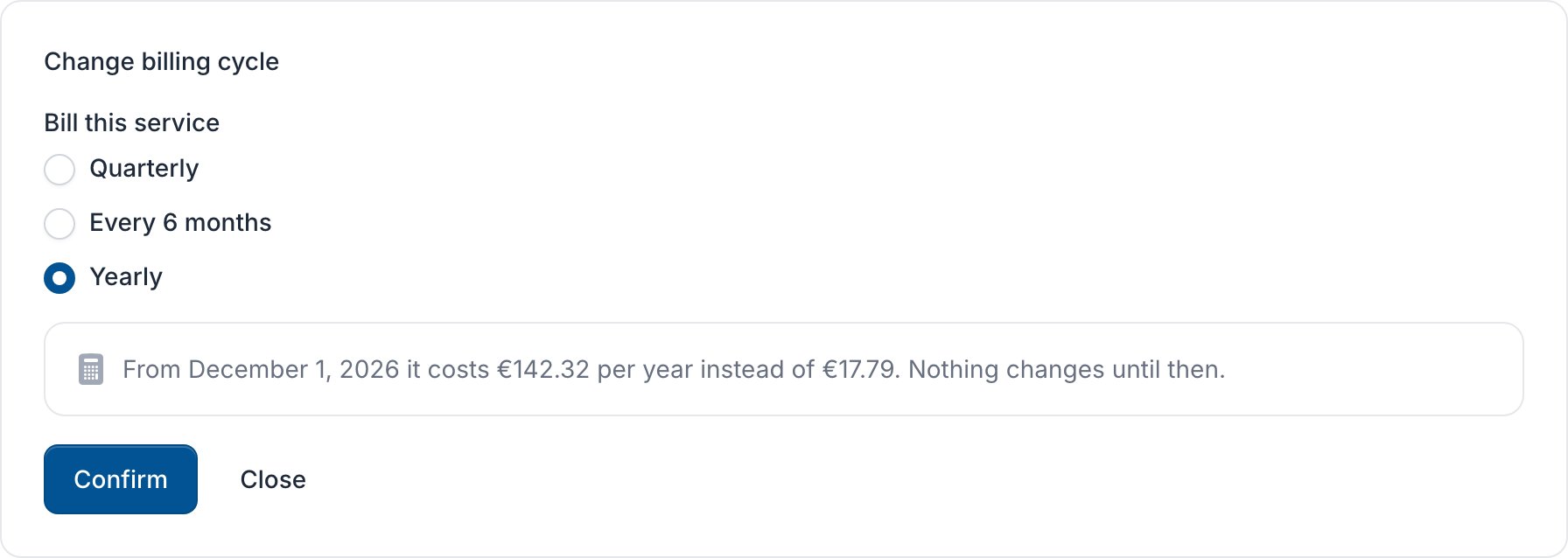
Change billing cycle panel with Yearly chosen and the price from the next due date
The new cycle starts on the next due date, and the service’s addons move to it too. If more than one renewal invoice is already issued for the service, for example two months that are still unpaid, pay its open renewal invoices first. The cycle can’t change until then.

Withdraw a change

A change that hasn’t taken effect yet shows in a box on the service’s page. Waiting for payment of … means it takes effect once you pay that invoice (click Pay, or ask someone with the Pay invoices permission); Takes effect on … means it is scheduled for that date.

An upgrade waiting for payment with the Pay and Withdraw buttons
To keep the service as it is, click Withdraw and confirm. Withdrawing a change that waits for payment cancels its invoice. Once a period on the new terms is paid, or a later renewal invoice is already issued on a new billing cycle, the change can no longer be withdrawn. Contact us if you need it undone. A Price change is a new price we scheduled. We email you about it at least 30 days before, and you can’t withdraw it: contact us if you have questions.
Last modified on November 3, 2026