

c1234567). The schedule is UTC. The shortest interval is once per minute.
The job’s PATH includes /usr/local/bin, so composer and wp (WP-CLI) are available without a full path. You can also call a versioned PHP binary, such as php84.
Cron does not email you the output. stdout and stderr are not discarded unless you redirect them. Handle output yourself, for example append to a log file or send it to /dev/null.
Add a cronjob
1
Log in
Log in to your hosting panel at hosting-panel.net.
2
Open Cronjobs
Go to Tools → Cronjobs.Each row shows Cron Expression, Next Run, and Command. You can Edit or Delete a job.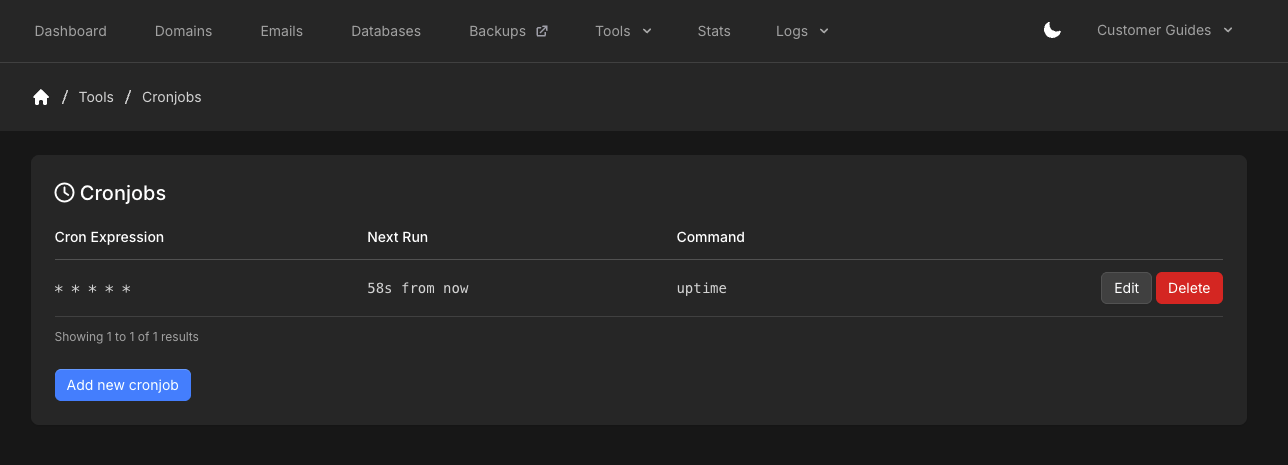
3
Add new cronjob
Click Add new cronjob.
4
Set the schedule
Choose a Predefined Cron Expression, or type your own in Cron Expression, such as 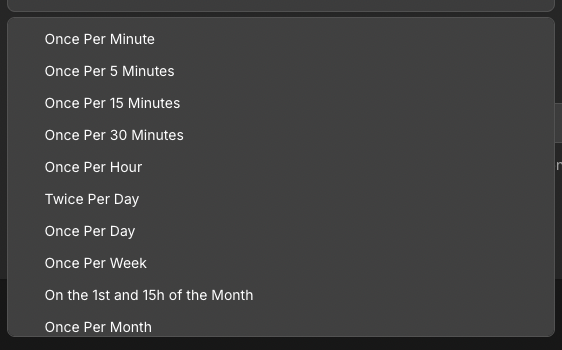
* * * * *. Picking a predefined option fills the expression field.Predefined options include:- Once Per Minute
- Once Per 5 Minutes
- Once Per 15 Minutes
- Once Per 30 Minutes
- Once Per Hour
- Twice Per Day
- Once Per Day
- Once Per Week
- On the 1st and 15th of the Month
- Once Per Month
- Yearly
5
Set the command
Enter the Command. The form shows an example using your account path, such as 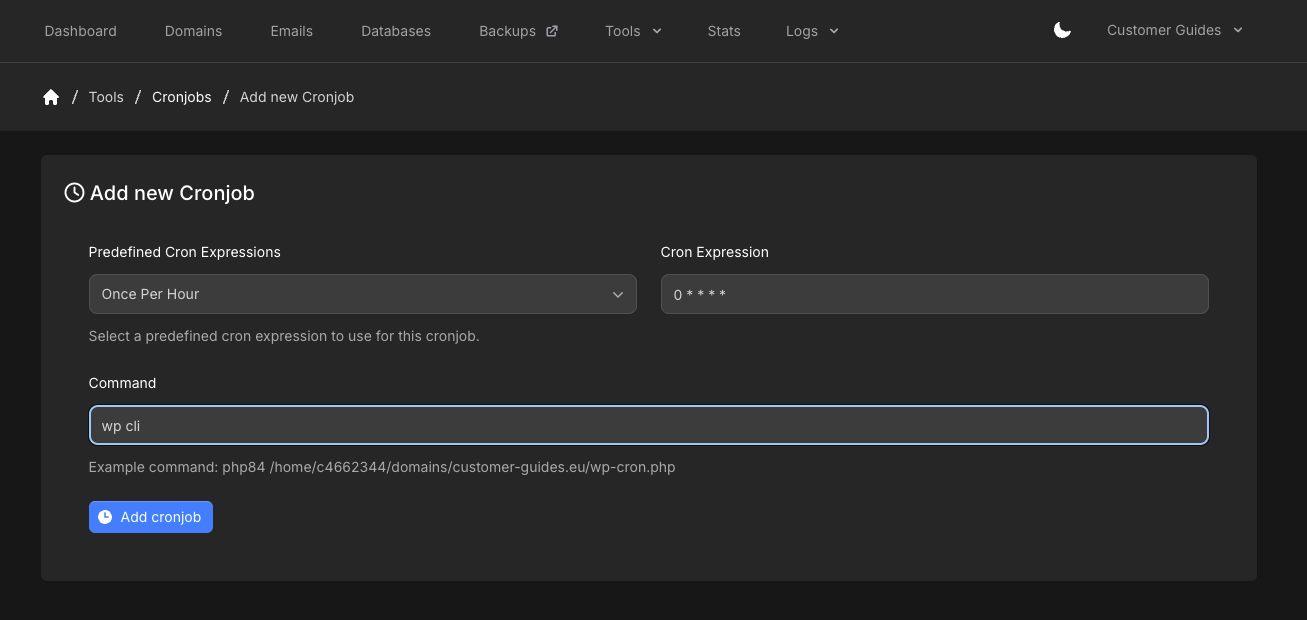
php84 /home/c1234567/domains/example.com/wp-cron.php.Redirect stdout and stderr if you do not want them to accumulate.6
Save
Click Add cronjob. The job runs on the UTC schedule you set. Suspended accounts do not run cronjobs until the account is unsuspended.